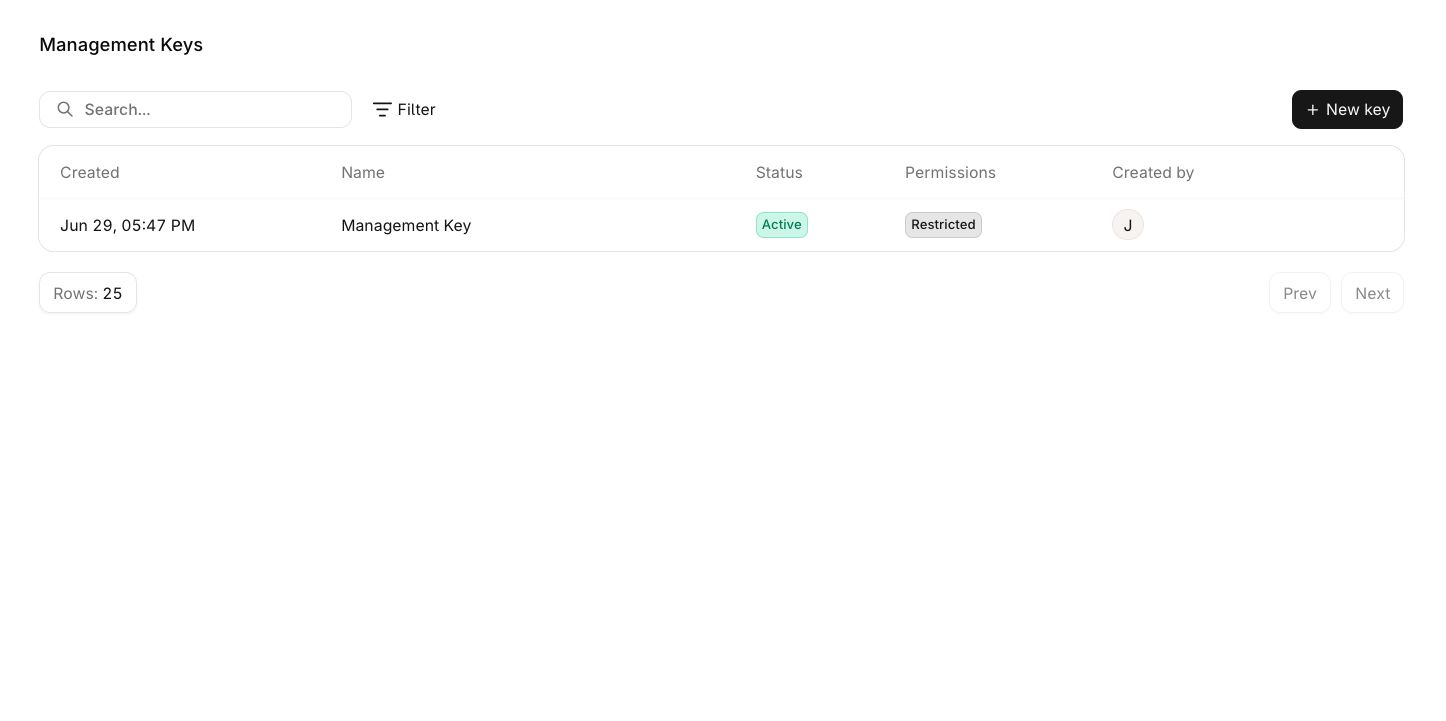
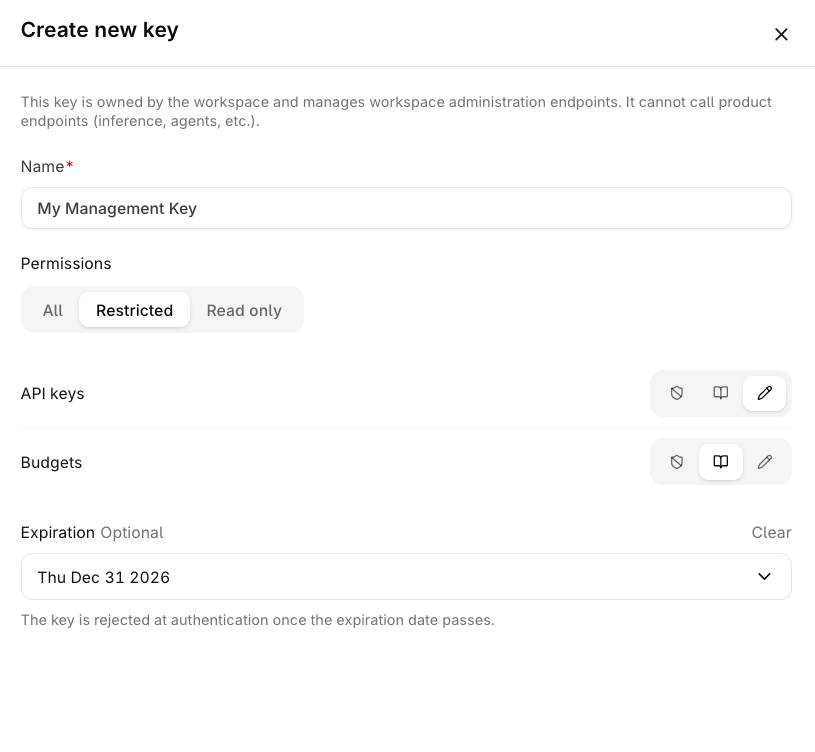
Management Keys are only available to workspace admins. The Management Keys page is not visible to non-admin members.
Management Keys are workspace-scoped tokens for authenticating workspace administration operations. Each key grants read or write access to every capability in Capabilities.
Management Keys cannot be used to query models or agents. Use a standard API Key for inference and product endpoints.
API keys cannot administer API keys or Budgets, so those two families need a Management Key. Project and Smart Router management follows the key’s scope: an all-projects key can create, update, and delete them, a single-project key cannot.
Endpoint family
Access
/v2/api-keys*
List, retrieve, create, update, and delete API keys. /v2/api-keys/capabilities is public.
/v2/budgets*
List, retrieve, create, update, reset, and delete Budgets.
/v2/projects*
An all-projects API key manages Projects across the workspace; a single-project key can only list or retrieve its own Project.
/v2/smart-routers*
An all-projects API key lists, creates, updates, enables, disables, and deletes Smart Routers across the workspace.
/v3/model-fusions*
List, retrieve, create, update, enable, disable, and delete Model Fusions.
/v2/evaluators*
List, retrieve, create, update, and delete Evaluators.
/v2/workspace-settings
Retrieve or update Workspace Settings according to the key capability.
The Restricted mode shows one row per capability. None grants no access to that capability, Read lists and views its resources, and Write also creates, updates, and deletes them. A ✗ marks a level the picker omits for that capability, which then takes only None or Read.
Capability
Read
Write
API keys
✓
✓
Audit logs
✓
✗
Budgets
✓
✓
Environments
✓
✓
Evaluators
✓
✓
Guardrail rules
✓
✓
Hub
✓
✗
Logs
✓
✗
Management keys
✓
✓
MCP gateways
✓
✓
MCP servers
✓
✓
Model fusions
✓
✓
Models
✓
✓
Notifiers
✓
✓
Policies
✓
✓
Projects
✓
✓
Reporting
✓
✗
Routing rules
✓
✓
Secrets
✓
✓
Smart routers
✓
✓
Teams
✓
✓
Traces
✓
✗
Users
✓
✓
Vaults
✓
✓
Workspace
✓
✓
Workspace models
✓
✓
Management Keys are not available through MCP. Use the REST API to manage keys programmatically. See Manage keys programmatically for the key lifecycle, permission model, and SDK examples.
Was this page helpful?
{"docsConfig":{"theme":"aspen","$schema":"https://mintlify.com/docs.json","name":"Orq.ai Documentation","description":"Documentation for Orq.ai, the EU-built control plane for enterprise AI: govern every LLM and MCP call with the AI Gateway, and ship backlog work with the Software Factory.","colors":{"primary":"#027f6b","light":"#00d2b5","dark":"#027f6b"},"logo":{"light":"https://mintcdn.com/orqai/OG_14djpK9Yasgfk/images/Orq_ai_Symbol_Dark.svg?fit=max\u0026auto=format\u0026n=OG_14djpK9Yasgfk\u0026q=85\u0026s=d01651850182afdbc6309808b688d470","dark":"https://mintcdn.com/orqai/BYq_L5I_ZDBWL_Pf/images/Orq_ai_Symbol_Light.svg?fit=max\u0026auto=format\u0026n=BYq_L5I_ZDBWL_Pf\u0026q=85\u0026s=3e372f93174202f20c31d2c045af92b9","href":"/ai-gateway/get-started/introduction"},"favicon":"https://mintcdn.com/orqai/rmwcfFw4PPljHRCz/favicon.svg?fit=max\u0026auto=format\u0026n=rmwcfFw4PPljHRCz\u0026q=85\u0026s=1827beca4e1fb46e074d8bda067f3fb1","api":{"openapi":"openapi.json","examples":{"languages":["curl","typescript","python"]}},"background":{"color":{"light":"#f7f6f5","dark":"#171717"}},"navbar":{"links":[],"primary":{"type":"button","label":"Get Started","href":"https://my.orq.ai/auth/signup"}},"footer":{"socials":{"github":"https://github.com/orq-ai","x":"https://x.com/orq_ai","linkedin":"https://www.linkedin.com/company/orqai","website":"https://orq.ai"}},"seo":{"metatags":{"author":"Orq.ai","og:type":"website","og:site_name":"Orq.ai Documentation","og:locale":"en_US","twitter:card":"summary_large_image","twitter:site":"@orq_ai","twitter:creator":"@orq_ai","viewport":"width=device-width, initial-scale=1.0","robots":"index, follow","language":"English"},"organization":{"id":"https://docs.orq.ai/#organization","name":"Orq.ai","legalName":"Orq.AI Holding B.V.","url":"https://orq.ai","logo":"https://docs.orq.ai/images/Orq_ai_Symbol_Dark.svg","sameAs":["https://github.com/orq-ai","https://x.com/orq_ai","https://www.linkedin.com/company/orqai/"]},"indexing":"all"},"fonts":{"heading":{"family":"ES Klarheit Kurrent Semibold","weight":600,"source":"https://framerusercontent.com/assets/HiovZWjG27S5NQhE8dyeECDMc.woff2","format":"woff2"},"body":{"family":"Inter","weight":400,"source":"fonts/inter-latin-400-normal.woff2","format":"woff2"}},"styling":{"codeblocks":{"theme":{"light":"github-light","dark":"github-dark"}},"latex":true},"contextual":{"options":["copy","download-spec","chatgpt","claude","view"],"display":"header"},"interaction":{"drilldown":true},"navigation":{"pages":[]}},"deployment":{"deploymentMetadataValue":{"subdomain":"orqai","hasAudioNarration":false,"actualSubdomain":"orqai","customDomains":["docs.orq.ai"],"gitSource":{"type":"github","owner":"orq-ai","repo":"orquesta-web","deployBranch":"main","contentDirectory":"documentation/mintlify","isPrivate":true,"mountPath":"","label":""},"chroma":{"liveDeploymentHistoryId":"6aec613bada4d37850e27e55","collectionId":"97d33066-b9a1-4280-87e1-bbb0adeceadf","schemaVersion":"v3","latestBuiltDeploymentHistoryId":"6aec613bada4d37850e27e55"},"feedback":{"thumbs":true,"agentFeedback":true},"entitlements":{"AI_CHAT":{"status":"ENABLED"},"WEB_MCP":{"status":"ENABLED"},"NARRATION":{"status":"ENABLED"}},"buildId":"6aec613bada4d37850e27e55","clientVersion":"0.0.4071","searchFilterCounts":[{"language":"default","tag":"API Reference","count":404},{"language":"default","tag":"Platform APIs","count":258},{"language":"default","tag":"Integrations","count":93},{"language":"default","tag":"Orq SDK","count":70},{"language":"default","tag":"AI Gateway","count":69},{"language":"default","tag":"Management APIs","count":68},{"language":"default","tag":"SDK Reference","count":67},{"language":"default","tag":"Cookbooks","count":34},{"language":"default","tag":"Model Providers","count":31},{"language":"default","tag":"Frameworks \u0026 SDKs","count":30}],"searchSettings":{"maxResults":15}},"assistantConfig":{"enableStarterQuestions":true,"enableContextualStarterQuestions":true,"deflection":{"enabled":true,"email":"support@orq.ai","showHelpButton":true}},"basePath":"","hasChatPermissions":true,"hasWebMcpPermissions":true,"toggles":[{"name":"kill-isr","enabled":true,"variant":{"name":"disabled","enabled":false,"feature_enabled":true},"impressionData":false},{"name":"agent-mintlify-slack","enabled":true,"variant":{"name":"disabled","enabled":false,"feature_enabled":true},"impressionData":false},{"name":"agent-integrations-settings","enabled":true,"variant":{"name":"disabled","enabled":false,"feature_enabled":true},"impressionData":false},{"name":"rbac-expansion","enabled":true,"variant":{"name":"disabled","enabled":false,"feature_enabled":true},"impressionData":false},{"name":"automations-pr-grouping","enabled":true,"variant":{"name":"disabled","enabled":false,"feature_enabled":true},"impressionData":false},{"name":"custom-prefix","enabled":true,"variant":{"name":"disabled","enabled":false,"feature_enabled":true},"impressionData":false},{"name":"analytics-v7","enabled":true,"variant":{"name":"disabled","enabled":false,"feature_enabled":true},"impressionData":false},{"name":"user-flows-analytics","enabled":true,"variant":{"name":"disabled","enabled":false,"feature_enabled":true},"impressionData":false},{"name":"no-publish-flow","enabled":true,"variant":{"name":"disabled","enabled":false,"feature_enabled":true},"impressionData":false},{"name":"workos-onboarding","enabled":true,"variant":{"name":"disabled","enabled":false,"feature_enabled":true},"impressionData":false},{"name":"llms-txt-v2","enabled":true,"variant":{"name":"disabled","enabled":false,"feature_enabled":true},"impressionData":false},{"name":"snapshot-serving-live","enabled":true,"variant":{"name":"disabled","enabled":false,"feature_enabled":true},"impressionData":false},{"name":"stripTemperatureMiddleware","enabled":true,"variant":{"name":"disabled","enabled":false,"feature_enabled":true},"impressionData":false},{"name":"support-platform-pylon-zendesk","enabled":true,"variant":{"name":"disabled","enabled":false,"feature_enabled":true},"impressionData":false},{"name":"snapshot-serving","enabled":true,"variant":{"name":"disabled","enabled":false,"feature_enabled":true},"impressionData":false},{"name":"instant-rollback","enabled":true,"variant":{"name":"disabled","enabled":false,"feature_enabled":true},"impressionData":false},{"name":"granular-notifications-server","enabled":true,"variant":{"name":"disabled","enabled":false,"feature_enabled":true},"impressionData":false},{"name":"granular-notifications","enabled":true,"variant":{"name":"disabled","enabled":false,"feature_enabled":true},"impressionData":false},{"name":"automations-fable","enabled":true,"variant":{"name":"disabled","enabled":false,"feature_enabled":true},"impressionData":false},{"name":"fixed-ai-action-pricing","enabled":true,"variant":{"name":"disabled","enabled":false,"feature_enabled":true},"impressionData":false},{"name":"automation-resolve-merge-conflict","enabled":true,"variant":{"name":"disabled","enabled":false,"feature_enabled":true},"impressionData":false},{"name":"scoped-publishing","enabled":true,"variant":{"name":"disabled","enabled":false,"feature_enabled":true},"impressionData":false},{"name":"mintql","enabled":true,"variant":{"name":"disabled","enabled":false,"feature_enabled":true},"impressionData":false},{"name":"page-level-analytics","enabled":true,"variant":{"name":"disabled","enabled":false,"feature_enabled":true},"impressionData":false},{"name":"editor-version-history-v2","enabled":true,"variant":{"name":"disabled","enabled":false,"feature_enabled":true},"impressionData":false},{"name":"billing-page-v2","enabled":true,"variant":{"name":"disabled","enabled":false,"feature_enabled":true},"impressionData":false},{"name":"full-page-search","enabled":true,"variant":{"name":"disabled","enabled":false,"feature_enabled":true},"impressionData":false},{"name":"workspace-projects","enabled":true,"variant":{"name":"disabled","enabled":false,"feature_enabled":true},"impressionData":false},{"name":"assistant-v5","enabled":true,"variant":{"name":"disabled","enabled":false,"feature_enabled":true},"impressionData":false},{"name":"fork-pr-previews","enabled":true,"variant":{"name":"disabled","enabled":false,"feature_enabled":true},"impressionData":false},{"name":"revalidation-jwt","enabled":true,"variant":{"name":"disabled","enabled":false,"feature_enabled":true},"impressionData":false},{"name":"vite-origin","enabled":true,"variant":{"name":"disabled","enabled":false,"feature_enabled":true},"impressionData":false},{"name":"workos-sso-scim","enabled":true,"variant":{"name":"disabled","enabled":false,"feature_enabled":true},"impressionData":false},{"name":"hobby-abuse-scan","enabled":true,"variant":{"name":"disabled","enabled":false,"feature_enabled":true},"impressionData":false},{"name":"dashboard-inbox","enabled":true,"variant":{"name":"disabled","enabled":false,"feature_enabled":true},"impressionData":false},{"name":"workos-signup","enabled":true,"variant":{"name":"disabled","enabled":false,"feature_enabled":true},"impressionData":false},{"name":"turbopuffer-dual-write","enabled":true,"variant":{"name":"disabled","enabled":false,"feature_enabled":true},"impressionData":false},{"name":"workos-enabled","enabled":true,"variant":{"name":"disabled","enabled":false,"feature_enabled":true},"impressionData":false},{"name":"approve-review-flow","enabled":true,"variant":{"name":"disabled","enabled":false,"feature_enabled":true},"impressionData":false},{"name":"sso-setup-deadline-banner","enabled":true,"variant":{"name":"disabled","enabled":false,"feature_enabled":true},"impressionData":false},{"name":"turbopuffer-serve","enabled":true,"variant":{"name":"disabled","enabled":false,"feature_enabled":true},"impressionData":false},{"name":"live-agents","enabled":true,"variant":{"name":"disabled","enabled":false,"feature_enabled":true},"impressionData":false}],"googleFontsInlined":false},"customCss":[{"filePath":"custom.css","content":".nav-anchor img{border-radius:50%}.ig-root{scroll-margin-top:6rem}.ig-search{width:100%;padding:10px 14px 10px 38px;border-radius:8px;border:1px solid rgba(0, 0, 0, 0.15);font-size:14px;outline:none;margin-bottom:20px;background:transparent;box-sizing:border-box;background-image:url(\"data:image/svg+xml,%3Csvg xmlns='http://www.w3.org/2000/svg' width='16' height='16' fill='none' viewBox='0 0 24 24'%3E%3Cpath stroke='%23999' stroke-linecap='round' stroke-linejoin='round' stroke-width='2' d='m21 21-4.35-4.35M17 11A6 6 0 1 1 5 11a6 6 0 0 1 12 0Z'/%3E%3C/svg%3E\");background-repeat:no-repeat;background-position:12px center}.dark .ig-search{border-color:rgba(255, 255, 255, 0.15)}.ig-search:focus{border-color:#027f6b}.ig-tabs{display:flex;border-bottom:1px solid rgba(0, 0, 0, 0.1);margin-bottom:20px;gap:0}.dark .ig-tabs{border-bottom-color:rgba(255, 255, 255, 0.1)}.ig-tab{padding:8px 16px;background:none;border:none;border-bottom:2px solid transparent;margin-bottom:-1px;cursor:pointer;font-size:14px;font-weight:500;color:#888;white-space:nowrap}.ig-tab:hover{color:#027f6b}.dark .ig-tab:hover{color:#677F78}.ig-tab-active{border-bottom-color:#027f6b!important;color:#027f6b!important}.dark .ig-tab-active{border-bottom-color:#677F78!important;color:#677F78!important}.ig-grid{display:grid;grid-template-columns:repeat(4, 1fr);gap:6px}@media (max-width: 768px){.ig-grid{grid-template-columns:repeat(3, 1fr)}}@media (max-width: 480px){.ig-grid{grid-template-columns:repeat(2, 1fr)}}.ig-card{display:flex;align-items:center;gap:8px;padding:10px 14px;border:1px solid rgba(0, 0, 0, 0.1);border-radius:6px;text-decoration:none!important;color:inherit!important;font-size:14px;font-weight:500;transition:background 0.12s, border-color 0.12s}.ig-card:hover{background:rgba(2, 127, 107, 0.05);border-color:rgba(2, 127, 107, 0.25)}.dark .ig-card{border-color:rgba(255, 255, 255, 0.1)}.dark .ig-card:hover{background:rgba(103, 127, 120, 0.1);border-color:rgba(103, 127, 120, 0.3)}.ig-card-icon{width:20px;height:20px;object-fit:contain;flex-shrink:0}.ig-tab-count{display:inline-flex;align-items:center;justify-content:center;margin-left:6px;padding:0 5px;min-width:18px;height:18px;border-radius:9px;font-size:11px;font-weight:600;background:rgba(0, 0, 0, 0.08);color:inherit}.dark .ig-tab-count{background:rgba(255, 255, 255, 0.12)}.ig-tab-active .ig-tab-count{background:rgba(2, 127, 107, 0.15)}.dark .ig-tab-active .ig-tab-count{background:rgba(103, 127, 120, 0.25)}.ig-empty{text-align:center;padding:48px 24px;color:#999;font-size:14px;grid-column:1 / -1}kbd.key,kbd.key *{color:#fff!important}kbd.key{background:#242424;border-radius:5px;padding:2px 8px;font-size:0.85em;display:inline-flex;align-items:center;gap:6px;border:1px solid #3a3a3a;font-family:inherit;white-space:nowrap}#sidebar-content .flex-1:has(>svg.flex-shrink-0){flex:none!important}#sidebar-content{width:16rem!important;min-width:16rem!important}@media (min-width: 1024px){.lg\\:pl-56{padding-left:16rem!important}}.topbar-right-container nav[aria-label=\"Main\"] .navbar-link a,.topbar-right-container nav[aria-label=\"Main\"] .navbar-link a:hover{background-color:transparent!important}@media (min-width: 1024px){.topbar-right-container nav[aria-label=\"Main\"] ul{gap:1rem!important}.topbar-right-container nav[aria-label=\"Main\"] .navbar-link a{padding-left:0!important;padding-right:0!important}#page-title{font-size:2rem!important;line-height:1.2!important}}.nav-tabs-item:has(a[href^=\"/reference\"]){display:none!important}#navbar .nav-tabs-item[href=\"/ai-studio/integrations/overview\"]{position:relative}#navbar .nav-tabs-item[href=\"/ai-studio/integrations/overview\"]::before{content:'';position:absolute;top:50%;left:-12px;transform:translateY(-50%);height:55%;width:1px;background:rgba(0, 0, 0, 0.15)}.dark #navbar .nav-tabs-item[href=\"/ai-studio/integrations/overview\"]::before{background:rgba(255, 255, 255, 0.15)}@media (min-width: 1280px){#content-container{padding-left:3rem!important;padding-right:2rem!important}#content-side-layout{max-width:20rem!important}#content-area{width:calc(100% - 20rem)!important}}.md-export-list{display:none}@font-face{font-family:'Inter';src:url('/fonts/inter-latin-400-normal.woff2') format('woff2');font-style:normal;font-weight:400;font-display:optional}"}],"page":{"pagePath":"ai-studio/organization/management-keys","slug":"/ai-studio/organization/management-keys","pageMetadata":{"title":"Management Keys","sidebarTitle":"Management Keys","description":"Create workspace-scoped management keys in Orq.ai to authenticate admin operations on API keys, budgets, projects, and workspace settings.","href":"/ai-studio/organization/management-keys"},"description":{"compiledSource":"\"use strict\";\nconst {jsx: _jsx} = arguments[0];\nconst {useMDXComponents: _provideComponents} = arguments[0];\nfunction _createMdxContent(props) {\n const _components = {\n p: \"p\",\n ..._provideComponents(),\n ...props.components\n };\n return _jsx(_components.p, {\n children: \"Create workspace-scoped management keys in Orq.ai to authenticate admin operations on API keys, budgets, projects, and workspace settings.\"\n });\n}\nfunction MDXContent(props = {}) {\n const {wrapper: MDXLayout} = {\n ..._provideComponents(),\n ...props.components\n };\n return MDXLayout ? _jsx(MDXLayout, {\n ...props,\n children: _jsx(_createMdxContent, {\n ...props\n })\n }) : _createMdxContent(props);\n}\nreturn {\n default: MDXContent\n};\n","frontmatter":{},"scope":{}},"pageType":"default","mdx":{"mdxSource":{"compiledSource":"\"use strict\";const{Fragment:_Fragment,jsx:_jsx,jsxs:_jsxs}=arguments[0];const{useMDXComponents:_provideComponents}=arguments[0];function _createMdxContent(props){const _components={a:`a`,code:`code`,li:`li`,p:`p`,strong:`strong`,tbody:`tbody`,td:`td`,th:`th`,thead:`thead`,tr:`tr`,ul:`ul`,..._provideComponents(),...props.components},{Frame,Heading,Icon,Info,Note,OptimizedImage,Step,Steps,Table,Tip,Warning}=_components;if(!Frame)_missingMdxReference(`Frame`,true);if(!Heading)_missingMdxReference(`Heading`,true);if(!Icon)_missingMdxReference(`Icon`,true);if(!Info)_missingMdxReference(`Info`,true);if(!Note)_missingMdxReference(`Note`,true);if(!OptimizedImage)_missingMdxReference(`OptimizedImage`,true);if(!Step)_missingMdxReference(`Step`,true);if(!Steps)_missingMdxReference(`Steps`,true);if(!Table)_missingMdxReference(`Table`,true);if(!Tip)_missingMdxReference(`Tip`,true);if(!Warning)_missingMdxReference(`Warning`,true);return _jsxs(_Fragment,{children:[_jsx(Heading,{level:`2`,id:`overview`,children:`Overview`}),`\n`,_jsx(Info,{children:_jsxs(_components.p,{children:[`Management Keys are only available to workspace admins. The `,_jsx(_components.strong,{children:`Management Keys`}),` page is not visible to non-admin members.`]})}),`\n`,_jsxs(_components.p,{children:[_jsx(_components.strong,{children:`Management Keys`}),` are workspace-scoped tokens for authenticating workspace administration operations. Each key grants read or write access to every capability in `,_jsx(_components.a,{href:`#capabilities`,children:`Capabilities`}),`.`]}),`\n`,_jsx(Tip,{children:_jsxs(_components.p,{children:[`Management Keys cannot be used to query models or agents. Use a standard `,_jsx(_components.a,{href:`/ai-studio/organization/api-keys`,children:`API Key`}),` for inference and product endpoints.`]})}),`\n`,_jsx(Heading,{level:`3`,id:`use-cases`,children:`Use cases`}),`\n`,_jsxs(_components.ul,{children:[`\n`,_jsx(_components.li,{children:`Automating workspace provisioning via the API.`}),`\n`,_jsx(_components.li,{children:`Delegating API key rotation to a deployment pipeline without granting full admin access.`}),`\n`,_jsx(_components.li,{children:`Letting a billing automation script read and update Budgets without exposing API key management.`}),`\n`]}),`\n`,_jsx(Heading,{level:`3`,id:`workspace-administration-endpoints`,children:`Workspace administration endpoints`}),`\n`,_jsx(_components.p,{children:`API keys cannot administer API keys or Budgets, so those two families need a Management Key. Project and Smart Router management follows the key’s scope: an all-projects key can create, update, and delete them, a single-project key cannot.`}),`\n`,_jsxs(Table,{children:[_jsx(_components.thead,{children:_jsxs(_components.tr,{children:[_jsx(_components.th,{children:`Endpoint family`}),_jsx(_components.th,{children:`Access`})]})}),_jsxs(_components.tbody,{children:[_jsxs(_components.tr,{children:[_jsx(_components.td,{children:_jsx(_components.code,{children:`/v2/api-keys*`})}),_jsxs(_components.td,{children:[`List, retrieve, create, update, and delete API keys. `,_jsx(_components.code,{children:`/v2/api-keys/capabilities`}),` is public.`]})]}),_jsxs(_components.tr,{children:[_jsx(_components.td,{children:_jsx(_components.code,{children:`/v2/budgets*`})}),_jsx(_components.td,{children:`List, retrieve, create, update, reset, and delete Budgets.`})]}),_jsxs(_components.tr,{children:[_jsx(_components.td,{children:_jsx(_components.code,{children:`/v2/projects*`})}),_jsx(_components.td,{children:`An all-projects API key manages Projects across the workspace; a single-project key can only list or retrieve its own Project.`})]}),_jsxs(_components.tr,{children:[_jsx(_components.td,{children:_jsx(_components.code,{children:`/v2/smart-routers*`})}),_jsx(_components.td,{children:`An all-projects API key lists, creates, updates, enables, disables, and deletes Smart Routers across the workspace.`})]}),_jsxs(_components.tr,{children:[_jsx(_components.td,{children:_jsx(_components.code,{children:`/v3/model-fusions*`})}),_jsxs(_components.td,{children:[`List, retrieve, create, update, enable, disable, and delete `,_jsx(_components.a,{href:`/ai-gateway/model-fusion`,children:`Model Fusions`}),`.`]})]}),_jsxs(_components.tr,{children:[_jsx(_components.td,{children:_jsx(_components.code,{children:`/v2/evaluators*`})}),_jsx(_components.td,{children:`List, retrieve, create, update, and delete Evaluators.`})]}),_jsxs(_components.tr,{children:[_jsx(_components.td,{children:_jsx(_components.code,{children:`/v2/workspace-settings`})}),_jsx(_components.td,{children:`Retrieve or update Workspace Settings according to the key capability.`})]})]})]}),`\n`,_jsx(Heading,{level:`2`,id:`view-management-keys`,children:`View Management Keys`}),`\n`,_jsxs(_components.p,{children:[`Open `,_jsx(_components.strong,{children:`Management Keys`}),` in the `,_jsx(_components.strong,{children:`Settings`}),` sidebar, under `,_jsx(_components.strong,{children:`Organization`}),`, to view all keys in the workspace.`]}),`\n`,_jsx(Frame,{caption:`The Management Keys list showing key name, status, permission mode, and creator.`,children:_jsx(OptimizedImage,{src:`https://mintcdn.com/orqai/K6sTaJb5h4tCQHNp/images/management-key-overview-411.png?fit=max\u0026auto=format\u0026n=K6sTaJb5h4tCQHNp\u0026q=85\u0026s=97564ebb62278b7db50badb166b3392c`,alt:`Management Keys list with columns for Created date, Name, Status, Permissions, and Created by.`,\"data-og-width\":`1446`,width:`1446`,\"data-og-height\":`721`,height:`721`,\"data-path\":`images/management-key-overview-411.png`,\"data-optimize\":`true`,\"data-opv\":`3`,srcset:`https://mintcdn.com/orqai/K6sTaJb5h4tCQHNp/images/management-key-overview-411.png?w=280\u0026fit=max\u0026auto=format\u0026n=K6sTaJb5h4tCQHNp\u0026q=85\u0026s=fd637dac916e7771de7d5ebe90734efc 280w, https://mintcdn.com/orqai/K6sTaJb5h4tCQHNp/images/management-key-overview-411.png?w=560\u0026fit=max\u0026auto=format\u0026n=K6sTaJb5h4tCQHNp\u0026q=85\u0026s=5c388b8f9192b015036067a3a17eca15 560w, https://mintcdn.com/orqai/K6sTaJb5h4tCQHNp/images/management-key-overview-411.png?w=840\u0026fit=max\u0026auto=format\u0026n=K6sTaJb5h4tCQHNp\u0026q=85\u0026s=e5b75d2ddcd7dfa35e2079d2806bc2a5 840w, https://mintcdn.com/orqai/K6sTaJb5h4tCQHNp/images/management-key-overview-411.png?w=1100\u0026fit=max\u0026auto=format\u0026n=K6sTaJb5h4tCQHNp\u0026q=85\u0026s=a524f00f4c363e088c5f69c471521a64 1100w, https://mintcdn.com/orqai/K6sTaJb5h4tCQHNp/images/management-key-overview-411.png?w=1650\u0026fit=max\u0026auto=format\u0026n=K6sTaJb5h4tCQHNp\u0026q=85\u0026s=0b7ac47ae7f543a07268e277d95ddd21 1650w, https://mintcdn.com/orqai/K6sTaJb5h4tCQHNp/images/management-key-overview-411.png?w=2500\u0026fit=max\u0026auto=format\u0026n=K6sTaJb5h4tCQHNp\u0026q=85\u0026s=c669ced8ab7f25c5f9d179d96b3e2c12 2500w`})}),`\n`,_jsxs(_components.p,{children:[`Click any row to open the edit panel and update the key’s name, permissions, or expiration date. Hover a row and click `,_jsx(`kbd`,{children:_jsx(Icon,{icon:`ellipsis`})}),` for additional options:`]}),`\n`,_jsxs(_components.ul,{children:[`\n`,_jsxs(_components.li,{children:[_jsxs(`kbd`,{children:[_jsx(Icon,{icon:`pencil`}),` Edit`]}),`: open the edit panel to update the key’s name, permissions, or expiration date.`]}),`\n`,_jsxs(_components.li,{children:[_jsxs(`kbd`,{children:[_jsx(Icon,{icon:`copy`}),` Duplicate`]}),`: create a new key with the same permissions.`]}),`\n`,_jsxs(_components.li,{children:[_jsxs(`kbd`,{style:{color:`red`},children:[_jsx(Icon,{icon:`trash`,color:`red`}),` Delete`]}),`: permanently remove the key from the workspace.`]}),`\n`]}),`\n`,_jsx(Heading,{level:`2`,id:`create-a-management-key`,children:`Create a Management Key`}),`\n`,_jsxs(Steps,{children:[_jsxs(Step,{title:`Open the creation panel`,children:[_jsxs(_components.p,{children:[`In `,_jsx(_components.strong,{children:`Settings`}),` → `,_jsx(_components.strong,{children:`Organization`}),`, open `,_jsx(_components.strong,{children:`Management Keys`}),` and click `,_jsxs(`kbd`,{children:[_jsx(Icon,{icon:`plus`}),` Key`]}),`.`]}),_jsx(Frame,{caption:`The Create new key panel with fields for name, permissions, and expiration date.`,children:_jsx(OptimizedImage,{src:`https://mintcdn.com/orqai/K6sTaJb5h4tCQHNp/images/management-key-create-411.png?fit=max\u0026auto=format\u0026n=K6sTaJb5h4tCQHNp\u0026q=85\u0026s=4fc647d11105b51d1f7ca5a273729b4c`,alt:`Create new key dialog showing Name field, Permissions toggle with All, Restricted, and Read only options, API keys and Budgets capability rows, and an Expiration date field.`,\"data-og-width\":`815`,width:`815`,\"data-og-height\":`752`,height:`752`,\"data-path\":`images/management-key-create-411.png`,\"data-optimize\":`true`,\"data-opv\":`3`,srcset:`https://mintcdn.com/orqai/K6sTaJb5h4tCQHNp/images/management-key-create-411.png?w=280\u0026fit=max\u0026auto=format\u0026n=K6sTaJb5h4tCQHNp\u0026q=85\u0026s=6a4c5faa0442a3e707ec7f1fe647af52 280w, https://mintcdn.com/orqai/K6sTaJb5h4tCQHNp/images/management-key-create-411.png?w=560\u0026fit=max\u0026auto=format\u0026n=K6sTaJb5h4tCQHNp\u0026q=85\u0026s=a6026eb4dccccb7107c27c75e1b03ec2 560w, https://mintcdn.com/orqai/K6sTaJb5h4tCQHNp/images/management-key-create-411.png?w=840\u0026fit=max\u0026auto=format\u0026n=K6sTaJb5h4tCQHNp\u0026q=85\u0026s=48bcfd45e9ae3912c621b36a053b47c6 840w, https://mintcdn.com/orqai/K6sTaJb5h4tCQHNp/images/management-key-create-411.png?w=1100\u0026fit=max\u0026auto=format\u0026n=K6sTaJb5h4tCQHNp\u0026q=85\u0026s=a6ff986306f8b453ee8607590f0d8485 1100w, https://mintcdn.com/orqai/K6sTaJb5h4tCQHNp/images/management-key-create-411.png?w=1650\u0026fit=max\u0026auto=format\u0026n=K6sTaJb5h4tCQHNp\u0026q=85\u0026s=ab8c0d2a8a143ad3a16ba8480b7ed8eb 1650w, https://mintcdn.com/orqai/K6sTaJb5h4tCQHNp/images/management-key-create-411.png?w=2500\u0026fit=max\u0026auto=format\u0026n=K6sTaJb5h4tCQHNp\u0026q=85\u0026s=c7c0457c3a35a7ff66d8241306fdca18 2500w`})})]}),_jsx(Step,{title:`Enter a name`,children:_jsxs(_components.p,{children:[`Enter a `,_jsx(_components.strong,{children:`Name`}),` for the key (required, max 128 characters).`]})}),_jsx(Step,{title:`Set permissions`,children:_jsxs(_components.p,{children:[`Select a `,_jsx(_components.strong,{children:`Permissions`}),` mode, default is All. See `,_jsx(_components.a,{href:`#permission-modes`,children:`Permission modes`}),` below.`]})}),_jsx(Step,{title:`Set expiration (optional)`,children:_jsxs(_components.p,{children:[`Set an `,_jsx(_components.strong,{children:`Expiration`}),` date if the key should stop authenticating after a certain date.`]})}),_jsxs(Step,{title:`Create and copy the key`,children:[_jsxs(_components.p,{children:[`Click `,_jsx(`kbd`,{children:`Create key`}),`. A `,_jsx(_components.strong,{children:`Save your key`}),` panel appears showing the token.`]}),_jsx(Warning,{children:_jsx(_components.p,{children:`The token is only shown once. Store it securely before closing this panel. It cannot be retrieved afterwards.`})})]})]}),`\n`,_jsx(Heading,{level:`3`,id:`permission-modes`,children:`Permission modes`}),`\n`,_jsxs(Table,{children:[_jsx(_components.thead,{children:_jsxs(_components.tr,{children:[_jsx(_components.th,{children:`Mode`}),_jsx(_components.th,{children:`Description`})]})}),_jsxs(_components.tbody,{children:[_jsxs(_components.tr,{children:[_jsx(_components.td,{children:_jsx(_components.strong,{children:`All`})}),_jsx(_components.td,{children:`Full read and write access to all capabilities.`})]}),_jsxs(_components.tr,{children:[_jsx(_components.td,{children:_jsx(_components.strong,{children:`Restricted`})}),_jsx(_components.td,{children:`Configure access per capability. Each capability can be set to None, Read, or Write independently.`})]}),_jsxs(_components.tr,{children:[_jsx(_components.td,{children:_jsx(_components.strong,{children:`Read only`})}),_jsx(_components.td,{children:`Read access to all capabilities.`})]})]})]}),`\n`,_jsx(Heading,{level:`3`,id:`capabilities`,children:`Capabilities`}),`\n`,_jsxs(_components.p,{children:[`The `,_jsx(_components.strong,{children:`Restricted`}),` mode shows one row per capability. `,_jsx(_components.strong,{children:`None`}),` grants no access to that capability, `,_jsx(_components.strong,{children:`Read`}),` lists and views its resources, and `,_jsx(_components.strong,{children:`Write`}),` also creates, updates, and deletes them. A ✗ marks a level the picker omits for that capability, which then takes only None or Read.`]}),`\n`,_jsxs(Table,{children:[_jsx(_components.thead,{children:_jsxs(_components.tr,{children:[_jsx(_components.th,{children:`Capability`}),_jsx(_components.th,{style:{textAlign:`center`},children:`Read`}),_jsx(_components.th,{style:{textAlign:`center`},children:`Write`})]})}),_jsxs(_components.tbody,{children:[_jsxs(_components.tr,{children:[_jsx(_components.td,{children:`API keys`}),_jsx(_components.td,{style:{textAlign:`center`},children:`✓`}),_jsx(_components.td,{style:{textAlign:`center`},children:`✓`})]}),_jsxs(_components.tr,{children:[_jsx(_components.td,{children:`Audit logs`}),_jsx(_components.td,{style:{textAlign:`center`},children:`✓`}),_jsx(_components.td,{style:{textAlign:`center`},children:`✗`})]}),_jsxs(_components.tr,{children:[_jsx(_components.td,{children:`Budgets`}),_jsx(_components.td,{style:{textAlign:`center`},children:`✓`}),_jsx(_components.td,{style:{textAlign:`center`},children:`✓`})]}),_jsxs(_components.tr,{children:[_jsx(_components.td,{children:`Environments`}),_jsx(_components.td,{style:{textAlign:`center`},children:`✓`}),_jsx(_components.td,{style:{textAlign:`center`},children:`✓`})]}),_jsxs(_components.tr,{children:[_jsx(_components.td,{children:`Evaluators`}),_jsx(_components.td,{style:{textAlign:`center`},children:`✓`}),_jsx(_components.td,{style:{textAlign:`center`},children:`✓`})]}),_jsxs(_components.tr,{children:[_jsx(_components.td,{children:`Guardrail rules`}),_jsx(_components.td,{style:{textAlign:`center`},children:`✓`}),_jsx(_components.td,{style:{textAlign:`center`},children:`✓`})]}),_jsxs(_components.tr,{children:[_jsx(_components.td,{children:`Hub`}),_jsx(_components.td,{style:{textAlign:`center`},children:`✓`}),_jsx(_components.td,{style:{textAlign:`center`},children:`✗`})]}),_jsxs(_components.tr,{children:[_jsx(_components.td,{children:`Logs`}),_jsx(_components.td,{style:{textAlign:`center`},children:`✓`}),_jsx(_components.td,{style:{textAlign:`center`},children:`✗`})]}),_jsxs(_components.tr,{children:[_jsx(_components.td,{children:`Management keys`}),_jsx(_components.td,{style:{textAlign:`center`},children:`✓`}),_jsx(_components.td,{style:{textAlign:`center`},children:`✓`})]}),_jsxs(_components.tr,{children:[_jsx(_components.td,{children:`MCP gateways`}),_jsx(_components.td,{style:{textAlign:`center`},children:`✓`}),_jsx(_components.td,{style:{textAlign:`center`},children:`✓`})]}),_jsxs(_components.tr,{children:[_jsx(_components.td,{children:`MCP servers`}),_jsx(_components.td,{style:{textAlign:`center`},children:`✓`}),_jsx(_components.td,{style:{textAlign:`center`},children:`✓`})]}),_jsxs(_components.tr,{children:[_jsx(_components.td,{children:`Model fusions`}),_jsx(_components.td,{style:{textAlign:`center`},children:`✓`}),_jsx(_components.td,{style:{textAlign:`center`},children:`✓`})]}),_jsxs(_components.tr,{children:[_jsx(_components.td,{children:`Models`}),_jsx(_components.td,{style:{textAlign:`center`},children:`✓`}),_jsx(_components.td,{style:{textAlign:`center`},children:`✓`})]}),_jsxs(_components.tr,{children:[_jsx(_components.td,{children:`Notifiers`}),_jsx(_components.td,{style:{textAlign:`center`},children:`✓`}),_jsx(_components.td,{style:{textAlign:`center`},children:`✓`})]}),_jsxs(_components.tr,{children:[_jsx(_components.td,{children:`Policies`}),_jsx(_components.td,{style:{textAlign:`center`},children:`✓`}),_jsx(_components.td,{style:{textAlign:`center`},children:`✓`})]}),_jsxs(_components.tr,{children:[_jsx(_components.td,{children:`Projects`}),_jsx(_components.td,{style:{textAlign:`center`},children:`✓`}),_jsx(_components.td,{style:{textAlign:`center`},children:`✓`})]}),_jsxs(_components.tr,{children:[_jsx(_components.td,{children:`Reporting`}),_jsx(_components.td,{style:{textAlign:`center`},children:`✓`}),_jsx(_components.td,{style:{textAlign:`center`},children:`✗`})]}),_jsxs(_components.tr,{children:[_jsx(_components.td,{children:`Routing rules`}),_jsx(_components.td,{style:{textAlign:`center`},children:`✓`}),_jsx(_components.td,{style:{textAlign:`center`},children:`✓`})]}),_jsxs(_components.tr,{children:[_jsx(_components.td,{children:`Secrets`}),_jsx(_components.td,{style:{textAlign:`center`},children:`✓`}),_jsx(_components.td,{style:{textAlign:`center`},children:`✓`})]}),_jsxs(_components.tr,{children:[_jsx(_components.td,{children:`Smart routers`}),_jsx(_components.td,{style:{textAlign:`center`},children:`✓`}),_jsx(_components.td,{style:{textAlign:`center`},children:`✓`})]}),_jsxs(_components.tr,{children:[_jsx(_components.td,{children:`Teams`}),_jsx(_components.td,{style:{textAlign:`center`},children:`✓`}),_jsx(_components.td,{style:{textAlign:`center`},children:`✓`})]}),_jsxs(_components.tr,{children:[_jsx(_components.td,{children:`Traces`}),_jsx(_components.td,{style:{textAlign:`center`},children:`✓`}),_jsx(_components.td,{style:{textAlign:`center`},children:`✗`})]}),_jsxs(_components.tr,{children:[_jsx(_components.td,{children:`Users`}),_jsx(_components.td,{style:{textAlign:`center`},children:`✓`}),_jsx(_components.td,{style:{textAlign:`center`},children:`✓`})]}),_jsxs(_components.tr,{children:[_jsx(_components.td,{children:`Vaults`}),_jsx(_components.td,{style:{textAlign:`center`},children:`✓`}),_jsx(_components.td,{style:{textAlign:`center`},children:`✓`})]}),_jsxs(_components.tr,{children:[_jsx(_components.td,{children:`Workspace`}),_jsx(_components.td,{style:{textAlign:`center`},children:`✓`}),_jsx(_components.td,{style:{textAlign:`center`},children:`✓`})]}),_jsxs(_components.tr,{children:[_jsx(_components.td,{children:`Workspace models`}),_jsx(_components.td,{style:{textAlign:`center`},children:`✓`}),_jsx(_components.td,{style:{textAlign:`center`},children:`✓`})]})]})]}),`\n`,_jsx(Note,{children:_jsxs(_components.p,{children:[`Management Keys are not available through MCP. Use the REST API to manage keys programmatically. See `,_jsx(_components.a,{href:`/ai-gateway/configuration/api-keys#manage-keys-programmatically`,children:`Manage keys programmatically`}),` for the key lifecycle, permission model, and SDK examples.`]})})]})}function MDXContent(props={}){const{wrapper:MDXLayout}={..._provideComponents(),...props.components};return MDXLayout?_jsx(MDXLayout,{...props,children:_jsx(_createMdxContent,{...props})}):_createMdxContent(props)}return{default:MDXContent};function _missingMdxReference(id,component){throw new Error(`Expected `+(component?`component`:`object`)+\" `\"+id+\"` to be defined: you likely forgot to import, pass, or provide it.\")}","frontmatter":{},"scope":{"codeStyling":{"theme":{"light":"github-light","dark":"github-dark"}},"config":{},"pageMetadata":{"title":"Management Keys","sidebarTitle":"Management Keys","description":"Create workspace-scoped management keys in Orq.ai to authenticate admin operations on API keys, budgets, projects, and workspace settings.","href":"/ai-studio/organization/management-keys"}}},"mdxSourceWithNoJs":null},"mdxExtracts":{"tableOfContents":[{"title":"Overview","slug":"overview","depth":2,"children":[{"title":"Use cases","slug":"use-cases","depth":3,"children":[]},{"title":"Workspace administration endpoints","slug":"workspace-administration-endpoints","depth":3,"children":[]}]},{"title":"View Management Keys","slug":"view-management-keys","depth":2,"children":[]},{"title":"Create a Management Key","slug":"create-a-management-key","depth":2,"children":[{"title":"Permission modes","slug":"permission-modes","depth":3,"children":[]},{"title":"Capabilities","slug":"capabilities","depth":3,"children":[]}]}],"codeExamples":{}},"jsLinks":["/_mintlify/custom/orqai/19ee3574279bbaa0/gtm.js","/_mintlify/custom/orqai/1f1a49b99957b631/commonroom-signals.js"],"subdomain":"orqai","siteName":"Orq.ai Documentation","title":"Management Keys - Orq.ai Documentation","contextualStarterQuestions":[{"_id":"6ae9d2287741dfb635347961","deploymentId":"68c9bcd7a1b07562da8b036b","questionText":"Which endpoints need management keys?","status":"active","generatedBy":"contextual","path":"ai-studio/organization/management-keys","createdAt":"2026-11-03T12:23:04.747Z","updatedAt":"2026-11-03T12:23:04.747Z","__v":0},{"_id":"6ae9d2287741dfb63534795f","deploymentId":"68c9bcd7a1b07562da8b036b","questionText":"What can I do with management keys?","status":"active","generatedBy":"contextual","path":"ai-studio/organization/management-keys","createdAt":"2026-11-03T12:23:04.747Z","updatedAt":"2026-11-03T12:23:04.747Z","__v":0},{"_id":"6ae9d2287741dfb635347960","deploymentId":"68c9bcd7a1b07562da8b036b","questionText":"How do I create a management key?","status":"active","generatedBy":"contextual","path":"ai-studio/organization/management-keys","createdAt":"2026-11-03T12:23:04.747Z","updatedAt":"2026-11-03T12:23:04.747Z","__v":0}],"navMaps":{"firstHrefInVersion":{},"firstHrefInLanguage":{}},"lastModified":"2026-11-03T12:22:58.508Z","originalFileLocation":"ai-studio/organization/management-keys.mdx"},"headHtml":"\u003cscript data-mint-head>(function(){var d=document.documentElement,p=null;if(!p){try{p=localStorage.getItem(\"isDarkMode\")}catch(e){}if(p==='true')p='dark';else if(p==='false')p='light';if(p!=='light'\u0026\u0026p!=='dark'\u0026\u0026p!=='system')p=\"system\"}var r=p==='system'?(matchMedia(\"(prefers-color-scheme: dark)\").matches?'dark':'light'):p;d.classList.remove(r==='dark'?'light':'dark');d.classList.add(r);d.setAttribute(\"data-theme-preference\",p)})();\u003c/script>\u003cmeta data-mint-head name=\"description\" content=\"Create workspace-scoped management keys in Orq.ai to authenticate admin operations on API keys, budgets, projects, and workspace settings.\">\u003cmeta data-mint-head name=\"application-name\" content=\"Orq.ai Documentation\">\u003cmeta data-mint-head name=\"generator\" content=\"Mintlify\">\u003cmeta data-mint-head name=\"robots\" content=\"index, follow\">\u003clink data-mint-head rel=\"icon\" type=\"image/png\" sizes=\"192x192\" href=\"/mintlify-assets/_mintlify/favicons/orqai/5zquLIiRlftT1q7X/_generated/favicon/android-chrome-192x192.png\" media=\"(prefers-color-scheme: light)\">\u003clink data-mint-head rel=\"apple-touch-icon\" type=\"image/png\" sizes=\"180x180\" href=\"/mintlify-assets/_mintlify/favicons/orqai/5zquLIiRlftT1q7X/_generated/favicon/apple-touch-icon.png\">\u003clink data-mint-head rel=\"icon\" type=\"image/png\" sizes=\"16x16\" href=\"/mintlify-assets/_mintlify/favicons/orqai/5zquLIiRlftT1q7X/_generated/favicon/favicon-16x16.png\" media=\"(prefers-color-scheme: light)\">\u003clink data-mint-head rel=\"icon\" type=\"image/png\" sizes=\"32x32\" href=\"/mintlify-assets/_mintlify/favicons/orqai/5zquLIiRlftT1q7X/_generated/favicon/favicon-32x32.png\" media=\"(prefers-color-scheme: light)\">\u003clink data-mint-head rel=\"shortcut icon\" type=\"image/x-icon\" href=\"/mintlify-assets/_mintlify/favicons/orqai/5zquLIiRlftT1q7X/_generated/favicon/favicon.ico\" media=\"(prefers-color-scheme: light)\">\u003clink data-mint-head rel=\"icon\" type=\"image/png\" sizes=\"192x192\" href=\"/mintlify-assets/_mintlify/favicons/orqai/5zquLIiRlftT1q7X/_generated/favicon-dark/android-chrome-192x192.png\" media=\"(prefers-color-scheme: dark)\">\u003clink data-mint-head rel=\"icon\" type=\"image/png\" sizes=\"16x16\" href=\"/mintlify-assets/_mintlify/favicons/orqai/5zquLIiRlftT1q7X/_generated/favicon-dark/favicon-16x16.png\" media=\"(prefers-color-scheme: dark)\">\u003clink data-mint-head rel=\"icon\" type=\"image/png\" sizes=\"32x32\" href=\"/mintlify-assets/_mintlify/favicons/orqai/5zquLIiRlftT1q7X/_generated/favicon-dark/favicon-32x32.png\" media=\"(prefers-color-scheme: dark)\">\u003clink data-mint-head rel=\"shortcut icon\" type=\"image/x-icon\" href=\"/mintlify-assets/_mintlify/favicons/orqai/5zquLIiRlftT1q7X/_generated/favicon-dark/favicon.ico\" media=\"(prefers-color-scheme: dark)\">\u003cmeta data-mint-head property=\"og:title\" content=\"Management Keys - Orq.ai Documentation\">\u003cmeta data-mint-head property=\"og:description\" content=\"Create workspace-scoped management keys in Orq.ai to authenticate admin operations on API keys, budgets, projects, and workspace settings.\">\u003cmeta data-mint-head property=\"og:site_name\" content=\"Orq.ai Documentation\">\u003cmeta data-mint-head property=\"og:url\" content=\"https://docs.orq.ai/ai-studio/organization/management-keys\">\u003cmeta data-mint-head property=\"og:type\" content=\"website\">\u003cmeta data-mint-head property=\"og:image\" content=\"https://orqai.mintlify.app/_mintlify/api/og/v2?division=Identity+%26+Access\u0026amp;title=Management+Keys\u0026amp;description=Create+workspace-scoped+management+keys+in+Orq.ai+to+authenticate+admin+operations+on+API+keys%2C+budgets%2C+projects%2C+and+workspace+settings.\u0026amp;theme=0116d0baa6ba6403f431e631\u0026amp;signature=0842e8277761719237e33f01827c16f3f839cea511c51bcf3d314f5bf1dcc450\">\u003cmeta data-mint-head property=\"og:image:width\" content=\"1200\">\u003cmeta data-mint-head property=\"og:image:height\" content=\"630\">\u003cmeta data-mint-head name=\"twitter:card\" content=\"summary_large_image\">\u003cmeta data-mint-head name=\"twitter:title\" content=\"Management Keys - Orq.ai Documentation\">\u003cmeta data-mint-head name=\"twitter:description\" content=\"Create workspace-scoped management keys in Orq.ai to authenticate admin operations on API keys, budgets, projects, and workspace settings.\">\u003cmeta data-mint-head name=\"twitter:image\" content=\"https://orqai.mintlify.app/_mintlify/api/og/v2?division=Identity+%26+Access\u0026amp;title=Management+Keys\u0026amp;description=Create+workspace-scoped+management+keys+in+Orq.ai+to+authenticate+admin+operations+on+API+keys%2C+budgets%2C+projects%2C+and+workspace+settings.\u0026amp;theme=0116d0baa6ba6403f431e631\u0026amp;signature=0842e8277761719237e33f01827c16f3f839cea511c51bcf3d314f5bf1dcc450\">\u003cmeta data-mint-head name=\"twitter:image:width\" content=\"1200\">\u003cmeta data-mint-head name=\"twitter:image:height\" content=\"630\">\u003cmeta data-mint-head name=\"msapplication-config\" content=\"/mintlify-assets/_mintlify/favicons/orqai/5zquLIiRlftT1q7X/_generated/favicon/browserconfig.xml\">\u003cmeta data-mint-head name=\"apple-mobile-web-app-title\" content=\"Orq.ai Documentation\">\u003cmeta data-mint-head name=\"msapplication-TileColor\" content=\"#027f6b\">\u003cmeta data-mint-head name=\"og:locale\" content=\"en_US\">\u003cmeta data-mint-head name=\"author\" content=\"Orq.ai\">\u003cmeta data-mint-head name=\"twitter:creator\" content=\"@orq_ai\">\u003cmeta data-mint-head name=\"viewport\" content=\"width=device-width, initial-scale=1.0\">\u003cmeta data-mint-head name=\"language\" content=\"English\">\u003clink data-mint-head rel=\"canonical\" href=\"https://docs.orq.ai/ai-studio/organization/management-keys\">\u003clink data-mint-head rel=\"alternate\" type=\"application/xml\" href=\"/sitemap.xml\">\u003clink data-mint-head rel=\"alternate\" type=\"text/markdown\" href=\"/ai-studio/organization/management-keys.md\">\u003cscript data-mint-head type=\"application/ld+json\">{\"@context\":\"https://schema.org\",\"@graph\":[{\"@type\":\"Organization\",\"@id\":\"https://docs.orq.ai/#organization\",\"name\":\"Orq.ai\",\"legalName\":\"Orq.AI Holding B.V.\",\"url\":\"https://orq.ai\",\"logo\":{\"@type\":\"ImageObject\",\"url\":\"https://docs.orq.ai/images/Orq_ai_Symbol_Dark.svg\"},\"sameAs\":[\"https://github.com/orq-ai\",\"https://x.com/orq_ai\",\"https://www.linkedin.com/company/orqai/\"]},{\"@type\":\"WebSite\",\"@id\":\"https://docs.orq.ai#website\",\"name\":\"Orq.ai Documentation\",\"url\":\"https://docs.orq.ai\",\"publisher\":{\"@id\":\"https://docs.orq.ai/#organization\"}},{\"@type\":\"WebPage\",\"@id\":\"https://docs.orq.ai/ai-studio/organization/management-keys#webpage\",\"url\":\"https://docs.orq.ai/ai-studio/organization/management-keys\",\"name\":\"Management Keys\",\"description\":\"Create workspace-scoped management keys in Orq.ai to authenticate admin operations on API keys, budgets, projects, and workspace settings.\",\"dateModified\":\"2026-11-03T12:22:58.508Z\",\"isPartOf\":{\"@id\":\"https://docs.orq.ai#website\"},\"breadcrumb\":{\"@id\":\"https://docs.orq.ai/ai-studio/organization/management-keys#breadcrumb\"}},{\"@type\":\"BreadcrumbList\",\"@id\":\"https://docs.orq.ai/ai-studio/organization/management-keys#breadcrumb\",\"itemListElement\":[{\"@type\":\"ListItem\",\"position\":1,\"name\":\"Identity \u0026 Access\",\"item\":\"https://docs.orq.ai/ai-studio/organization/members-teams\"},{\"@type\":\"ListItem\",\"position\":2,\"name\":\"Management Keys\",\"item\":\"https://docs.orq.ai/ai-studio/organization/management-keys\"}]},{\"@type\":[\"Article\",\"TechArticle\"],\"@id\":\"https://docs.orq.ai/ai-studio/organization/management-keys#article\",\"headline\":\"Management Keys\",\"name\":\"Management Keys\",\"description\":\"Create workspace-scoped management keys in Orq.ai to authenticate admin operations on API keys, budgets, projects, and workspace settings.\",\"url\":\"https://docs.orq.ai/ai-studio/organization/management-keys\",\"mainEntityOfPage\":{\"@id\":\"https://docs.orq.ai/ai-studio/organization/management-keys#webpage\"},\"dateModified\":\"2026-11-03T12:22:58.508Z\",\"publisher\":{\"@id\":\"https://docs.orq.ai/#organization\"},\"isPartOf\":{\"@id\":\"https://docs.orq.ai#website\"}}]}\u003c/script>\u003cscript data-mint-head type=\"application/ld+json\">{\"@context\":\"https://schema.org\",\"@type\":\"WebSite\",\"name\":\"Orq.ai Documentation\",\"creator\":{\"@type\":\"Organization\",\"name\":\"Mintlify\",\"url\":\"https://mintlify.com\"}}\u003c/script>","siteName":"Orq.ai Documentation","nav":{"global":null,"tabs":[{"tab":"AI Gateway","pages":[{"title":"AI Gateway","href":"/ai-gateway/get-started/introduction"}]},{"tab":"AI Observability","pages":[{"title":"AI Observability","href":"/ai-studio/observability/quickstart"}]},{"tab":"Managed agents","pages":[{"title":"Managed agents","href":"/ai-studio/ai-engineering/quickstart"}]},{"tab":"Administration","groups":[{"group":"Workspace \u0026 Projects","icon":"building","pages":[{"title":"General Settings","href":"/ai-studio/organization/workspace-settings"},{"title":"Projects in Orq.ai","sidebarTitle":"Projects","href":"/ai-studio/get-started/projects"},{"title":"Favorites","sidebarTitle":"Favorites","href":"/ai-studio/get-started/favorites"},{"title":"Customize the sidebar","sidebarTitle":"Sidebar","href":"/ai-studio/get-started/sidebar"},{"title":"Tabs","sidebarTitle":"Tabs","href":"/ai-studio/get-started/tabs"},{"title":"Chat","sidebarTitle":"Using Chat","href":"/ai-studio/ai-chat/using-chat"}]},{"group":"Identity \u0026 Access","icon":"users-gear","pages":[{"title":"Members and teams","sidebarTitle":"Members and Teams","href":"/ai-studio/organization/members-teams"},{"title":"API Keys","sidebarTitle":"API Keys","description":"Create and manage Orq.ai API keys, choosing user or service account keys with granular permissions for secure API access.","href":"/ai-studio/organization/api-keys"},{"title":"Management Keys","sidebarTitle":"Management Keys","href":"/ai-studio/organization/management-keys"},{"title":"Workspace Audit Logs","sidebarTitle":"Audit Logs","description":"Monitor organization activities and changes. Track who did what, when they did it, and what was affected for compliance and security.","href":"/ai-studio/organization/audit-logs"},{"title":"Enterprise SSO authentication","sidebarTitle":"Single Sign-On","tag":"Enterprise","href":"/ai-studio/organization/sso"},{"title":"Workload federation","sidebarTitle":"Workload federation","tag":"Enterprise","href":"/ai-studio/organization/workload-federation"},{"title":"Environments for dev, staging, and production","sidebarTitle":"Environments","href":"/ai-studio/organization/environments"},{"title":"Webhooks for real-time notifications","sidebarTitle":"Webhooks","href":"/ai-studio/organization/webhooks"}]},{"group":"Billing \u0026 Usage","icon":"wallet","pages":[{"title":"Pricing","url":"https://orq.ai/pricing","href":"/pricing"},{"title":"Billing and credits","sidebarTitle":"Billing \u0026 Credits","href":"/ai-studio/organization/billing-usage"},{"title":"Budgets","sidebarTitle":"Budgets","href":"/ai-gateway/budgets"}]},{"group":"Security \u0026 Compliance","icon":"shield-halved","pages":[{"title":"Secrets management","sidebarTitle":"Secrets","href":"/ai-studio/organization/secrets"},{"title":"Workspace security controls","sidebarTitle":"Workspace Security","href":"/ai-studio/organization/workspace-security"},{"title":"Data compliance and privacy","sidebarTitle":"Data Compliance","href":"/ai-studio/organization/data-compliance"},{"title":"Data retention","sidebarTitle":"Data Retention","href":"/ai-studio/organization/data-retention"},{"title":"Plugins","sidebarTitle":"Plugins","href":"/ai-gateway/features/plugins/overview"},{"title":"Trust center and compliance","sidebarTitle":"Trust Center","href":"/enterprise/trust"},{"title":"Governing Shadow AI","sidebarTitle":"Shadow AI","href":"/enterprise/shadow-ai"}]},{"group":"Support","icon":"clipboard-check","pages":[{"title":"Status and support","sidebarTitle":"Status \u0026 Support","href":"/status-and-support"}]},{"group":"Enterprise Deployment","icon":"cloud","pages":[{"title":"Deployment Options","href":"/enterprise/deployment-options"},{"title":"VPC deployment on AWS or Azure","sidebarTitle":"VPC Deployment","href":"/enterprise/vpc-deployment"},{"title":"On-premise deployment requirements","sidebarTitle":"On-Prem Requirements","href":"/enterprise/on-prem-requirements"},{"title":"Agent sandbox for on-premise","sidebarTitle":"Agent Sandbox","href":"/enterprise/agent-sandbox"}]}]},{"tab":"Integrations","pages":[{"title":"Integrations","href":"/ai-studio/integrations/overview"}]},{"tab":"API Reference","pages":[{"title":"API Reference","href":"/reference/client-libraries"}]},{"tab":"Cookbooks","hidden":true,"pages":[{"title":"Cookbooks","href":"/ai-studio/cookbooks/cookbooks"}]},{"tab":"Changelog","pages":[{"title":"Changelog","href":"/changelog/release-4-17"}]}]},"basePath":"","title":"Management Keys - Orq.ai Documentation","buildId":"dpl_GZsjphRpnhWkstV12jxWNcMHFyox","deploymentId":"dpl_GZsjphRpnhWkstV12jxWNcMHFyox","dynamics":["07c022d89b","a74be98ba7"],"chunks":["Frame-BJc2v2A3.js","DynamicMarkdown-CWvhfcZc.js","zoom-image-lightbox-CAita2ok.js","lightbox-handle-r17bVUz3.js"]}