Define annotation schemas and apply structured human feedback to LLM traces and spans in AI Studio, through the API and SDK, or from the CLI.
After observing an application in production, the next step is annotating and curating that data to build evaluation datasets. This process turns raw production logs into high-quality test cases that drive systematic improvement.
The Feedback API is deprecated. Existing Feedback API integrations continue to work. Use Annotations to capture user ratings, comments, and corrections on completed requests.
Use Cases
Collecting quality feedback
Capture thumbs up/down ratings, custom scores, or categorical labels on AI responses. Build a feedback loop that surfaces low-quality generations for review.
Compliance and QA review
Flag responses with specific defects (hallucination, off-topic, inappropriate content) using structured annotation keys shared across the team.
Dataset curation
Annotate Traces with corrections and quality labels, then export curated subsets as training datasets for future experiments.
Human-in-the-loop workflows
Route Traces to Annotation Queues for systematic expert review. Combine with Trace Automations to automatically surface Traces that meet specific criteria.
ConceptsThree concepts work together to form the annotations system:
Annotations: the feedback categories configured for a project, such as a quality rating or a defect tag
Annotation Queues: organized workflows for reviewing Traces in bulk via AI Studio
Annotations API: the API and SDK for applying feedback values to a Trace or span programmatically
Annotations
Define annotation schemas: keys, value types, and validation rules. Available on chat completion and responses spans once created.
Annotation Queues
Organize annotation review workflows. Filter and present relevant Traces for review in bulk.
Annotations API
Apply structured human feedback to Traces and spans programmatically via the API and SDK.
Each annotation must be defined in the project before it can be used. The definition sets the key, title, and value type; applying an annotation to a Trace requires matching one of these definitions. The workspace-provided keys rating and correction are shared across projects, and each project defines them before their values appear on its pages.
AI Studio
To create an annotation, head to Optimization > Annotations in AI Studio, or Settings > Annotations in AI Gateway, and press the button. Annotations can also be created directly from an Annotation Queue.
Customizing an Annotation.
Each annotation uses one of three value types:
Categorical: button options with custom labels, such as good/bad or saved/deleted
Range: a custom scoring slider, for example a scale from 0 to 100
Open field: free-form text input for detailed comments
Once created, an annotation is available on all chat completion spans and responses spans in the project. No additional configuration or filtering required.
Select the project before creating a definition. An annotation created inside a project belongs to that project, which keeps each project’s annotation set focused on its own review needs. Definitions created at workspace level remain available across every project.
Deleting an annotation removes it from any Annotation Queues and Experiments that use it, so it no longer appears as a review option there. Annotations already recorded on a Trace are preserved: every annotated data point remains stored and queryable.
The rating and correction keys are shared across the workspace. A value written under either appears on a project’s pages only after that project defines the same annotation.
Rating
Rate the overall quality of AI responses:
Rating
Description
good
The response was helpful and accurate.
bad
The response was unhelpful or inaccurate.
Defects
Identify specific issues with AI responses:
Defect
Description
grammatical
Responses that contain grammatical errors
spelling
Responses that contain spelling errors
hallucination
Responses that contain hallucinations or factual inaccuracies
repetition
Responses that contain unnecessary repetition
inappropriate
Responses that are deemed inappropriate or offensive
off_topic
Responses that do not address the user’s query
incompleteness
Responses that are incomplete or partially address the query
ambiguity
Responses that are vague or unclear
Multiple defects can be selected for one response using an annotation configured with an array value.
Annotations can be applied wherever a Trace or span is reviewed:
Directly on a Trace or Log: open a single Trace or Log in the Traces or Logs view and use the Annotations panel.
In an Annotation Queue: review a curated set of Traces in bulk. Fill a queue with Trace Automations or by manually adding individual Traces or Logs.
Programmatically: apply feedback through the API and SDK using the API & SDK tab below.
In an Experiment: apply annotations while reviewing experiment outputs.
Every annotation applied in an Annotation Queue is written back to its originating Trace. Because the values live on the Trace, they can be queried with the Orq MCP and used to run analysis across reviewed data.
AI Studio
API & SDK
CLI
The annotation capabilities differ between Logs and Traces. Logs support human feedback and text corrections to the AI response. Traces support human feedback and correcting an evaluator result.
Traces
Logs
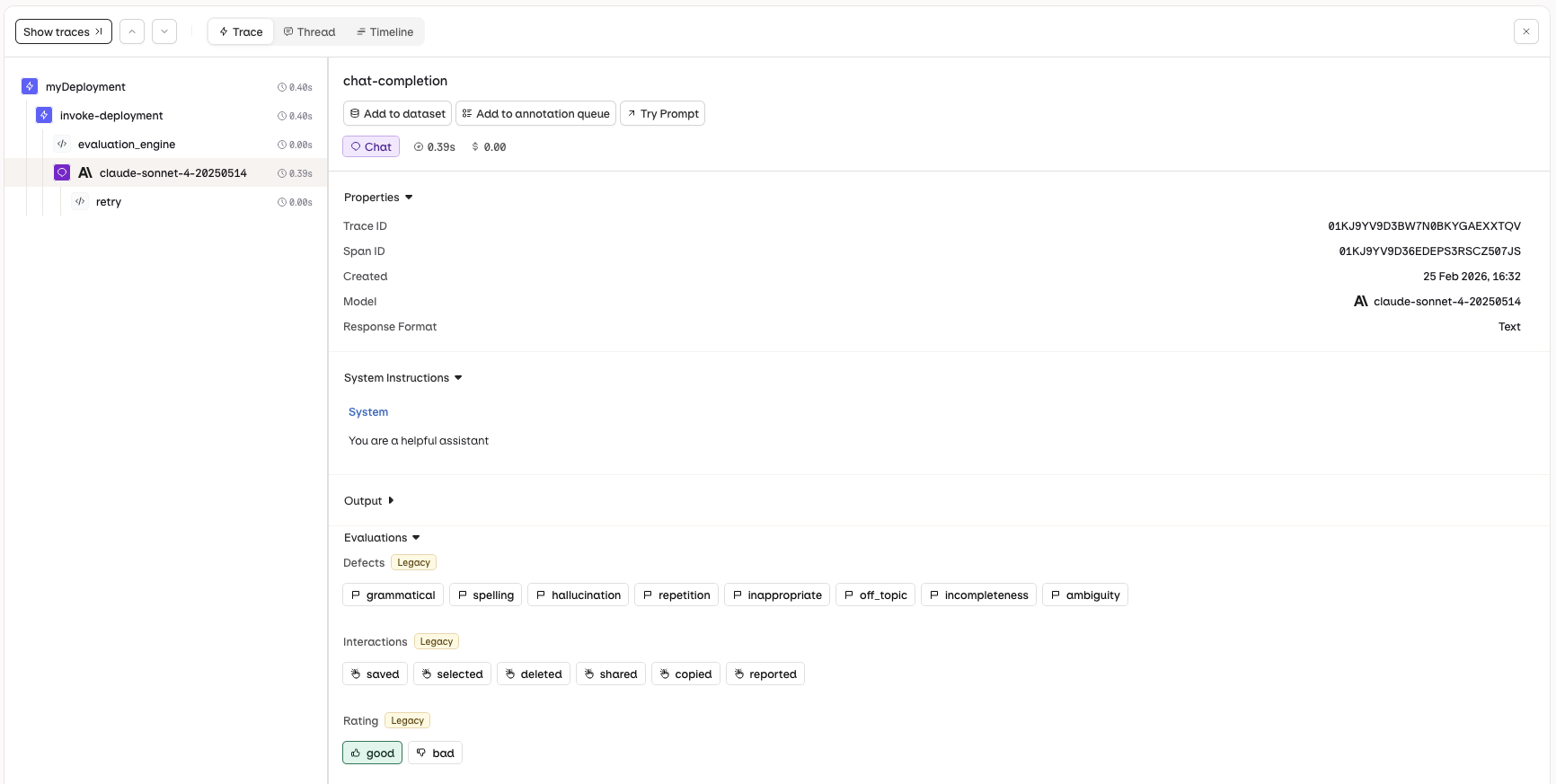
Navigate to the Traces view and select a single trace. The Annotations panel will be displayed, allowing you to apply human feedback to the AI response.
The Annotations panel in Traces lets you apply human feedback.
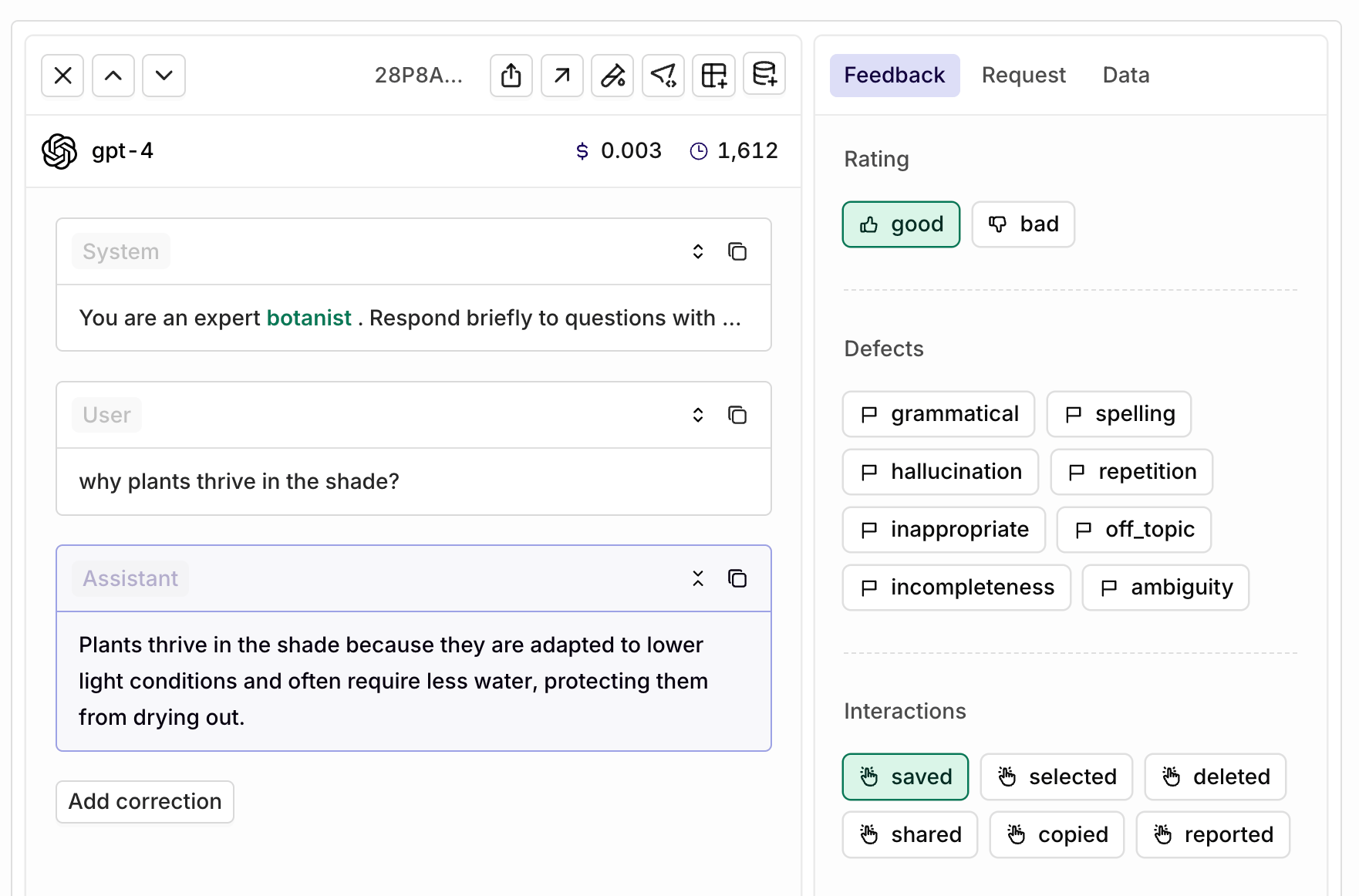
Navigate to the Logs view and select a single log. The Annotations panel will be displayed, allowing you to apply human feedback and provide corrections to the AI response.
The Annotations panel in Logs lets you apply human feedback and corrections.
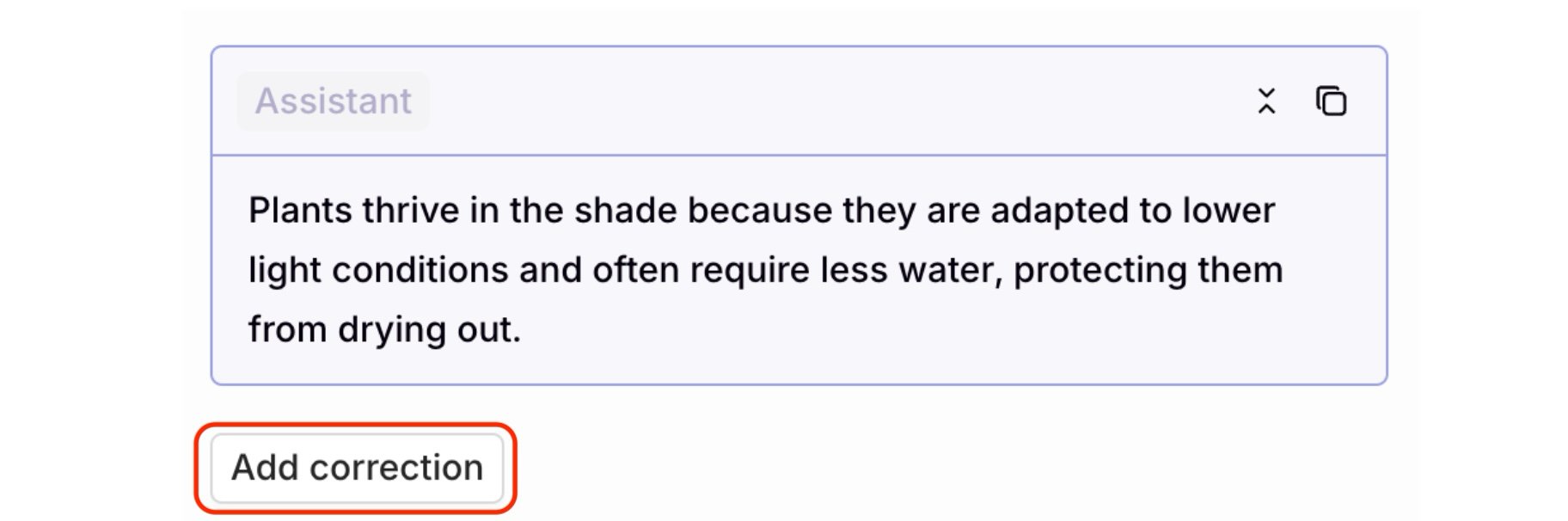
To make a correction, use the Add correction button below the AI-generated response:
The Add correction button is below the Assistant response.
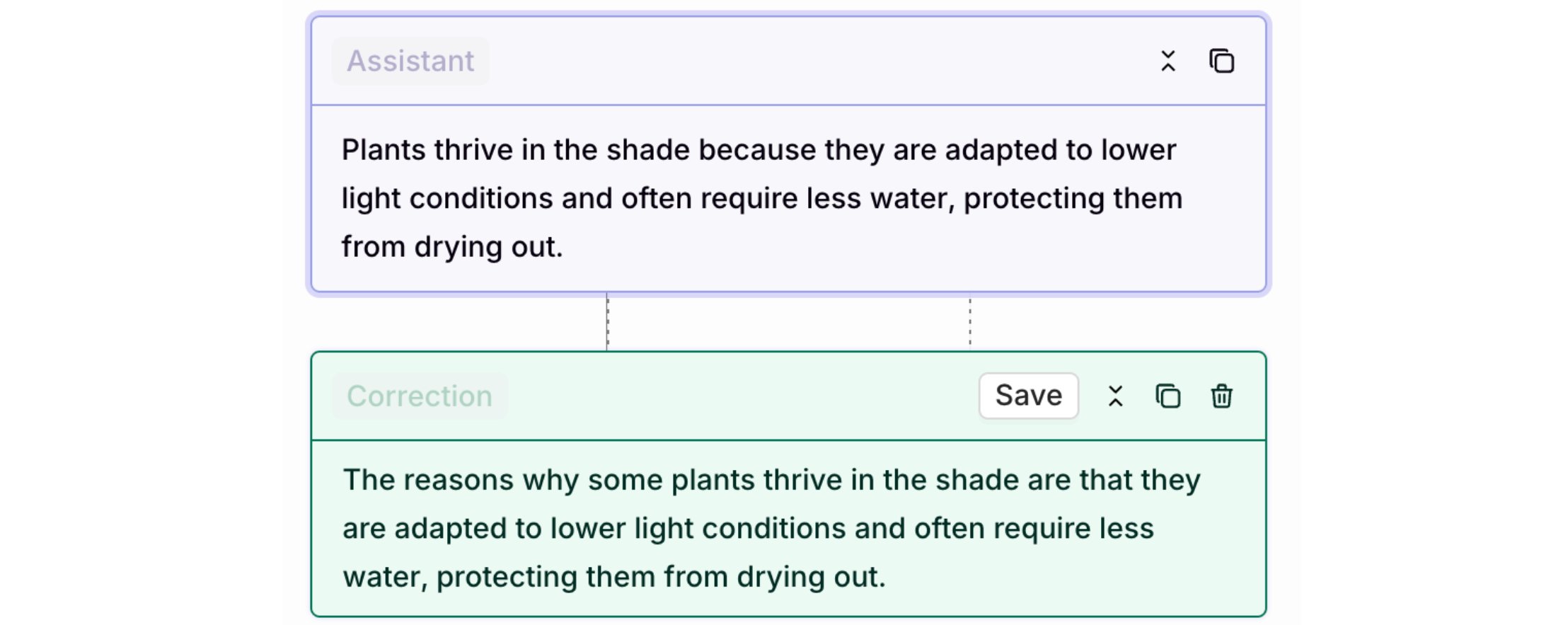
Click to add a correction, which opens an editor for manually revising the model’s response. Select Save to store the correction.
The corrected text and correction will appear side by side, with the correction displayed in green.
Quick examples for annotating LLM responses. For the full usage guide (request fields, annotation values, corrections, batch and remove semantics, and error handling), see Annotations API.
curl -X POST "https://my.orq.ai/v2/traces/{trace_id}/spans/{span_id}/annotation" \
  -H "Authorization: Bearer $ORQ_API_KEY" \
  -H "Content-Type: application/json" \
  -d '{
    "annotations": [
      {
        "key": "correction",
        "value": "The correct answer should emphasize scalability and fault tolerance."
      }
    ]
  }'
from orq_ai_sdk import Orqimport osorq = Orq(api_key=os.getenv("ORQ_API_KEY"))result = orq.annotations.create( trace_id="<trace_id>", span_id="<span_id>", annotations=[ { "key": "correction", "value": "The correct answer should emphasize scalability and fault tolerance." } ])print(result)
import { Orq } from "@orq-ai/node";const orq = new Orq({ apiKey: process.env.ORQ_API_KEY,});const result = await orq.annotations.create({ traceId: "<trace_id>", spanId: "<span_id>", requestBody: { annotations: [ { key: "correction", value: "The correct answer should emphasize scalability and fault tolerance." } ] }});console.log(result);
For error handling, batch limits, and constraints, see Annotations API.
Annotate and remove annotations from a span using orq traces create and orq traces delete. The orq traces group manages annotations on existing traces and spans; there is no separate orq annotations group.
Deprecated: Human Review Sets are replaced by project-level Annotations and will be removed in release 4.18.
A Human Review Set presents a group of Annotations together in the Annotations panel of a Log. A set carries a display name, the Annotations it collects, and two settings:
Project: one project, or every project in the workspace when no project is set.
Match rule: by run type, matching a deployment, a playground, or an experiment output, or by name, matching a deployment key, a playground name, or an experiment name.
When at least one set matches a Log, the Annotations panel shows the Annotations those sets collect, grouped under each set’s display name when several sets match. A Log that matches no set shows the project’s Annotations on their own.Review sets are managed through the API.
Annotations can also be applied outside of Annotation Queues, while reviewing the outputs of an Experiment. In the experiment review screen, the annotations defined for the project appear alongside Evaluator scores, so outputs can be annotated manually as part of an evaluation run.
The Annotations panel in the experiment review screen, with annotations shown above the Evaluator scores.
Correcting an Evaluator result is not available in the experiment review screen. Annotations and Evaluator scores still display as described above.
Was this page helpful?
Assistant
Responses are generated using AI and may contain mistakes.


 AI Studio