

Enabling new Models
To see available Models and enable them for use, navigate to the Models page in AI Gateway.
The Models page showing the filter sidebar, modality tabs, and model columns.
Use Sort: Newest to reorder by Newest, Pricing: Low to High, Pricing: High to Low, Context: Low to High, Context: High to Low, Intelligence: High to Low, Intelligence: Low to High, or Max Output Tokens. Use Columns to show or hide individual columns.
Use the Status toggle to Enable a model for use with the AI Gateway.
Row actions
Hover a model’s Name cell to reveal that row’s actions:
Private models carry a Delete action in the row menu. Models onboarded through providers that support editing, such as OpenAI Compatible, Azure, and Google, also show Edit, which reopens the provider wizard.
Filters
Use the modality tabs at the top of the list to scope models by type: All Text Image Audio Speech Embedding Moderation Rerank Classify The sidebar provides additional filters:
To enable a model, toggle it on. It will immediately be available to call with the AI Gateway.
Enable or Disable Models via the API
Models can also be enabled and disabled programmatically using the Models API. This is useful for CI/CD pipelines, automation scripts, or infrastructure-as-code workflows. These endpoints sit on the management plane and authenticate with a Management Key that hasworkspace-model write access. A standard API Key cannot be granted the workspace-model domain and is rejected with 403.
Enable a model:
Restrict Model Access by Project
Once a model is enabled, workspace admins can see an Access control icon next to it. Select it to choose which projects can use the model, in one of two modes:- All projects (default): every project in the workspace can use the model.
- Custom: each project gets its own on/off toggle, letting admins grant or revoke access per project.
Access control is admin-only. Members with other roles see only the models an admin has approved within their chosen projects.
Onboarding Private Models
Onboard private models by choosing Model at the top-right of the screen. This is useful when hosting a fine-tuned model or any model deployed on a private provider such as an OpenAI-compatible endpoint, Azure AI Foundry, or AWS Bedrock.Private Models Providers
Show Azure AI Foundry
Show Azure AI Foundry
From the Azure AI Foundry project homepage, copy the API key and one of the two endpoints shown at the top. Orq.ai accepts the following endpoints:Reference imported models in code using
Paste the endpoint URL exactly as shown in Azure AI Foundry. Orq.ai does not append any path suffix.
To learn more about the Azure AI Foundry deployment, see our Provider Documentation.
1
Open Add Model
In the AI Gateway sidebar, go to Models, then click Model at the top-right and select Azure.
2
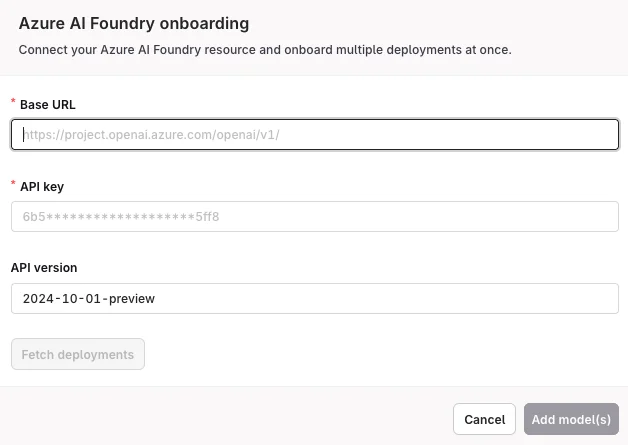
Enter credentials
Enter the Base URL and API Key.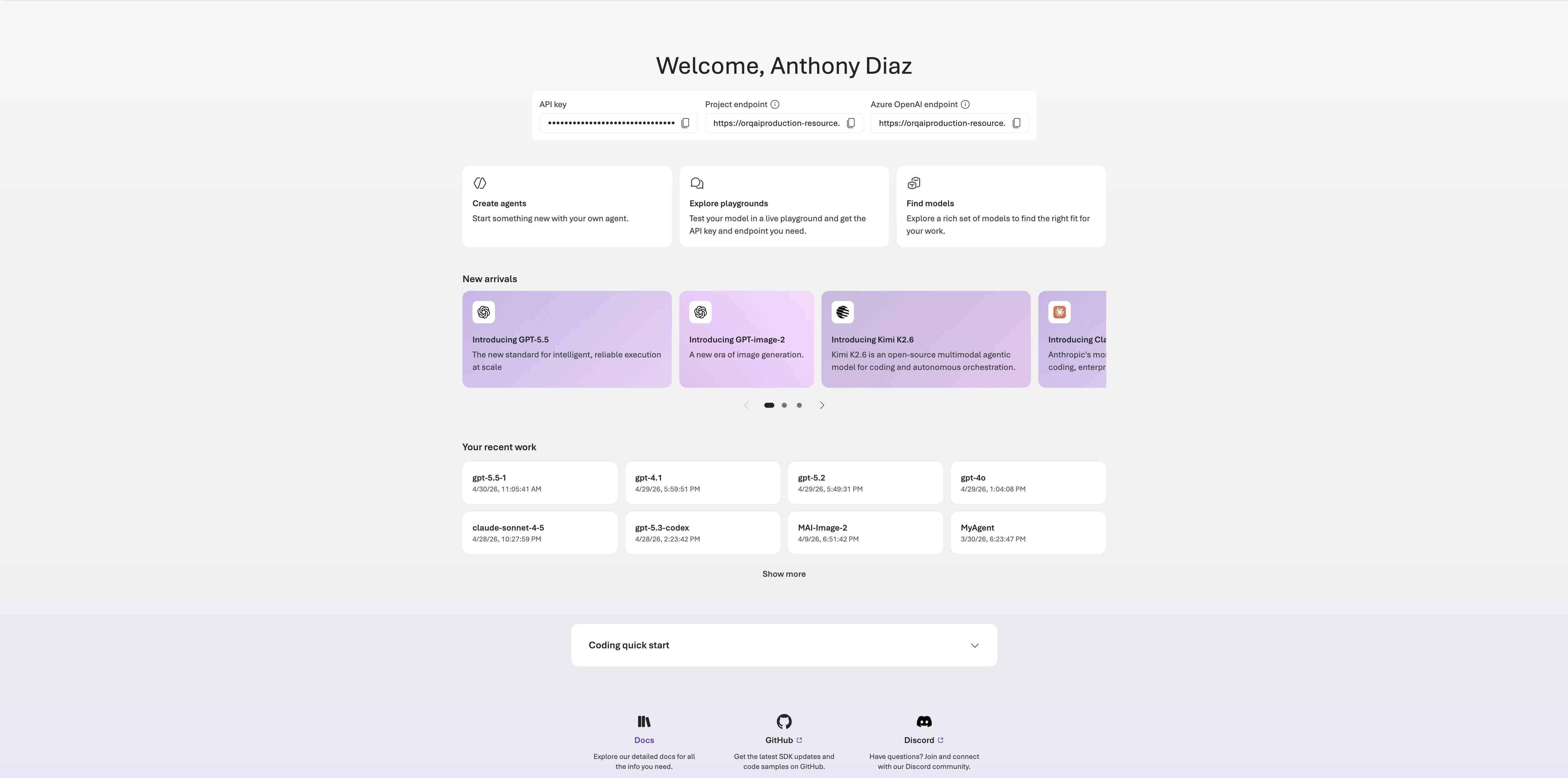
3
Fetch deployments
Click Fetch deployments to automatically import all available deployments. The imported models appear in the Models list. Toggle each model Enabled before use. Enabled models are available for routing requests through Routing Rules.
<workspacename>@azure/<modelname> (see Referencing Private Models in Code).Show LiteLLM
Show LiteLLM
To import LiteLLM models, first create an Integration for the LiteLLM instance. After creation, return to the AI Gateway and import models from the connected instance.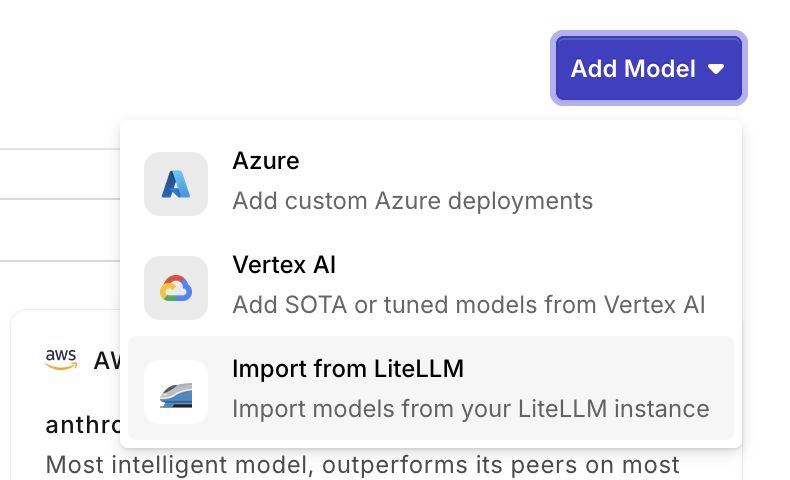
Referencing Private Models in Code
When referencing private models through the SDKs, API, or Supported Libraries, the model is referenced by the following string:<workspacename>@<provider>/<modelname>.
Example: corp@azure/gpt-5.6-sol