

Setting up an API key
To set up your own API Key, head to the AI Gateway and to the BYOK section. Choose the provider you wish to set an API key for and press Connect, then select Setup your own API Key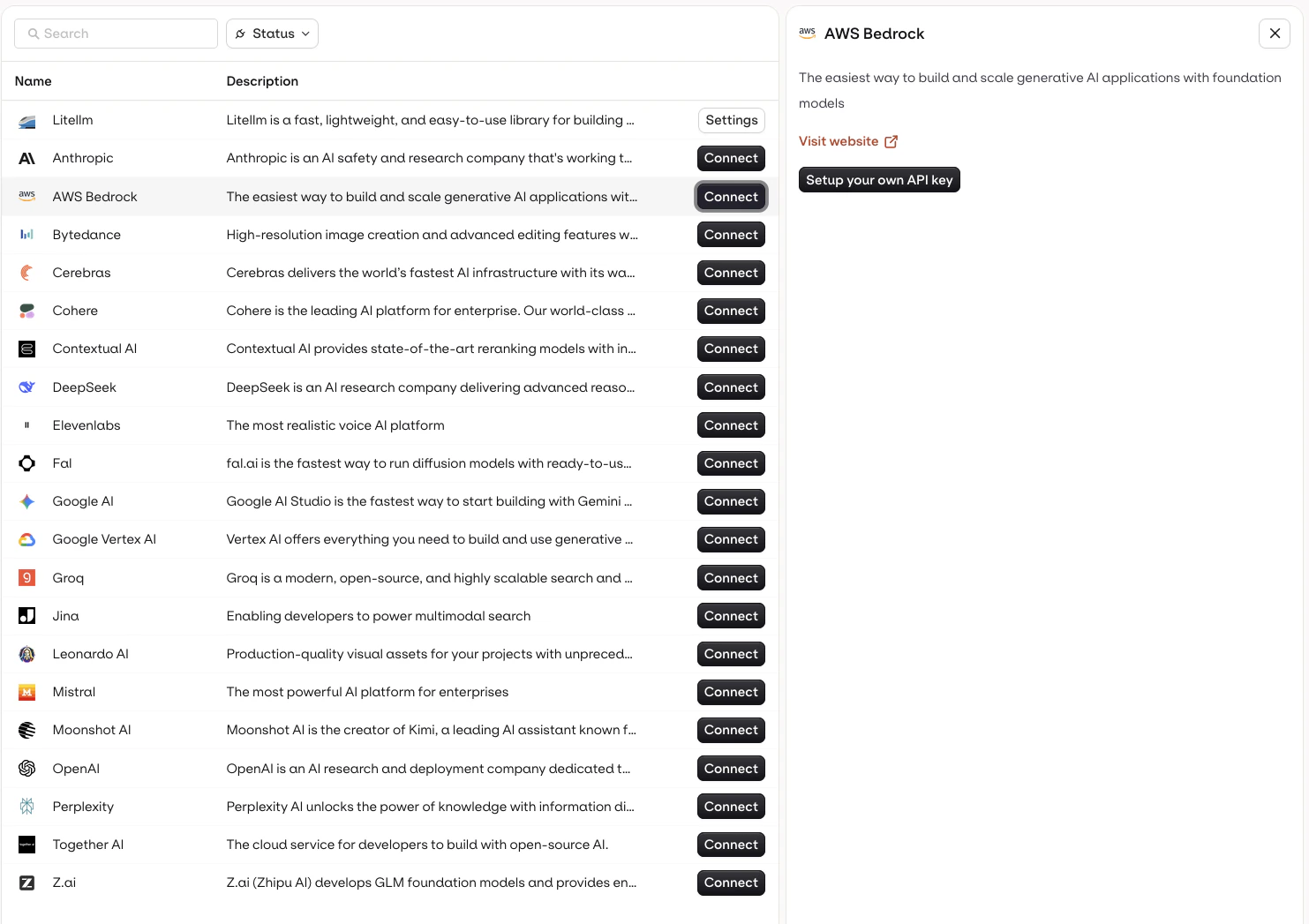
Configure your API integration based on the criteria set by the provider.
Supported Providers
Browse all supported providers
View the full list of LLM providers you can connect to the AI Gateway, including OpenAI, Anthropic, Google, AWS Bedrock, and more.
Having Multiple API Keys
You can decide to configure multiple API for a single provider, to do so, select Add a new API key.Benefits of using multiple API Keys
Credential Failure
Having a different API key available to use models can be useful in case one becomes invalid or for instance runs out of credit. Having an extra key configured on a fallback model can make sure you respond in all cases.Multiple Environments
In case you have multiple API keys used for different purposes, this lets you organize your models to use the credentials dedicated to the correct environment.Using a specific API key in model configuration
Once your API keys are configured within the Providers panel, you can select which key to use within Playground, Experiment, Deployment, and Agent. This applies to any model, including fallback models.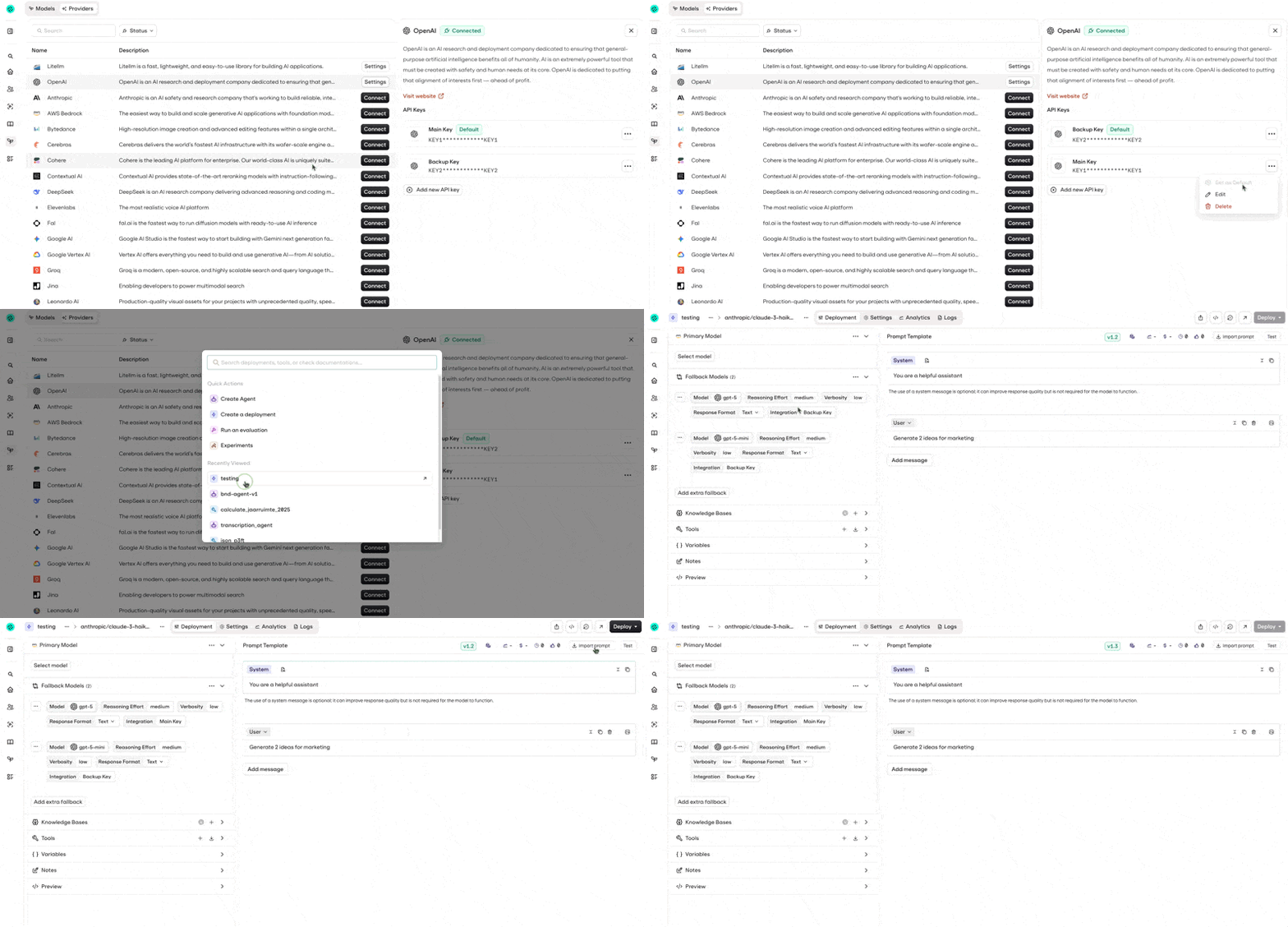
Walkthrough of choosing a default API key and selecting it within a Deployment's variant fallback.