To create an Deployment, head to the orq.ai Studio:
  • Choose a Project and Folder and select the + button.
  • Choose Deployment
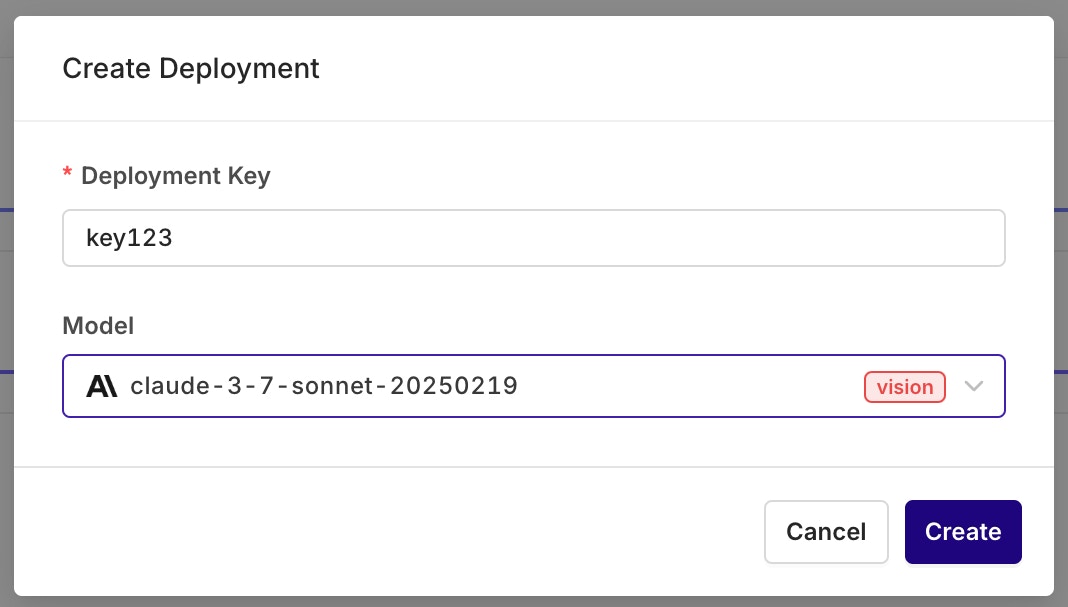
You should see the following modal to configure your initial deployment:

The modal shown during creation of a Deployment. Here you can set a key for the deployment (alphanumeric) and select the primary model of the first Variant used in this deployment. All parameters can be changed later.

Configuring a Variant

Variants are different prompt / model configurations available behind one deployment. A Deployment can hold any number of Variants. For example, you can have different variants dedicated to answering in different languages, routing your Spanish users to Spanish variants and English users to an English one. When you first create a Deployment you will be redirected to the Variant screen, where you can setup and configure your model and prompt.
A Variant Prompt is similar to any other prompt, to learn how to configure a Prompt, see Creating a Prompt.

Primary Model, Retries and Fallback

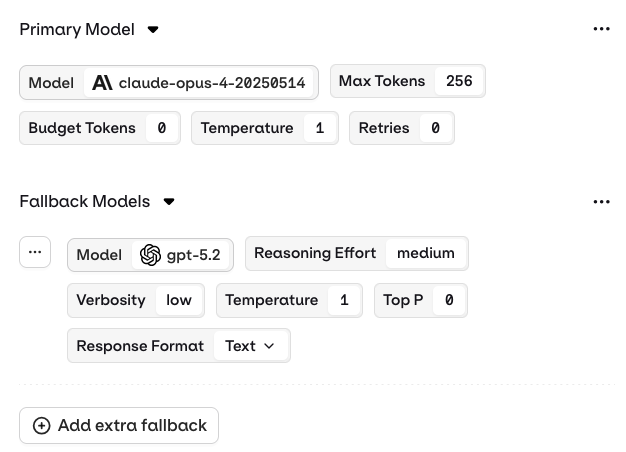
The main model configuration appears in the Primary Model panel. The Primary Model defines the first model that will be queried through this Variant.

Retries

A unique configuration is available for a Primary Model: Retries. In case of failure, configure here how many times a query is going to be retried with this model. After the defined amount of Retries on your Primary Model, orq.ai will seamlessly use your Fallback Model.

Fallback Model

A common use-case is having a Fallback Model able to handle a bigger context window than the Primary Model. The Fallback Model is potentially more costly than the Primary Model. It will be triggered only if the user query cannot be handled within the Primary Model’s context window. This makes for an optimized configuration: your spending will be controlled depending on user inputs, and your users won’t see any error if their query is sent to your fallback model. The Fallback Model can have a different configuration than the Primary Model.

The Model configuration is right below the Prompt, you can choose any model you desire and configure them independently from one another.

Structured Outputs

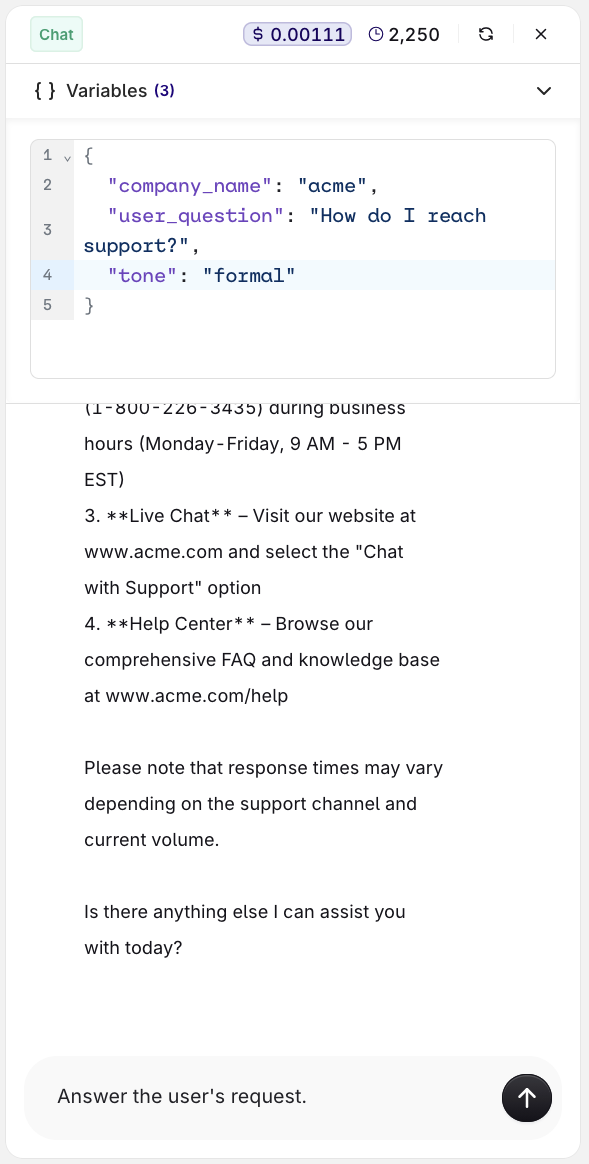
When configuring your model, you can now define structured outputs to ensure consistent and reliable responses from your Deployment.
Structured outputs let you specify the exact format the model should follow when generating its response, helping you enforce predictable data structures and simplifying integration with downstream systems.
You can choose between two structured output modes:
  • JSON Mode – the model automatically returns a valid JSON object for every generation.
  • JSON Schema – define a schema that explicitly describes the fields, types, and structure of the model output. This provides full control over how responses are formatted.
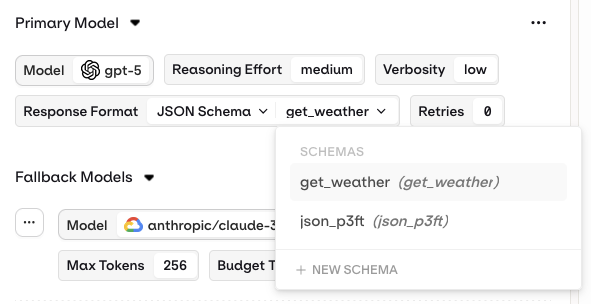
Once you have defined a schema, you can now save it to your directory for reuse across multiple variants or deployments.
This makes it easy to maintain consistent response formats across projects and ensures that all variants referencing the schema stay aligned when it’s updated.
Deployment JSON schema configurationTo configure structured output you need to set the Response Format to JSON Schema

Notes

Here you can store notes on the current Variant configuration. Notes are only visible to yourself and your colleagues, they will never be sent to the model. Notes are especially useful when collaborating, to write down some important information that is relevant to current model configuration.

Preview

Preview lets you see the configuration payload for the corresponding variant. This payload will be used when you’re using orq.ai as a configuration manager.

Integrating a Deployment

Code Snippet

By selecting the Code Snippet button at the top-right of the Variant page, you will see all code snippets to integrate the current variant within your application. You can also generate the code snippet by right-clicking on a variant in the routing tab.

The code snippet button at the top-right of the Variant page.

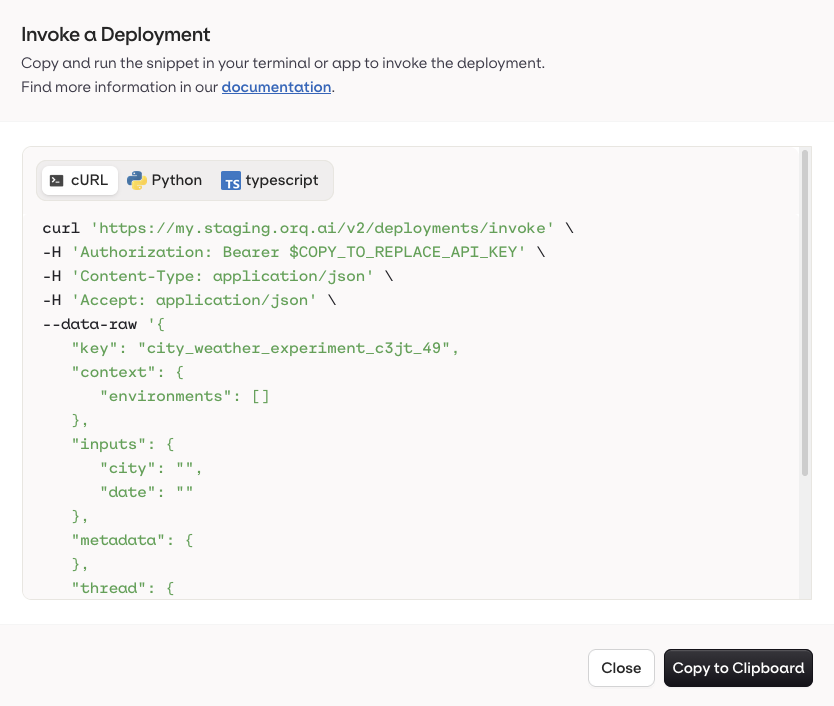
The Code Snippet panel.

Python, Node and cURL (shell script) are available for integration. All snippets will contain keys and context variables needed for the current variant to be reached.

Adding a new Variant to a Deployment

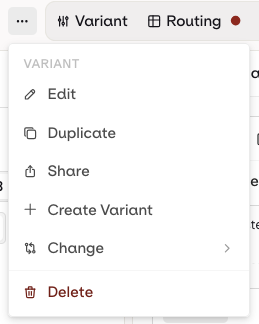
A single Deployment can hold multiple Variants. Multiple Variants can help you handle different use cases and scenarios within one Deployment. Multiple Variants can be used at the same time through Routing, which we will see in the next chapter. At any time you can choose to add a new Variant to your Deployment by selecting the Variant name at the top-left of your screen and choosing Add variant.

At any time you can switch between Variants and add a new Variant to your Deployment.

Routing

Once a variant is ready to be deployed, you need to configure the routing variables to reach the variant. To open the Routing page, select the Routing title at the top-left of the panel. Within the Routing panel, you can configure the contexts and conditions for which a Variant will be reached by your users.

Viewing Routing Configuration

Within the Routing panel, you can configure the contexts and conditions for which a variant will be reached by your users. A Variant represents a version of a language model configured for your deployment, it can have its unique model configuration, prompt or parameters. The following is the visualization of the Routing configuration:
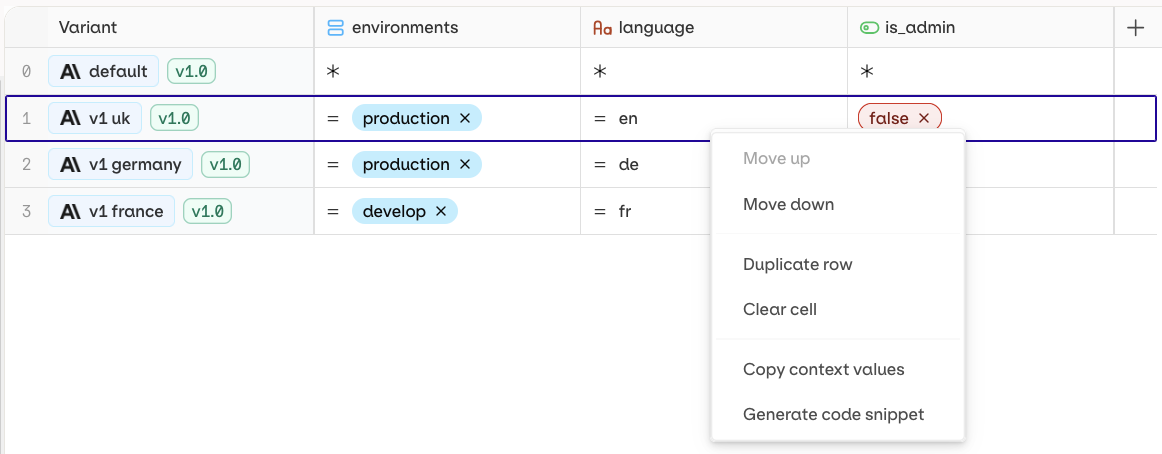
The table creates correspondence between Variants and Contexts. Each row represents a single Variant. Each column represents a single Context field. Each cell represents a Value for a Context field to be matched with a Variant.
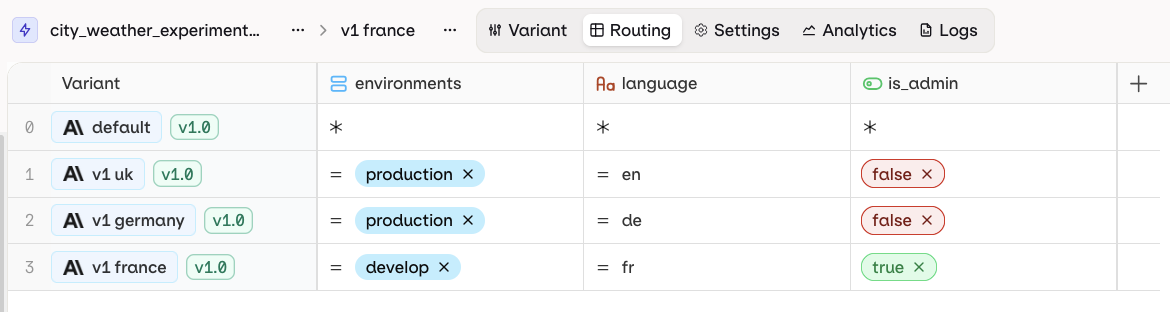
An example for a routing table. Here, for instance, if the context field locale value is german then the deployment will route the user to Variant 2.

Default variant

The first row (0) of your Routing is the default variant for your deployment. If all other rules cannot be matched, or if no context values are provided, the user will be routed to the Variant 0.

Code Snippets

You can quickly access code snippets for each of the variants in your routing table. These snippets will contain the correct context environment to reach your Variant. To do so, simply Right-Click on the Variant you want to see code snippets for and select Generate Code Snippets, A pop-up will open containing all necessary Code Snippets for integration within your systems.

Here we opened the code snippet for the Variant 3, you can see the metadata being correctly filled within the snippets.

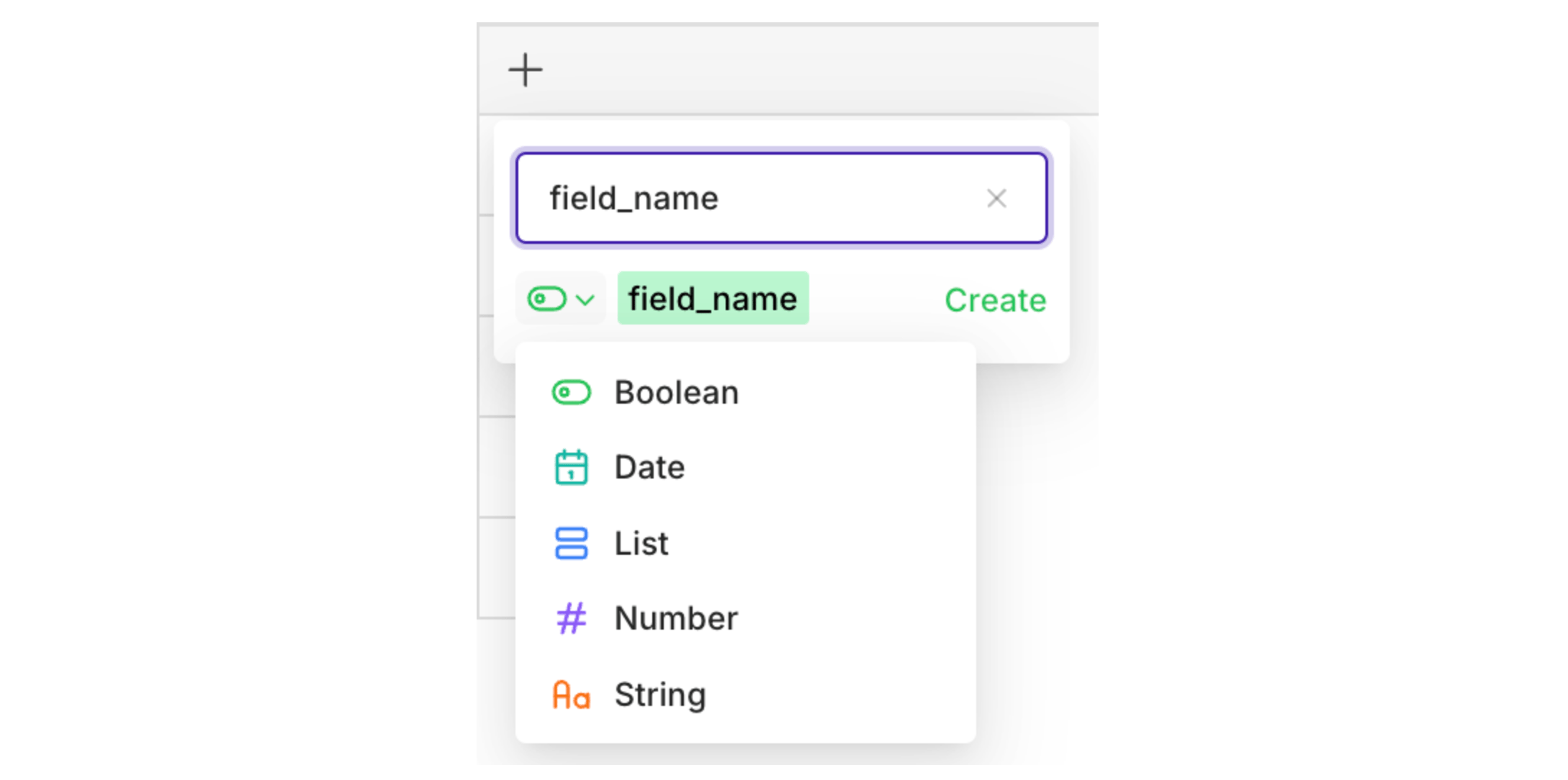
Adding a new context field

To add a new context field, press the + button a the top right of the Routing table.
You can set a name for your field as well as type, chosen between boolean, date, list, number, and string
This new field can then be used to create more routing rules to fit your use case.

Routing Conditions

You can create a custom routing condition for each field, with any Variant. To create a condition, simply enter a value in the corresponding cell.

Condition Operators

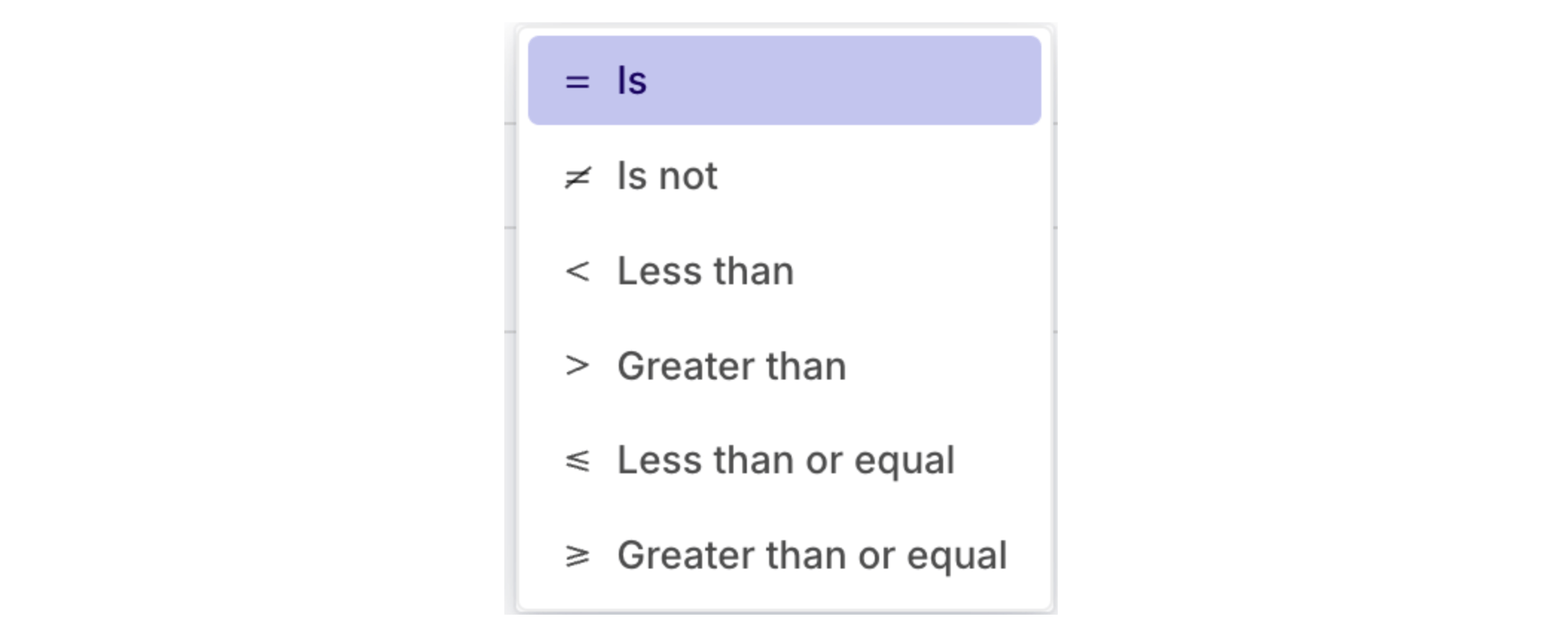
By default the = operator will be chosen to test your condition (context value must be equal to the routing condition value). You can change the operator by clicking on the = symbol, then select the desired operator for your condition.

Different operators are available depending on the field type.

Using the Simulator to test Routing

At any time you can test your routing by opening the Simulator by selecting the Simulator Icon at the top-right of the panel. The following modal will open:
Here you can enter values for all of the field configuration and select Simulate to see which model the query will be routed to

Versioning

Version Control lets you track all changes made to your model prompt configuration. At each deployment a new commit is made and history is kept throughout. You are able to look back at all changes and revert to any version you desire.

Deploying a new version

When you configuration is complete and ready to be integrated in your systems, you can press the Deploy button on the Deployment’s Variant screen.

The Deploy button will be enabled once there are changes to commit.
The following modal will open:

Here you can define the new Version for your Variant (with a Major or Minor version change) as well as entering a description to the changes made to the configuration. Choose then to Deploy the changes immediately or Save as Draft of the current changes.

Saving a Draft will commit the current changes on a new version without making the changes available publicly. Those changes will only be public during the next deployment.

Comparing Changes

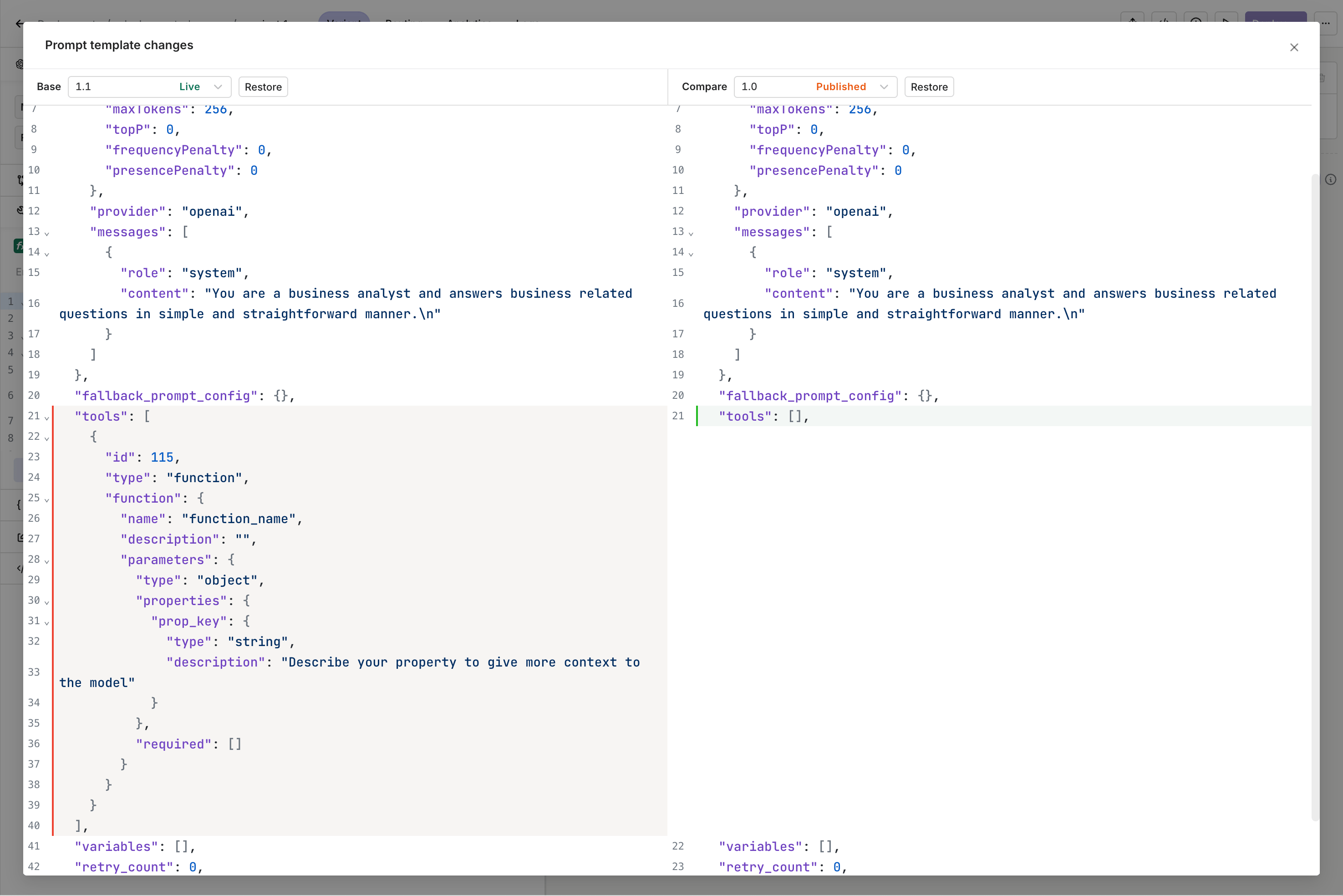
To compare changes between your configuration and the previous one, select the Compare Changes button at the top-right of the screen. Visualize changes to a configuration in a side-by-side JSON view.
Variant

An example of side-by-side visualization of two versions of the same .

You can choose to restore a previous version by selecting a version on the left panel and clicking Restore.

Enabling Cache on a Deployment

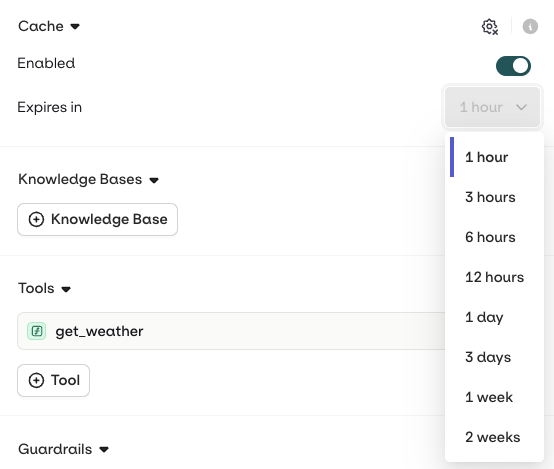
Deployment generation can be cached to reduce processing time and cost. When an input is received and cached already within the Deployment, the stored response will be sent back directly without triggering a new generation. To enable caching head to a Deployment > Settings. Select Enable Caching.

Caching happens Deployment-wide and currently doesn't support image models.

The cache only works when there is an exact match

Configuring TTL

TTL (time to live) corresponds to the amount of time a cached response will be stored and used before being invalidated. Once invalidated, a new LLM generation will be triggered. You can configure the time-to-live once Caching is enabled choosing from the drop-down.

Invalidate Cache

At any time you can choose to invalidate the cache by pressing the Invalidate button.

Evaluators and Guardrails

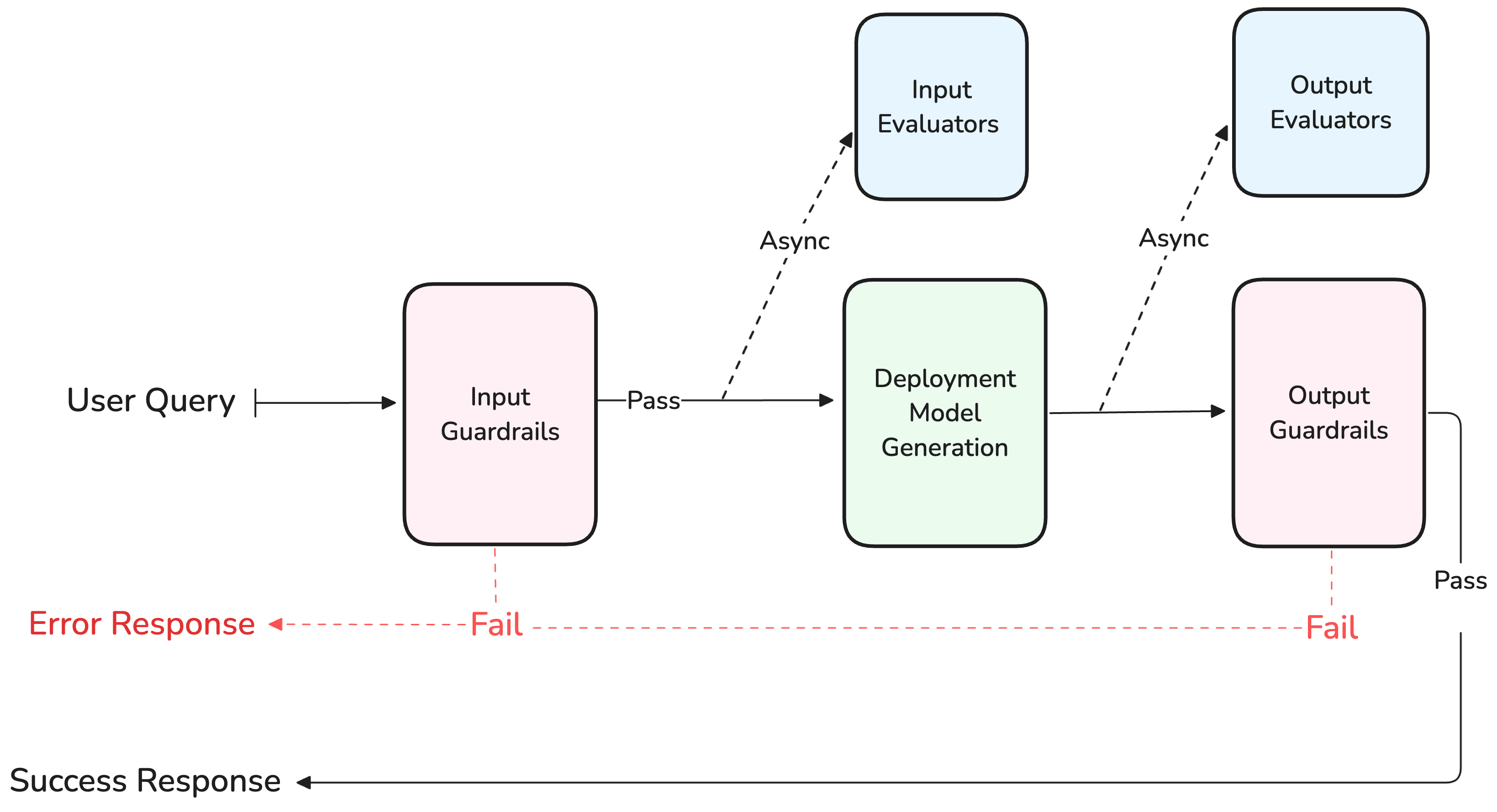
In Deployments Settings it is possible to set Evaluators on the Inputs and Outputs of a Generation.

Workflow

Guardrails will be executed synchronously if they exists while Evaluators will be non-blocking to ensure quickest response-time to the user.

Input & Output Evaluators

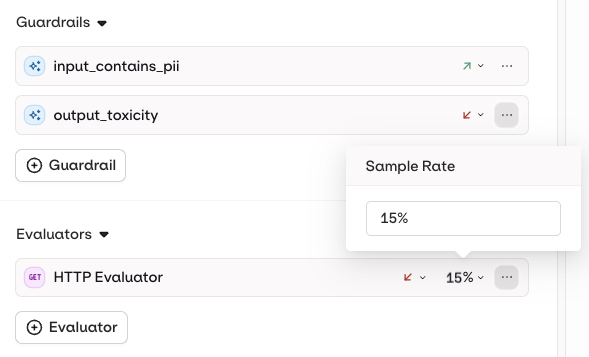
You can add Evaluators available in your Library as Input Evaluator for a Deployment. When adding an Evaluator here, you can intercept and evaluate asynchronously the Input sent to the configured model or the Ouput generated and sent back to the user. You can configure a Sample Rate (percentage) and define the frequency at which the evaluator will be used.

The Sample Rate goes from 0 (0%) to 100 (100%) rate.

Guardrails

If an Evaluators has a Guardrail capability, it can be used as an Input Guardrail or Output Guardrail in a Deployment. A Guardrail will effectively Deny a generation if its evaluation fails.In this case, an error will be sent back to the user.

Guardrail Behaviour

You can decide here two behaviour in case your Guardrail does not pass on a generation:
  • Retry the current Generation
  • use the Fallback behaviour, if the configured model has a fallback configured, the call will be tried there.

Security and Privacy

Input Masking

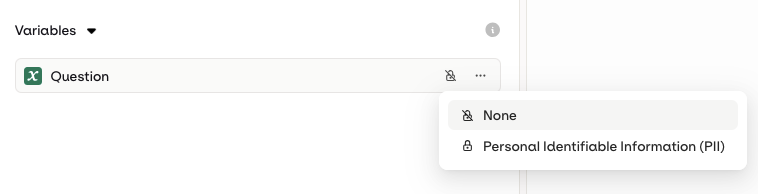
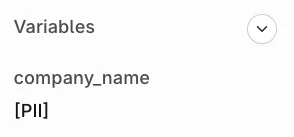
In your deployment, when using input, you can decide to flag the created input as a PII (Personally Identifiable Information). This is recommended when processing sensitive data from your users (e.g. name, email, phone number). To do so, when configuring your input, choose the PII (Personally Identifiable Information) from the Privacy drop-down.

Once deployed, the input value won't be logged within our systems.

Effects on logs

Flagging an Input as PII will remove its values being logged within our systems. When opening a log, the input will be shown in red, showing that it wasn’t logged within our systems. This ensures that your client’s data stays private. Note: The API response will include the PII, but the input and output logs won’t be logged in Orq.
    "choices": [
        {
            "index": 0,
            "message": {
                "role": "assistant",
                "content": "Hello, Cormick! How are you today?"
            },
            "finish_reason": "stop"
        }
    ]

Output masking

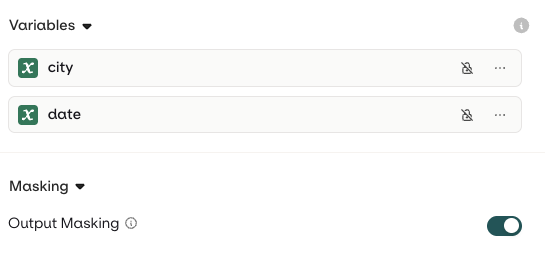
In Deployments you can add configuration to make generated outputs hidden from logs. Head to the Settings tab and enable the Output masking toggle:

Effect on logs

When Output Masking is enabled, logs won’t store the generated response. The following is displayed in place of the response:

Analytics

Once a Deployment is running and called from within your systems, you’ll be able to see detailed analytics of all requests made.
To learn more about Analytics, see Deployment Analytics.

Logs

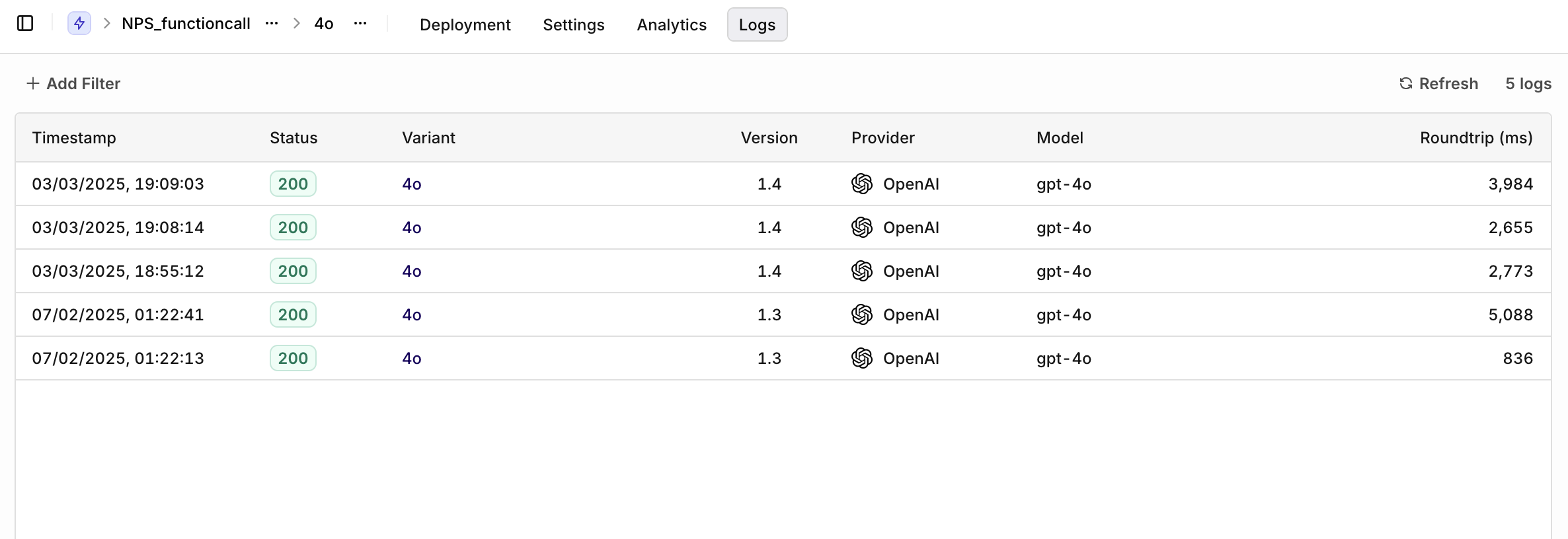
On top of analytics, you are able to visualize logs for all Variants. You have the following filters available:
  • Variant to select a single variant to see logs for.
  • Evaluation: Matched (Routing rule was matched to a variant) or Default Matched (No routing rule was matched, default variant was chosen).
  • Source: API, SDK, or Simulator to identify logs coming from different systems.
You can view details for a single log by clicking on a log line. This opens a panel containing all the details for the log, including context, requests, and parameters sent to your Deployment.

Logs overview