

@environment-name and always reach whichever version currently carries that tag. Typical environments are develop, staging, and production.
Where environments live
Every environment in the workspace is managed centrally from Settings → Environments.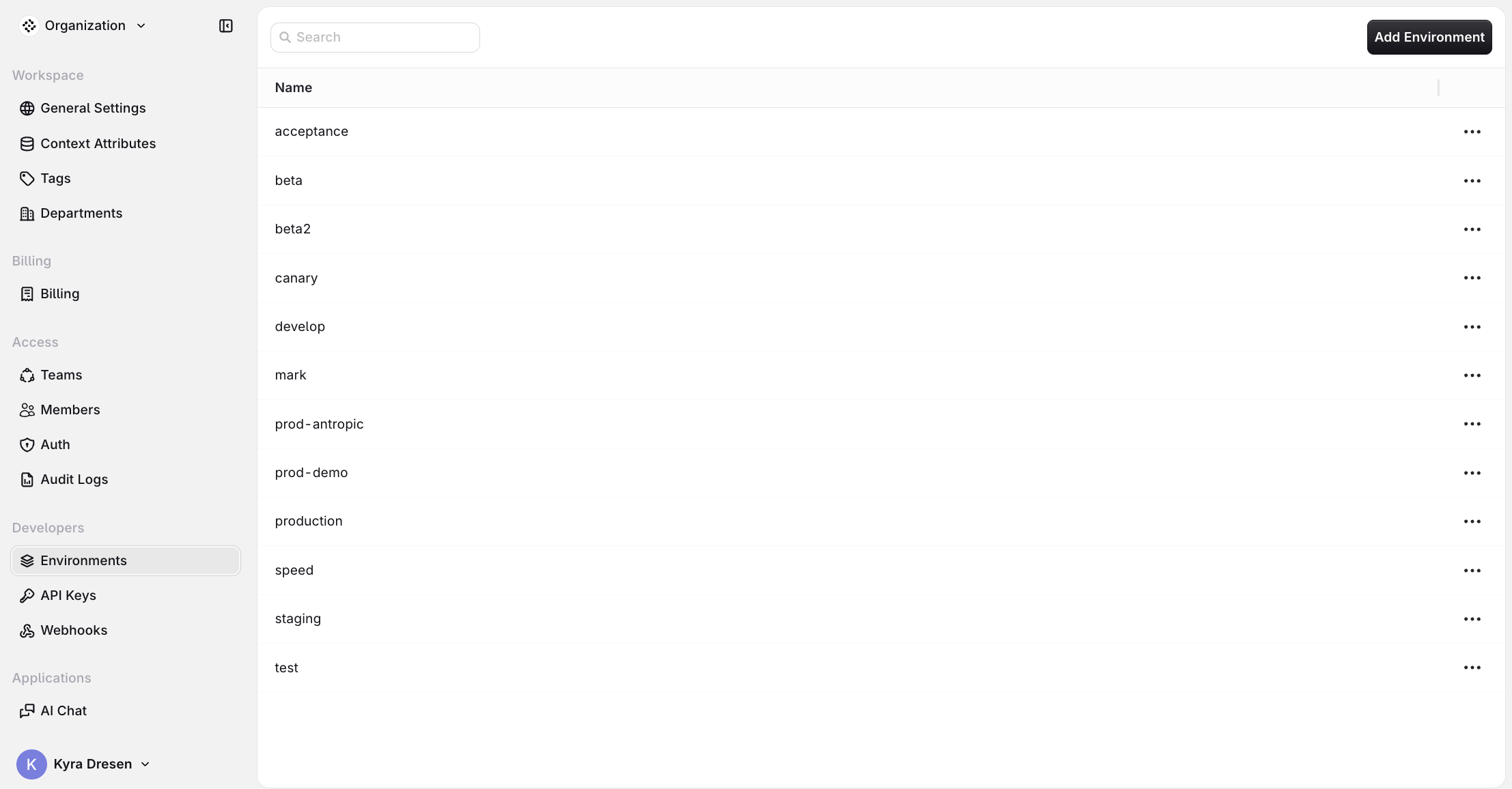
The Environments page lists every environment in the workspace.
- Add Environment: create a new environment.
- Use the per-row menu to rename or delete an existing environment.
Assigning a version to an environment
Assign an environment from the Versions tab of an Agent or Evaluator. Open a published version’s environment menu to tag it with any existing environment. The same menu can also Create environment inline, without leaving the version, and Manage environments to jump to the central page.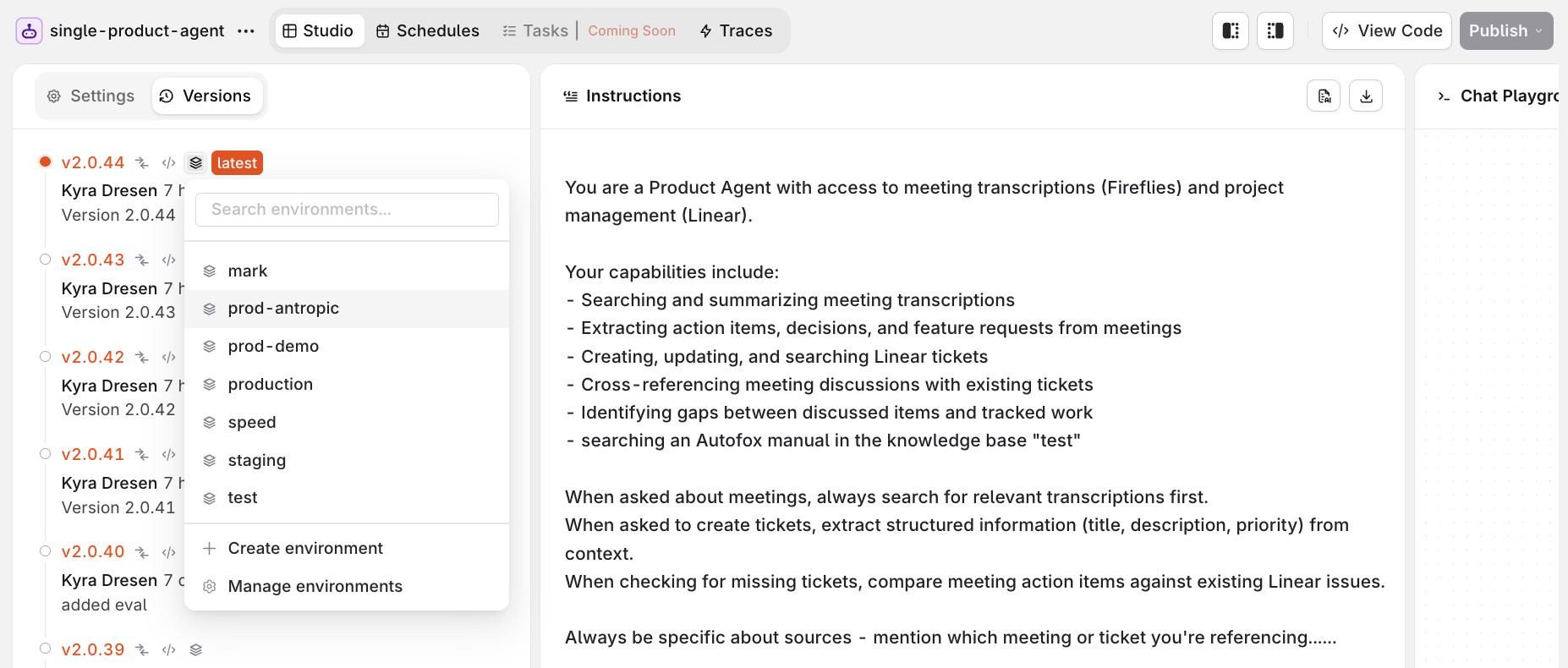
Tag a version with an environment, or create one inline, from the version environment menu.
Routing by environment
Append@environment-name to a resource key to route to whichever version is currently assigned to that environment:
cURL
my-evaluator@production). Without a suffix, the latest published version is used.