

Objective
A Chatbot provides a conversational AI solution for handling customer inquiries through natural language interactions. This document demonstrates how to build an intelligent support system using Orq.ai, enabling automated responses to common questions while maintaining the ability to escalate complex issues to human agents.Use Case
Customer Support Chatbot is ideal for applications that need:- Automated Customer Service: Handle common inquiries about orders, products, policies, and troubleshooting.
- 24/7 Availability: Provide instant responses to customers outside business hours.
- Conversation Memory: Maintain context throughout multi-turn conversations for a better user experience.
- Escalation Handling: Intelligent routing to human agents when automated responses are insufficient.
- Multi-Channel Support: Deploy across web chat, mobile apps, or messaging platforms.
Prerequisites
Before configuring a Chatbot, ensure you have:- Orq.ai Account: Active workspace in the AI Studio.
- API Access: Valid API key from Workspace Settings > API Keys.
- Model Access: At least one conversational model enabled in the AI Gateway, such as
gpt-5.6-sol,claude-sonnet-5, orgpt-5.4-mini. See Using the AI Gateway.
Configuring a Deployment
To create a Prompt for your chatbot, head to the AI Studio:- Open Deployments in the Managed Agents section, then click Deployment.
- Enter name myChatbot.
- Choose a primary Model.
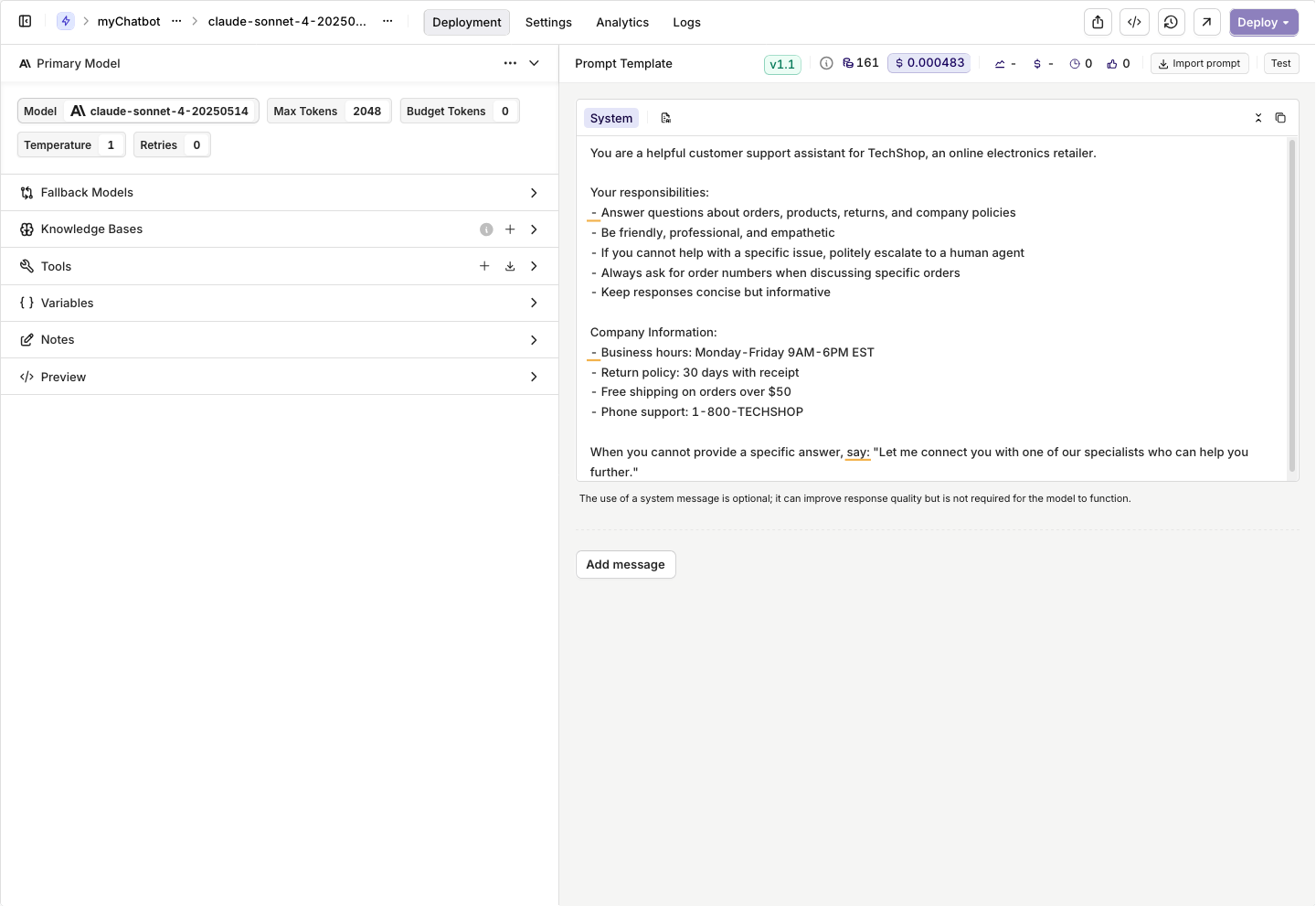
Configure your system message to define the chatbot's personality and capabilities.
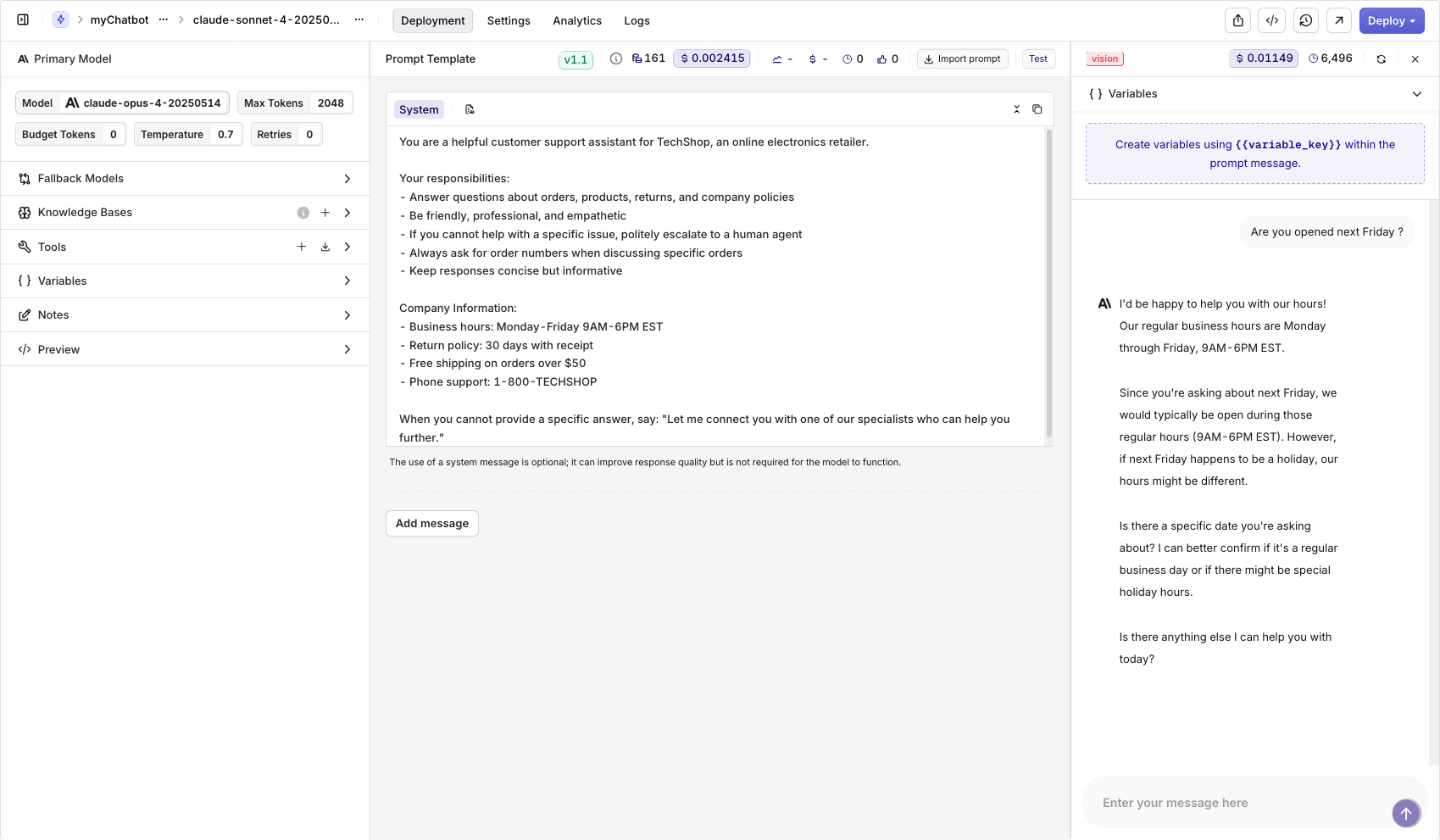
Learn more about the possibilities of Prompts in Orq.ai, see Creating a Prompt.
When ready with your Deployment choose Deploy, learn more about Deployment Versioning.
Integrating with the SDK
Choose your preferred programming language and install the corresponding SDK:Viewing Logs
Going back to the Deployment page, you can view the calls made through your chatbot application. You can view details for a single log by clicking on a log line. This opens a panel containing all the details for the log, including context, requests, and parameters sent to your Deployment.
- Response times and success rates
- Common customer questions and patterns
- Escalation frequency to human agents
- User satisfaction and conversation completion rates
To learn more about logs see Logs.