In this cookbook, we chain two deployments to process financial data from image files, to create a workflow. First, we perform data extraction on a JPG file, converting unstructured receipt information into structured JSON. We then run an evaluator to verify that the output is valid JSON and check whether the tax amount has been correctly extracted. Next, the validated financial data is passed to a second deployment that summarizes the extracted information, providing clear, actionable insights. Separating these tasks improves accuracy by allowing each step to be optimized independently, and it enables granular checking at each stage. This ensures better validation, making it easier to diagnose errors and refine the process. By leveraging Orq’s capabilities, this workflow delivers a scalable and efficient approach to processing image-based receipts. To make things even easier, we’ve created this Google Colab file that you can copy and run straight away after replacing the API key—the deployment is already live and ready in the deployment section. Below, we’ll run through the code step by step for further explanation. Ready to unlock Orq’s magic? Sign up to get started and keep the process rolling! Install the SDK
Step 1: Preparing the Environment Before diving into image processing, the necessary tools must be in place.
Step 2: Setting Up the Orq Client The Orq client bridges your environment with Orq’s powerful APIs. By authenticating with an API key, it provides access to deployments that simplifies data extraction from images. After you are logged into the platform, you can find your API key here.
Once connected, the client is ready to process image files for extraction. Step 3: Converting Images to Base64 To process images with Orq’s deployments, they must first be encoded into Base64 format. First, you need a folder with .jpg or .png files with your data. To get you started, we’ve provided a Google Drive folder filled with .jpg files of receipts that you can copy and use to test and explore the workflow.
Step 4: Data Extraction Deployment With images in Base64 format, the final step is to send each encoded image to Orq’s DataExtraction_Receipts deployment.

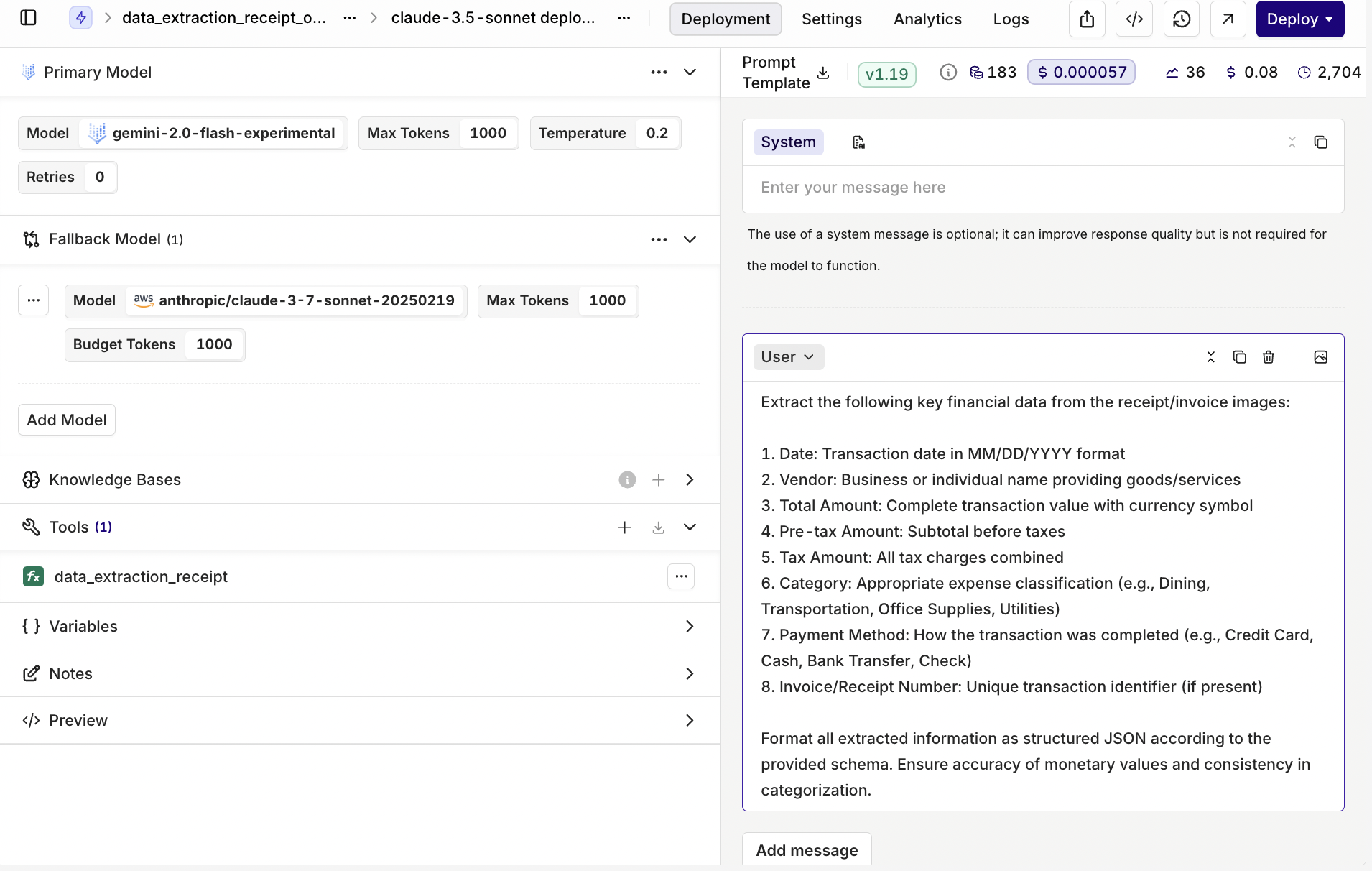
Model Configuration in Orq

In this Orq model setup, we’re using Gemini-2.0-Flash-Experimental as the primary model for fast and efficient data extraction, with Claude-3.7-Sonnet as a heavier and more expensive model as fallback—just in case things don’t go as planned. This way, we ensure smooth processing without hiccups. We’ve set the temperature to 0.2, keeping things precise and predictable. Why? Because when dealing with financial data, we don’t want the model getting too creative—we need structured, reliable results that stick to the schema. A lower temperature helps keep responses on track, ensuring accurate extractions every time. Orq model configuration for data extraction using Gemini 2.0 Flash Experimental as primary and Claude 3.7 Sonnet as fallback at temperature 0.2.
Prompt

To achieve accurate extraction, we use a well-defined prompt that provides clear instructions on identifying key financial details. It specifies exactly what information should be extracted: transaction date, vendor name, amounts (total, pre-tax, and tax), and payment details. By explicitly requesting tax type differentiation and category classification, the prompt ensures a granular and precise extraction.

Tools

To keep things structured, we use a JSON schema as our data blueprint. This schema acts as a quality control tool, ensuring that all extracted fields are correctly formatted and validated. Beyond just verification, this structured output makes the data programmatically accessible, allowing seamless integration into other systems, automated workflows, or financial analyses (without the need for manual intervention).
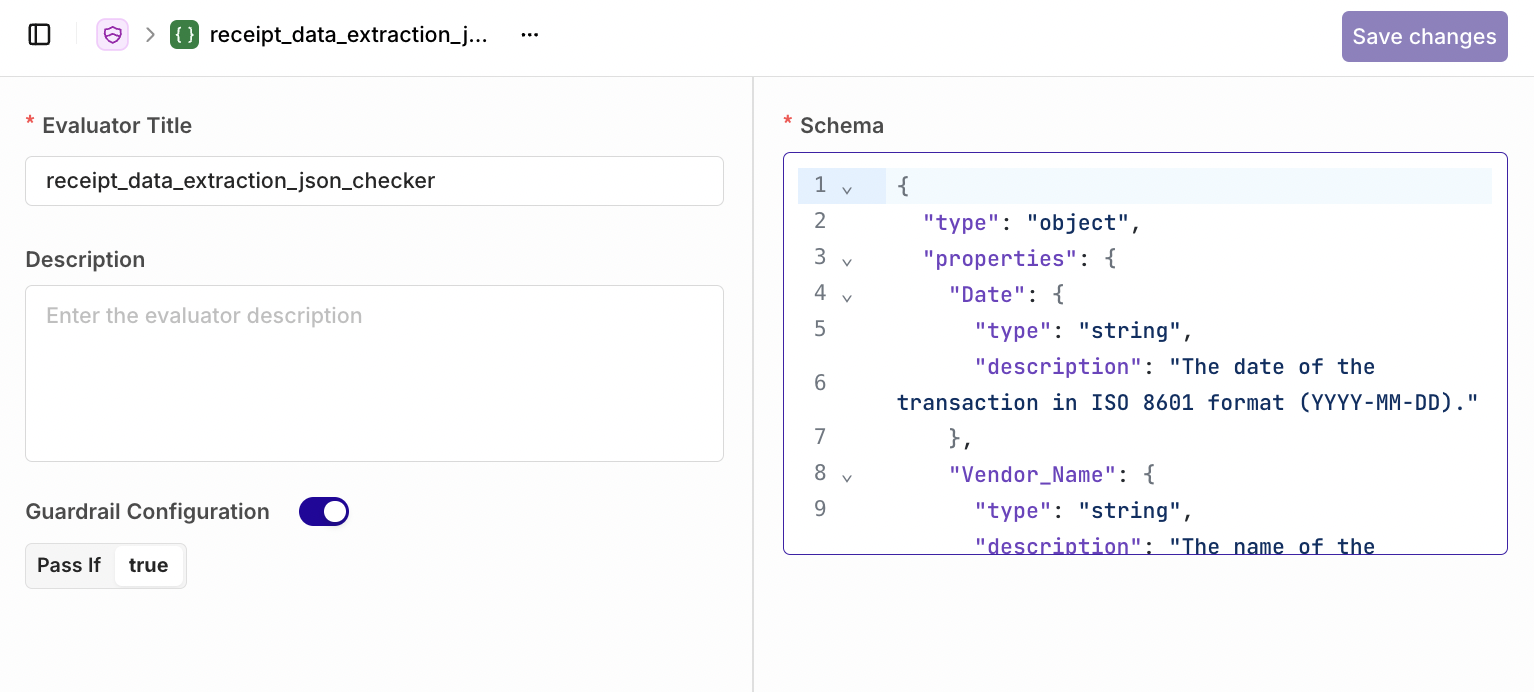
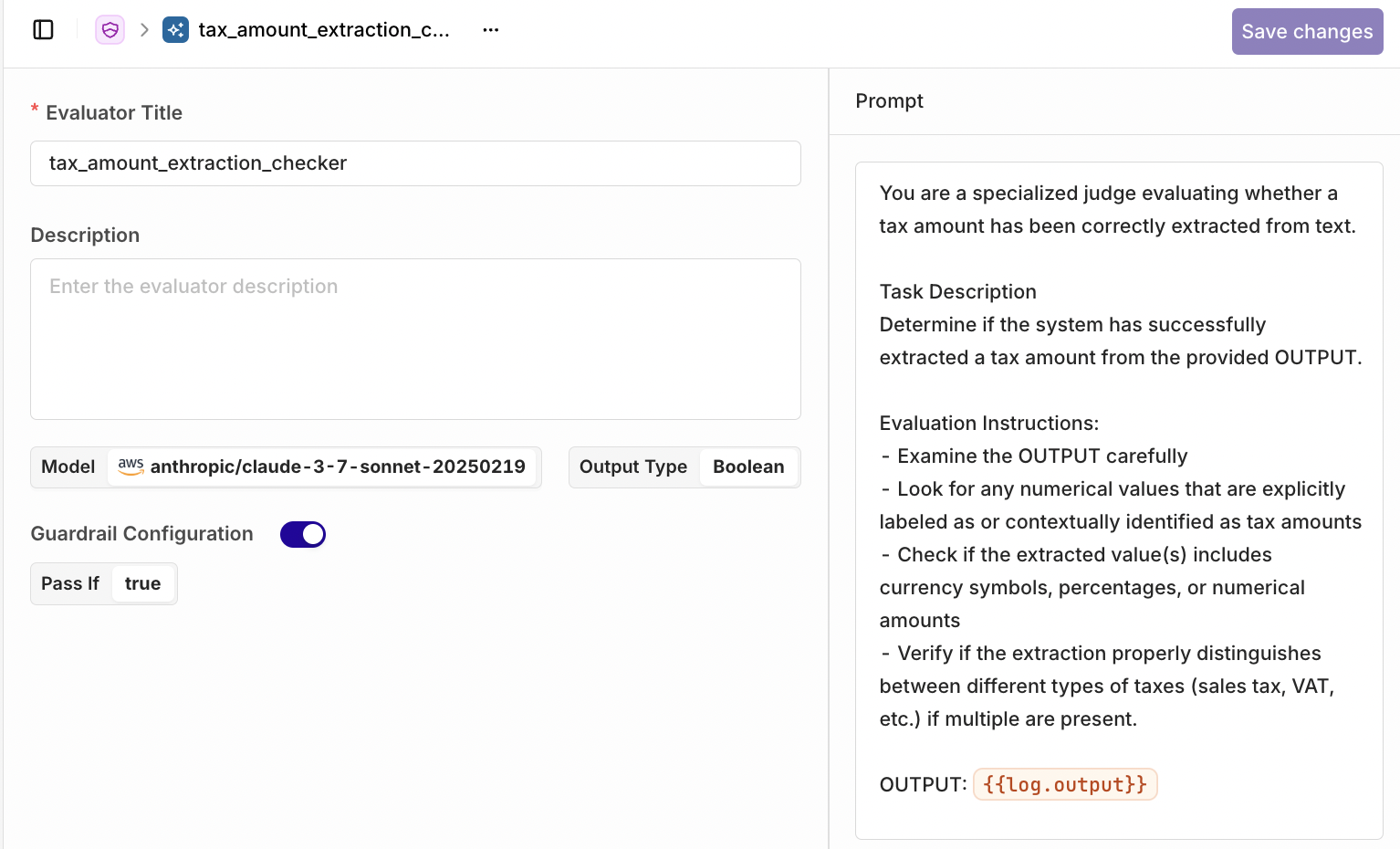
Step 5: Evaluation Configuration for JSON and Tax Check To ensure the integrity and completeness of the extracted data, we run two key evaluations. These can be configured in Deployment > Settings > Output Guardrails. JSON Check: Verifies that the extracted output follows the expected JSON schema, ensuring proper formatting and the presence of all required fields. Evaluation using JSON check Tax Check: Confirms whether the tax amount has been successfully extracted and, if applicable, whether multiple tax types are correctly identified. Evaluation for Tax check These evaluations help maintain data quality, flag potential issues early, and improve the reliability of downstream processing. Step 6: Run Deployment This code processes a set of Base64-encoded images by invoking Orq’s data extraction deployment to extract structured receipt information. The extracted data is parsed into JSON format and stored in extraction_results, making it ready for further processing, such as financial summarization or validation.

Step 7: Financial Summarization Deployment

The second deployment summarizes the extracted financial data, providing a high-level overview of expenses. It highlights total spending, detects unusual charges, and identifies potential cost-saving opportunities, ensuring a clear and concise financial snapshot.

Model Configuration in Orq

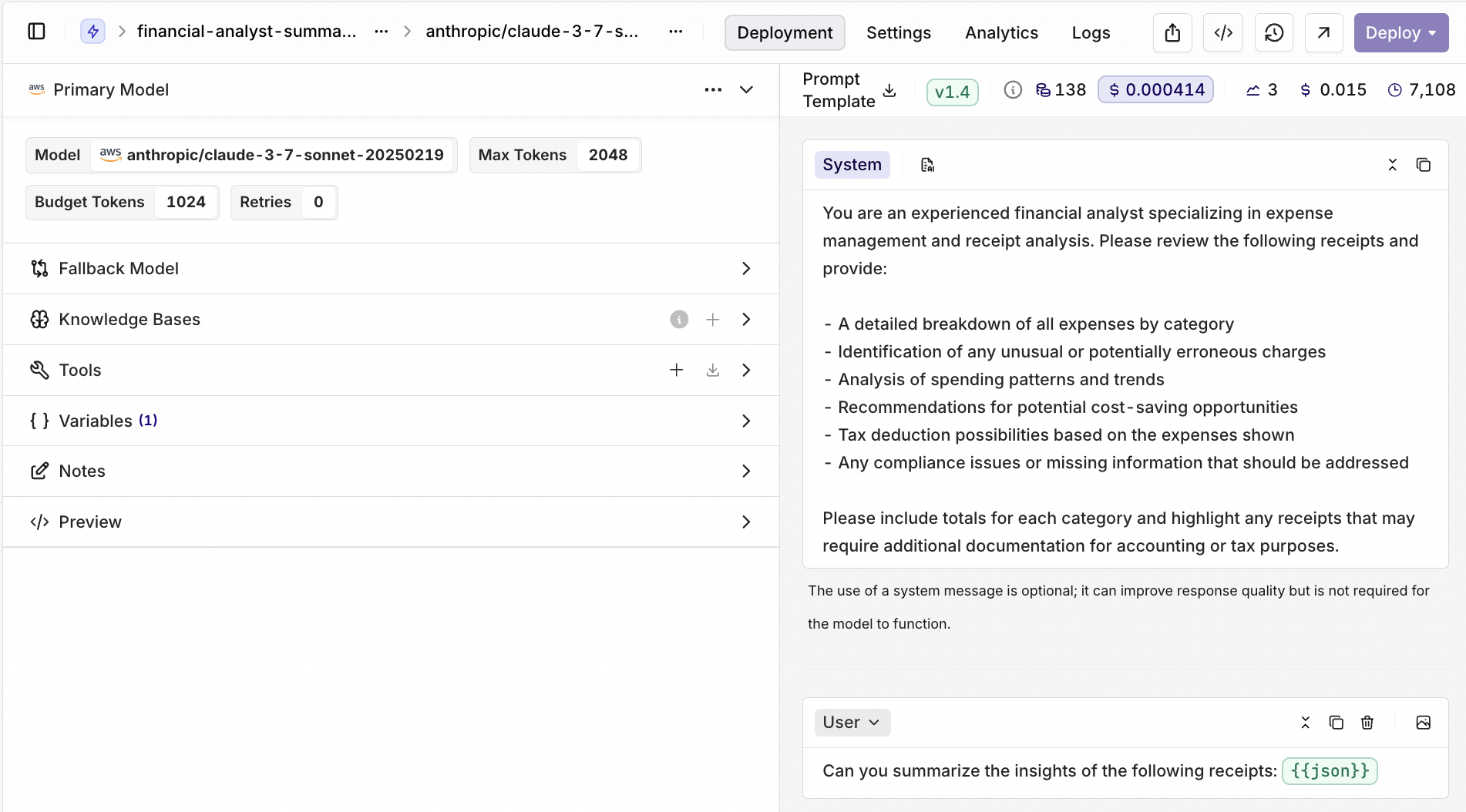
For summarizing all that extracted receipt data, we’re using Claude 3.5 Haiku as our primary model—it’s fast and efficient. If it ever needs backup, Claude 3.7 Sonnet is ready to jump in as the fallback. We’ve set the temperature to 0.5, which keeps things balanced—structured enough to stay accurate, but still flexible enough to offer insightful takeaways about spending patterns and tax deductions. The Top P (0.7) and Top K (5) settings make sure responses stay focused and relevant, without the model going off on financial tangents. Orq model configuration for financial summarization using Claude 3.5 Haiku as primary and Claude 3.7 Sonnet as fallback at temperature 0.5.
Prompt

This prompt guides the model to act as an experienced financial analyst, focusing on expense management and receipt analysis. It goes beyond simple data extraction by requesting a detailed expense breakdown, identification of unusual charges, and an analysis of spending patterns. Additionally, it includes actionable insights, such as cost-saving recommendations, tax deduction opportunities, and compliance checks. By summarising totals for each category and flagging receipts that may need further review, this prompt ensures a comprehensive financial assessment, making it useful for both accounting and tax reporting.

Step 8: Passing Extracted Data to the Next Deployment

Here, we invoke the next deployment, using the JSON output from the previous extraction step as input. This ensures a seamless transition between deployments, allowing for structured financial summarization based on the extracted receipt data.
What’s Next? With this workflow, you now have a concrete example of how to configure and chain multiple deployments in Orq, transforming unstructured data into structured insights. Beyond receipt processing, this approach can be applied to a wide range of workflows, such as document parsing, customer feedback analysis, or automated compliance checks.
  • Scale and Adapt: Apply the same principles to process different data types, from text documents to audio transcripts or sensor data.
  • Optimize with Evaluations: Run targeted evaluations at key steps to ensure accuracy, detect anomalies, and refine model performance.
  • Automate Decision-Making: Use chained deployments to create intelligent workflows that extract, analyze, and act on data with minimal manual intervention.
By leveraging Orq’s flexible deployment framework, businesses can design custom AI-driven pipelines and integrate them in their software product to fuel their Gen AI based features, unlocking new efficiencies across various domains.