Google Vertex AI provides enterprise-grade access to Gemini models with enhanced security, compliance, and control. By connecting Vertex AI to Orq.ai, you get enterprise Gemini capabilities with service account authentication, project-level billing, and data residency controls.

Setup Your API Key

To use Vertex AI with Orq.ai, you need to create a service account with appropriate permissions:
1

Create Service Account

  1. Go to Google Cloud Console
  2. Navigate to IAM & Admin > Service Accounts
  3. Click Create Service Account
  4. Enter a name (e.g., “orq-vertex-ai”)
  5. Grant the following roles:
    • Service Account Token Creator
    • Vertex AI User
  6. Click Create and Continue
  7. Click Done
2

Create Service Account Key

  1. Find your service account in the list
  2. Click the Actions menu (three dots)
  3. Select Manage Keys
  4. Click Add Key > Create New Key
  5. Select JSON format
  6. Click Create to download the key file
3

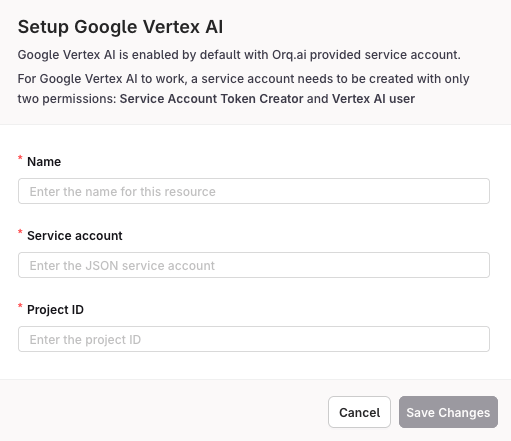
Configure in Orq.ai

  1. Navigate to Providers (in AI Studio: Model Garden > Providers, in AI Router: Providers)
  2. Find Google Vertex AI in the list
  3. Click the Configure button
  4. Select Setup your own API Key
  5. Enter configuration name (e.g., “Vertex AI Production”)
  6. Paste your service account JSON in the Deployment JSON field (see format below)
  7. Click Save to complete the setup

Deployment JSON Format

Your deployment JSON should include the service account credentials, project ID, and region:
{
  "projectId": "my-project-123456",
  "location": "us-central1",
  "serviceAccount": {
    "type": "service_account",
    "project_id": "my-project-123456",
    "private_key_id": "afd17083ecd5184b5ca880e70eb84c2e4c382f14",
    "private_key": "-----BEGIN PRIVATE KEY-----\n...=\n-----END PRIVATE KEY-----\n",
    "client_email": "[email protected]",
    "client_id": "000000000000000000000",
    "auth_uri": "https://accounts.google.com/o/oauth2/auth",
    "token_uri": "https://oauth2.googleapis.com/token",
    "auth_provider_x509_cert_url": "https://www.googleapis.com/oauth2/v1/certs",
    "client_x509_cert_url": "https://www.googleapis.com/robot/v1/metadata/x509/vertex-ai%40my-project-123456.iam.gserviceaccount.com",
    "universe_domain": "googleapis.com"
  }
}
Project ID: Find your Google Cloud Project ID at the top of the Google Cloud Console.Location: Common regions include us-central1, europe-west1, asia-northeast1. Choose based on your data residency requirements.

Available Models

The AI Router supports all current Vertex AI Gemini models. Here are the most commonly used:
ModelContextBest For
google/gemini-3-pro-preview1MLatest preview, most advanced
google/gemini-2.5-pro1MLatest stable, most capable
google/gemini-2.5-flash1MFast, balanced performance
google/gemini-2.0-flash-0011MStable, reliable
For a complete and up-to-date list of all available Vertex AI models, see Supported Models.
Use google/gemini-2.5-pro for the latest stable model, or google/gemini-2.5-flash for the best balance of performance and cost.

Quick Start

Access Vertex AI Gemini models through the AI Router.
import OpenAI from "openai";

const client = new OpenAI({
  apiKey: process.env.ORQ_API_KEY,
  baseURL: "https://api.orq.ai/v2/router",
});

const response = await client.chat.completions.create({
  model: "google/gemini-2.5-pro",
  messages: [
    {
      role: "user",
      content: "Explain quantum computing in simple terms",
    },
  ],
});

console.log(response.choices[0].message.content);

Using the AI Router

Access Vertex AI Gemini models through the AI Router with enterprise-grade security, advanced chat completions, streaming, and intelligent model routing. All Vertex AI models are available with consistent formatting and automatic request logging.
Vertex AI models use the provider slug format: google/model-name. For example: google/gemini-2.5-pro

Prerequisites

Before making requests to the AI Router, you need to configure your environment and install the SDKs if you choose to use them. Endpoint
POST https://api.orq.ai/v2/router/chat/completions
Required Headers Include the following headers in all requests:
Authorization: Bearer $ORQ_API_KEY
Content-Type: application/json
Getting your API Key:
  1. Go to API Keys
  2. Click Create API Key and copy it
  3. Store it in your environment as ORQ_API_KEY
SDK Installation Install the OpenAI SDK for your language (compatible with Vertex AI models):
npm install openai
# or
yarn add openai
If your OpenAI code is already functionning, you only need to change the base_url and api_key to the router endpoint and ORQ_API_KEY.

Chat Completions

Send messages to Vertex AI Gemini models and get intelligent responses:
import OpenAI from "openai";

const client = new OpenAI({
  apiKey: process.env.ORQ_API_KEY,
  baseURL: "https://api.orq.ai/v2/router",
});

const response = await client.chat.completions.create({
  model: "google/gemini-2.5-pro",
  messages: [
    {
      role: "system",
      content: "You are a helpful assistant that explains complex concepts simply.",
    },
    {
      role: "user",
      content: "Explain machine learning",
    },
  ],
  temperature: 0.7,
  max_tokens: 500,
});

console.log(response.choices[0].message.content);

Streaming

Stream responses for real-time output and improved user experience:
import OpenAI from "openai";

const client = new OpenAI({
  apiKey: process.env.ORQ_API_KEY,
  baseURL: "https://api.orq.ai/v2/router",
});

const stream = await client.chat.completions.create({
  model: "google/gemini-2.5-pro",
  messages: [
    {
      role: "user",
      content: "Write a short poem about the ocean",
    },
  ],
  stream: true,
});

for await (const chunk of stream) {
  const content = chunk.choices[0]?.delta?.content || "";
  process.stdout.write(content);
}
console.log("\n");

Function Calling

Vertex AI Gemini models support function calling for structured interactions:
const response = await client.chat.completions.create({
  model: "google/gemini-2.5-pro",
  messages: [
    {
      role: "user",
      content: "What's the weather in San Francisco?",
    },
  ],
  tools: [
    {
      type: "function",
      function: {
        name: "get_weather",
        description: "Get the current weather in a location",
        parameters: {
          type: "object",
          properties: {
            location: {
              type: "string",
              description: "The city and state, e.g. San Francisco, CA",
            },
            unit: {
              type: "string",
              enum: ["celsius", "fahrenheit"],
            },
          },
          required: ["location"],
        },
      },
    },
  ],
});

const toolCall = response.choices[0].message.tool_calls?.[0];
if (toolCall?.type === "function") {
  console.log(`Calling function: ${toolCall.function.name}`);
  console.log(`Arguments: ${toolCall.function.arguments}`);
}

Automatic Request Logging

All requests made through the AI Router are automatically logged to your dashboard. You can view:
  • Request details: Model used, tokens, latency
  • Cost tracking: Per-request and aggregate costs
  • Error monitoring: Failed requests with error messages
  • Performance metrics: Response times and throughput
No additional configuration is needed—logging happens automatically.

Reference