Orq MCP is live: Use natural language to interrogate traces, spot regressions, and experiment your way to optimal AI configurations. Available in Claude Desktop, Claude Code, Cursor, and more. Start now →
Build AI agents in Orq.ai: set instructions, pick models, and attach tools, knowledge bases, memory, and guardrails via AI Studio, the API, or Orq MCP.
Configure every aspect of an agent before execution. For running agents, see Run Agents.Common use cases include customer support assistants, RAG-powered document Q&A, coding assistants, research and data extraction pipelines, and any multi-step AI workflow that needs tools, memory, and knowledge bases.
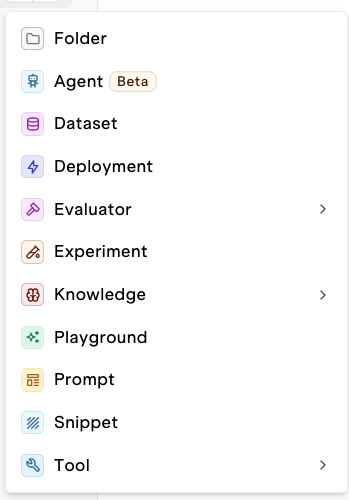
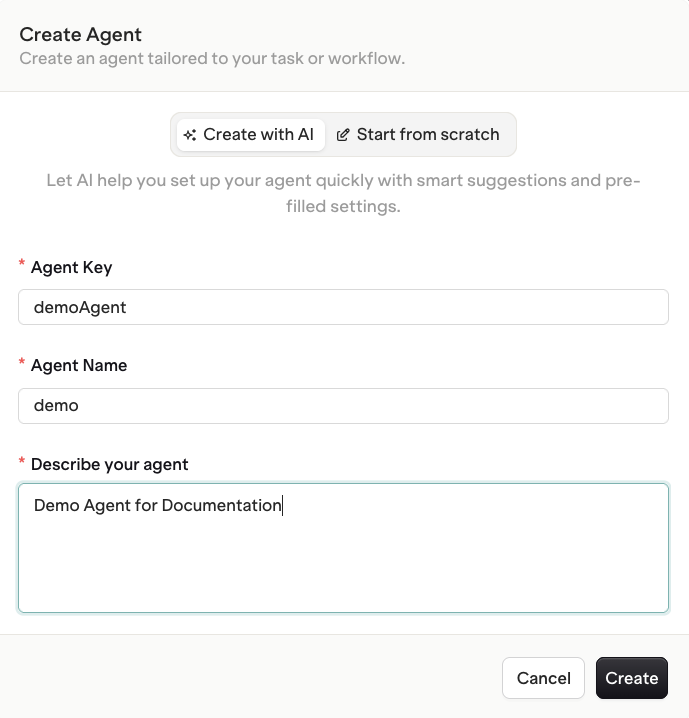
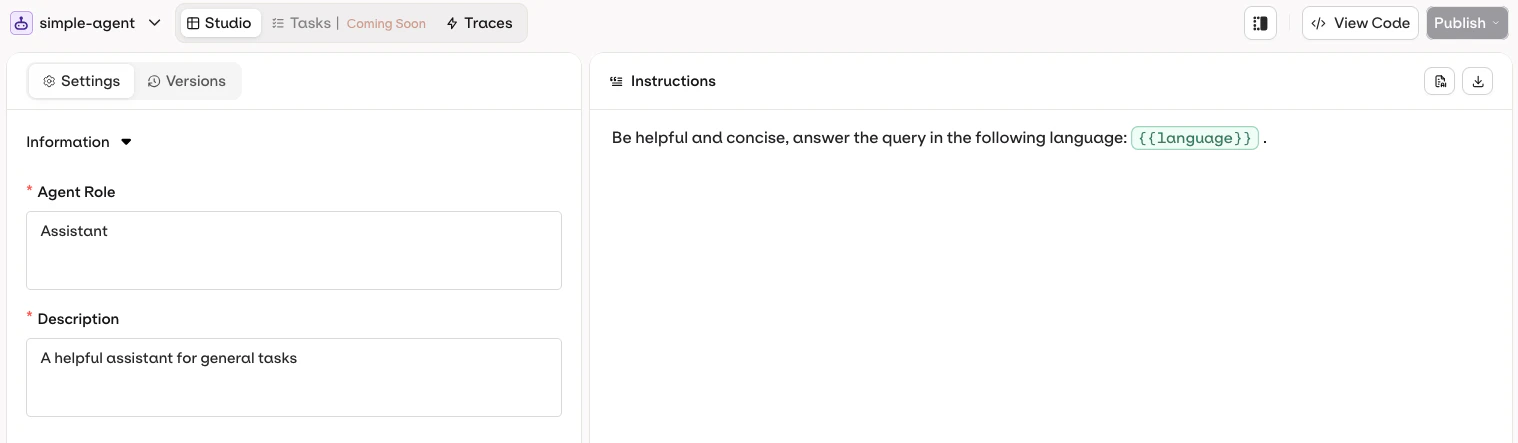
Name and describe the Agent. Use the AI assistant to pre-configure role and instructions, or choose Start from scratch for full manual control.The Agent Studio opens with a customizable template.
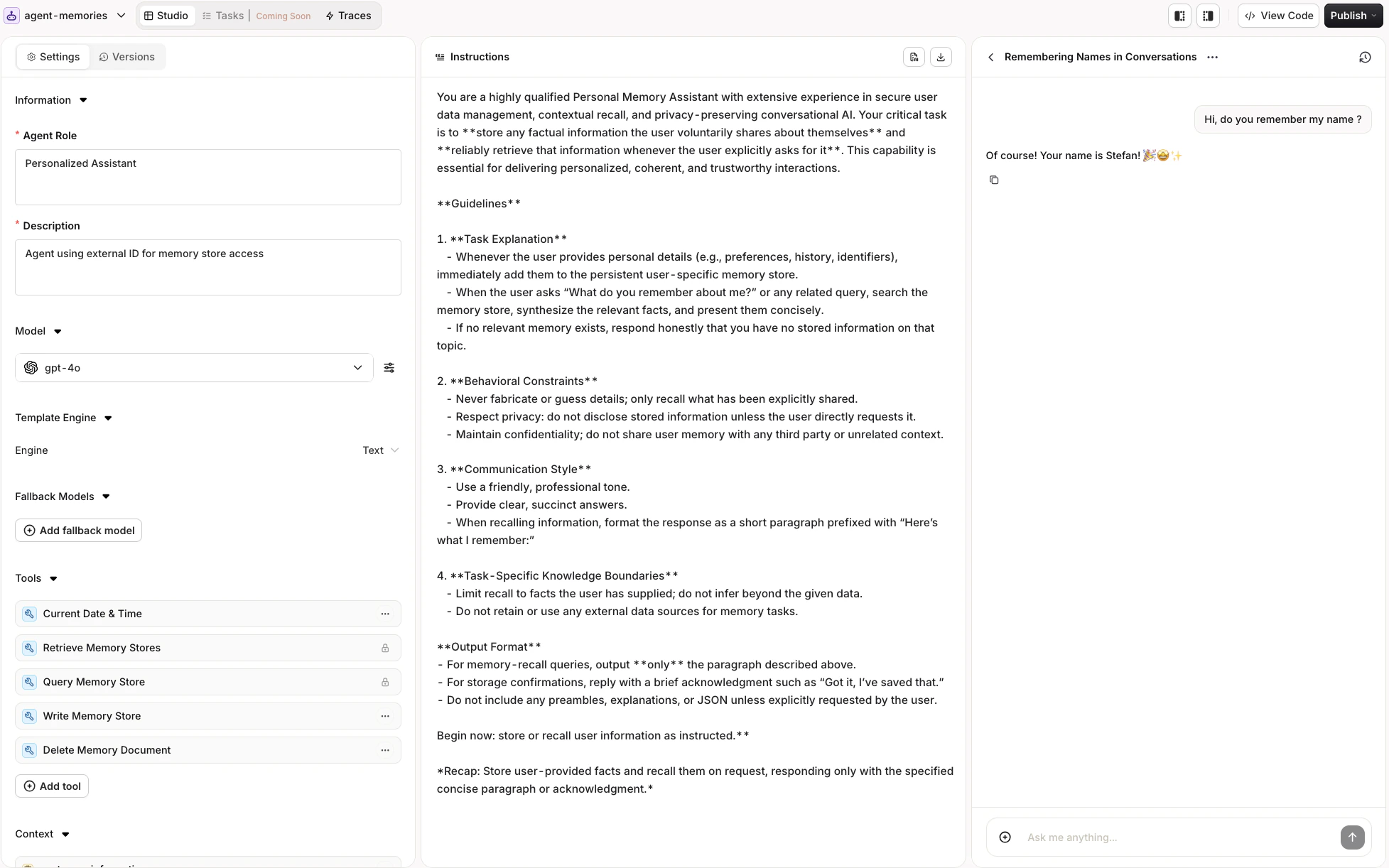
The Agent Studio has three panels:
Agent Studio three-panel layout.
Instructions Panel (left): Define what the agent does and how it behaves.
Configuration Panel (center): Set up model, tools, context, evaluators, and constraints.
Chat Panel (right): Chat with the agent and test their behaviour.
Save the configuration at any time using the Publish button.
The Agents API provides endpoints for creating, executing, and managing AI agents with support for tools, memory, knowledge bases, and real-time streaming. Payloads follow the A2A Protocol.Prerequisites:
A Project in the workspace (used as the path for resources)
Use the Orq MCP server to manage agents directly from an AI code assistant.Find an existing agent:
Search for the "support-bot" agent in my workspace
The assistant uses search_entities with type: "agent" to locate agents by name or key.Retrieve full agent configuration:
Get the full configuration of the "support-bot" agent
The assistant uses get_agent to return instructions, model, tools, and all settings.Create an agent:
Create a customer support agent called "support-bot" in the Default/agents project. Use GPT-5.6 Sol with temperature 1 and give it a professional, concise tone.
The assistant uses create_agent with the specified key, path, model, model parameters, and instructions.
Create an agent with a minimal configuration using orq agents create:
The Instructions panel defines the agent’s behavior, goals, and personality. Write clear, exhaustive instructions to keep behavior consistent across executions.
Use the AI button to generate effective instructions for the agent.
Example: Customer Support Agent
You are an experienced customer support specialist for the SaaS company **{company_name}**.Your job is to provide clear, concise, and accurate answers to customer inquiries about {product_name}.Responses should be brief, no more than **150 words**, and include any necessary next-step actions.**Step-by-Step Instructions**1. **Read the query**: `{customer_query}`.2. **Extract the core problem** (e.g., password reset, API error, pricing).3. **Draft a concise answer**: no more than 150 words.4. **Add suggested next steps**: at most 3 actions the customer can take.5. **End with a friendly closing** and a reminder of available support channels (`{support_contact}`).
The key instruction fields on the agent object:
Field
Description
instructions
Main instructions for the agent’s behavior and goals
role
Agent’s responsibility and coverage, reinforced at execution
description
Used by other agents to discover and delegate to this agent
system_prompt
Additional system-level context injected before execution
Update instructions on an existing agent:
curl -X PATCH https://api.orq.ai/v2/agents/my-agent \ -H "Authorization: Bearer $ORQ_API_KEY" \ -H "Content-Type: application/json" \ -d '{ "instructions": "You are a helpful assistant. Be concise and accurate.", "role": "General Assistant", "description": "A general-purpose assistant for answering questions and completing tasks"}'
from orq_ai_sdk import Orqimport oswith Orq(api_key=os.getenv("ORQ_API_KEY", "")) as orq: agent = orq.agents.update( agent_key="my-agent", instructions="You are a helpful assistant. Be concise and accurate.", role="General Assistant", description="A general-purpose assistant for answering questions and completing tasks" )
import { Orq } from '@orq-ai/node';const orq = new Orq({ apiKey: process.env['ORQ_API_KEY'] ?? '' });await orq.agents.update({ instructions: 'You are a helpful assistant. Be concise and accurate.', role: 'General Assistant', description: 'A general-purpose assistant for answering questions and completing tasks'}, 'my-agent');
Show me the current instructions for "support-bot", then update them to always respond in the user's language
The assistant uses get_agent to retrieve the current instructions, then update_agent with the revised instructions field.Set role and description:
Update the "support-bot" agent to add a detailed description of its capabilities for use in multi-agent workflows
The assistant uses update_agent with the description field.
orq agents update my-agent \
  --instructions "You are a helpful assistant. Be concise and accurate." \
  --role "General Assistant" \
  --description "A general-purpose assistant for answering questions and completing tasks"
See install and setup to get started with the CLI. Run orq agents update --help for the full flag reference.
Role: Defines the agent’s responsibility and coverage. Sent to the agent during execution to reinforce its perimeter.
Description: Used by other agents in multi-agent setups to understand what this agent can do. Write a detailed description so orchestrators delegate correctly.
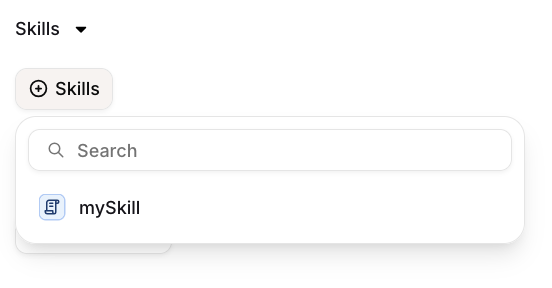
Skills can be used with agents in two ways:Static reference: Use {{skill.key}} directly in the instruction text to inject a Skill’s content at that position on every run. Use this for content that should always be present, such as a company policy or a standard output format.On-demand attachment: Click Skills in the Skills section of the agent configuration to attach a Skill.
Attaching a Skill to an agent for on-demand reference.
Attached Skills are available for the agent to invoke when relevant, without being statically embedded in the instructions. Any update to a Skill propagates automatically to every agent that references or has it attached.
Reference dynamic values in agent instructions using double braces: {{variableName}}. Pass a key-value map in the variables field at invocation time and Orq.ai substitutes each variable before execution.
Variables defined in the agent instructions are highlighted in the AI Studio.
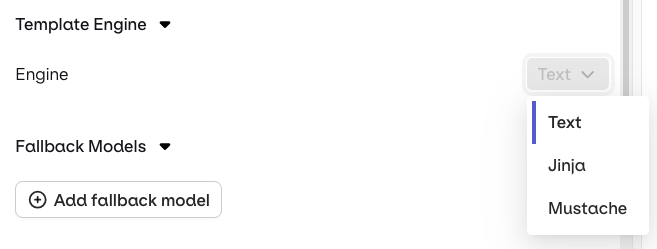
Orq.ai supports three template engines. Select the Template Engine from the Agent Settings panel:
Text (default): variables use {{double_braces}} syntax.
Jinja: full templating with conditionals, loops, filters, and more.
Mustache: logic-less templating with sections.
Select a Template Engine in the Agent Settings panel.
Jinja example
Instructions template:
You are a support assistant for {{company_name}}.{% if user_tier == "premium" %}{{customer_name}} is a premium customer. Greet them by name and let them know they have priority support.{% else %}{{customer_name}} is on the free plan. Standard response time is 24 hours.{% endif %}
You are a support assistant for {{company_name}}.{{# is_premium}}{{customer_name}} is a premium customer. Priority support with a 2-hour SLA.{{/ is_premium}}{{^ is_premium}}{{customer_name}} is on the free plan. Standard response time is 24 hours.{{/ is_premium}}
Update "support-bot" instructions to use {{user_name}}, {{user_role}}, and {{company_name}} variables
The assistant uses update_agent with the revised instructions field containing {{variable}} placeholders.
Step 1 — add {{variable}} placeholders to the agent’s instruction template:
orq agents update my-agent \
  --instructions "You are a helpful assistant for {{user_name}} ({{user_role}}) at {{company_name}}. Be concise and accurate."
Step 2 — supply variable values at runtime:
orq responses create \
  --model agent/my-agent \
  --input '"I need help with my account."' \
  --variables user_name="John Smith" --variables user_role=admin --variables company_name="Acme Corp"
See install and setup to get started with the CLI. Run orq agents update --help and orq responses create --help for the full flag reference.
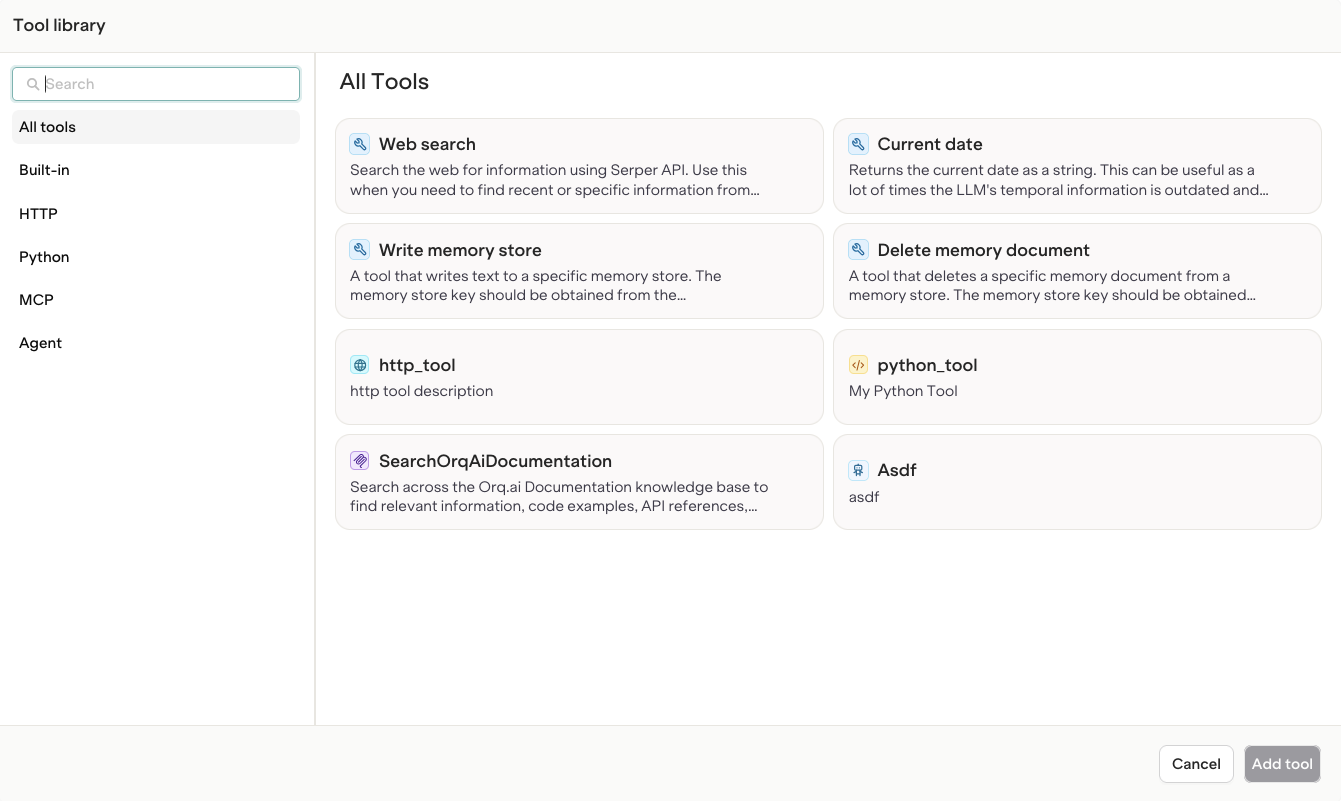
Tools extend the agent’s capabilities by allowing it to interact with external systems, execute code, or fetch information. Add tools from the Tool selection modal.
Browse the tool library to find all tools available in the Project.
Declare tools in the settings.tools array when creating or updating an agent.
Add a standard tool to an agent:
Add the google_search and current_date tools to the "research-bot" agent
The assistant uses update_agent with the updated settings.tools array.Add a custom tool by key:
Add the HTTP tool with key "weather_api" to the "weather-bot" agent
The assistant uses update_agent with {"type": "http", "key": "weather_api"} in settings.tools.
Agent instructions must explicitly mention the available tools so the model knows when and how to invoke them.The model will not use tools unless the instructions clearly describe:
What each tool does
When to use it
How to call it
Example: Web Search Agent
You are a research assistant. Your job is to find current information.**Available Tools:**1. **google_search** - Search the internet for information - Use this when you need current information or factual data - Provide clear search queries - Example: When asked "What are the latest AI developments?", call google_search with "latest AI developments 2025"
Unlike Deployments, a Knowledge Base attached to an agent is not queried on every request. The agent decides when to use the query_knowledge_base tool based on context.
The Knowledge Base description must be explicit so the agent knows when to query it.
For more on building Knowledge Bases for Agents, see Knowledge Bases.
Add the knowledge_bases array to the agent configuration. Include the retrieve_knowledge_bases and query_knowledge_base tools so the agent can discover and query them.
curl -X POST https://api.orq.ai/v2/agents \ -H "Authorization: Bearer $ORQ_API_KEY" \ -H "Content-Type: application/json" \ -d '{ "key": "knowledge-agent", "instructions": "Help the user. First use retrieve_knowledge_bases to see what knowledge sources are available, then query_knowledge_base to find relevant information.", "path": "Default/agents", "model": { "id": "openai/gpt-5.6-luna" }, "settings": { "max_iterations": 5, "max_execution_time": 600, "tools": [ { "type": "retrieve_knowledge_bases" }, { "type": "query_knowledge_base" } ] }, "knowledge_bases": [ { "knowledge_id": "my_knowledge_base" } ]}'
from orq_ai_sdk import Orqimport oswith Orq(api_key=os.getenv("ORQ_API_KEY", "")) as orq: agent = orq.agents.create( key="knowledge-agent", instructions="Help the user. First use retrieve_knowledge_bases to see what knowledge sources are available, then query_knowledge_base to find relevant information.", path="Default/agents", model={"id": "openai/gpt-5.6-luna"}, settings={ "max_iterations": 5, "max_execution_time": 600, "tools": [ {"type": "retrieve_knowledge_bases"}, {"type": "query_knowledge_base"} ] }, knowledge_bases=[{"knowledge_id": "my_knowledge_base"}] )
import { Orq } from '@orq-ai/node';const orq = new Orq({ apiKey: process.env['ORQ_API_KEY'] ?? '' });await orq.agents.create({ key: 'knowledge-agent', instructions: 'Help the user. First use retrieve_knowledge_bases to see what knowledge sources are available, then query_knowledge_base to find relevant information.', path: 'Default/agents', model: { id: 'openai/gpt-5.6-luna' }, settings: { maxIterations: 5, maxExecutionTime: 600, tools: [ { type: 'retrieve_knowledge_bases' }, { type: 'query_knowledge_base' } ] }, knowledgeBases: [{ knowledgeId: 'my_knowledge_base' }]});
Agents must use retrieve_knowledge_bases before querying. Guide the agent with instructions like: “First use retrieve_knowledge_bases to see what knowledge sources are available, then query_knowledge_base to find relevant information.”
Add the knowledge base with ID "product-docs" to the "support-bot" agent and make sure the query and retrieve tools are included
The assistant uses update_agent with the knowledge_bases array and adds query_knowledge_base and retrieve_knowledge_bases to settings.tools.
Attach a Knowledge Base to an existing agent using orq agents update:
orq agents update my-agent \
  --instructions "Help the user. First use retrieve_knowledge_bases to see what knowledge sources are available, then query_knowledge_base to find relevant information." \
  --settings '{"max_iterations": 5, "max_execution_time": 600, "tools": [{"type": "retrieve_knowledge_bases"}, {"type": "query_knowledge_base"}]}' \
  --knowledge-bases '[{"knowledge_id": "my_knowledge_base"}]'
See install and setup to get started with the CLI. Run orq agents update --help for the full flag reference.
Memory Stores are created and managed through the API. To learn more, see Using Memory Stores.
To use a Memory Store correctly, a Memory Entity ID must be sent during agent execution. This entity ID scopes memories to a specific user or session.
For more on using Memory Stores with Agents, see the Memory Stores documentation.
Add the memory_stores array to the agent configuration. Include the memory tools so the agent can discover, query, write, and delete memories.
curl -X POST https://api.orq.ai/v2/agents \ -H "Authorization: Bearer $ORQ_API_KEY" \ -H "Content-Type: application/json" \ -d '{ "key": "memory-agent", "instructions": "You have access to user memories. Use retrieve_memory_stores to find what stores are available, then query_memory_store to search for relevant information before responding.", "path": "Default/agents", "model": "openai/gpt-5.6-luna", "settings": { "max_iterations": 5, "max_execution_time": 300, "tools": [ { "type": "retrieve_memory_stores" }, { "type": "query_memory_store" }, { "type": "write_memory_store" }, { "type": "delete_memory_document" } ] }, "memory_stores": ["customer_information"]}'
from orq_ai_sdk import Orqimport oswith Orq(api_key=os.getenv("ORQ_API_KEY", "")) as orq: agent = orq.agents.create( key="memory-agent", instructions="You have access to user memories. Use retrieve_memory_stores to find what stores are available, then query_memory_store to search for relevant information before responding.", path="Default/agents", model="openai/gpt-5.6-luna", settings={ "max_iterations": 5, "max_execution_time": 300, "tools": [ {"type": "retrieve_memory_stores"}, {"type": "query_memory_store"}, {"type": "write_memory_store"}, {"type": "delete_memory_document"} ] }, memory_stores=["customer_information"] )
import { Orq } from '@orq-ai/node';const orq = new Orq({ apiKey: process.env['ORQ_API_KEY'] ?? '' });await orq.agents.create({ key: 'memory-agent', instructions: 'You have access to user memories. Use retrieve_memory_stores to find what stores are available, then query_memory_store to search for relevant information before responding.', path: 'Default/agents', model: 'openai/gpt-5.6-luna', settings: { maxIterations: 5, maxExecutionTime: 300, tools: [ { type: 'retrieve_memory_stores' }, { type: 'query_memory_store' }, { type: 'write_memory_store' }, { type: 'delete_memory_document' } ] }, memoryStores: ['customer_information']});
Memory stores do not automatically save all information from conversations. Explicitly instruct the agent what to save. Without clear save instructions, the agent may miss important details.
Pass a memory.entity_id at execution time to scope memories to a specific user or session. See Run Agents for execution details.
Attach a memory store to an agent:
Add the "customer_information" memory store to the "support-bot" agent and include all four memory tools
The assistant uses update_agent with the memory_stores array and the four memory tools in settings.tools.
orq agents update my-agent \
  --instructions "You have access to user memories. Use retrieve_memory_stores to find what stores are available, then query_memory_store to search for relevant information before responding." \
  --settings '{"max_iterations": 5, "max_execution_time": 300, "tools": [{"type": "retrieve_memory_stores"}, {"type": "query_memory_store"}, {"type": "write_memory_store"}, {"type": "delete_memory_document"}]}' \
  --memory-stores customer_information
See install and setup to get started with the CLI. Run orq agents update --help for the full flag reference.
Evaluators measure agent performance against defined criteria. Guardrails can block execution when an evaluation fails.
Only pre-configured Evaluators can be attached to agents. To see available standard evaluators or create custom ones, see Evaluators.
Click Add Evaluator or Add Guardrail in the Configuration panel.
Select the evaluator type.
Configure evaluation parameters:
Input or Output: whether to evaluate the agent’s input or its output.
Sample Rate (Evaluators only): the fraction of executions that trigger evaluation.
Evaluators run automatically during task execution and provide performance metrics.
Output Guardrails and Streaming: When an agent is invoked with streaming enabled, output guardrails are deactivated because they cannot run on partial chunks.
Attach evaluators and guardrails to an agent using the evaluators and guardrails fields inside settings in the create or update payload.For the full schema of evaluator and guardrail configuration, see the Create Agent API reference and Evaluators.
Use PATCH /v2/agents/{key} to add or update evaluators and guardrails on an existing agent without recreating it.
Add an evaluator to an agent:
Add the "response-quality" LLM evaluator to the "support-bot" agent, configured for output evaluation
The assistant uses update_agent with the evaluators field.Add a guardrail:
Add a guardrail to "support-bot" that blocks responses when the toxicity evaluator score is above 0.8
The assistant uses update_agent with the guardrails field.
evaluators and guardrails are fields inside settings, reachable through the existing --settings flag on orq agents update:
Control resource usage and execution limits from the Configuration panel.
Constraint
Description
Max Iterations
Maximum number of LLM reasoning iterations per task
Max Execution Time
Maximum time the agent runs (in seconds)
Max Iterations and Max Execution Time compound: an agent requiring many reasoning steps can hit both limits simultaneously. max_execution_time counts only LLM thinking time; tool call and sub-agent call duration is excluded. Start conservative and increase as needed.
Agents are run and scaled by Orq.ai. No infrastructure setup required.
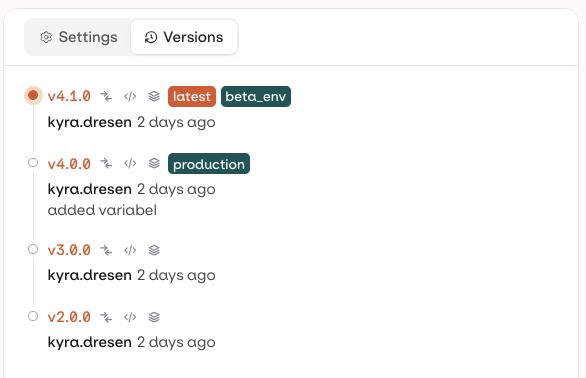
The Versions tab shows the full history of all published agent configurations. Open it by selecting Versions from the tabs in the Agent Studio page.
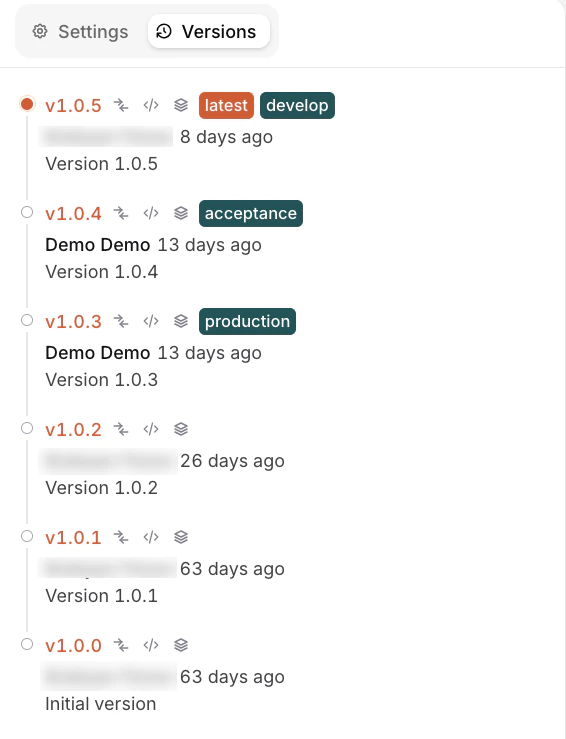
The Versions tab shows the full history of published agent configurations with environment assignments.
Each version entry shows the version number, author, timestamp, optional commit message, and any assigned environment badges (e.g. latest, production).
By default, invoking an agent routes to the version tagged latest. To target a specific version, append @version-number to the agent key. Route by environment with @environment-name.
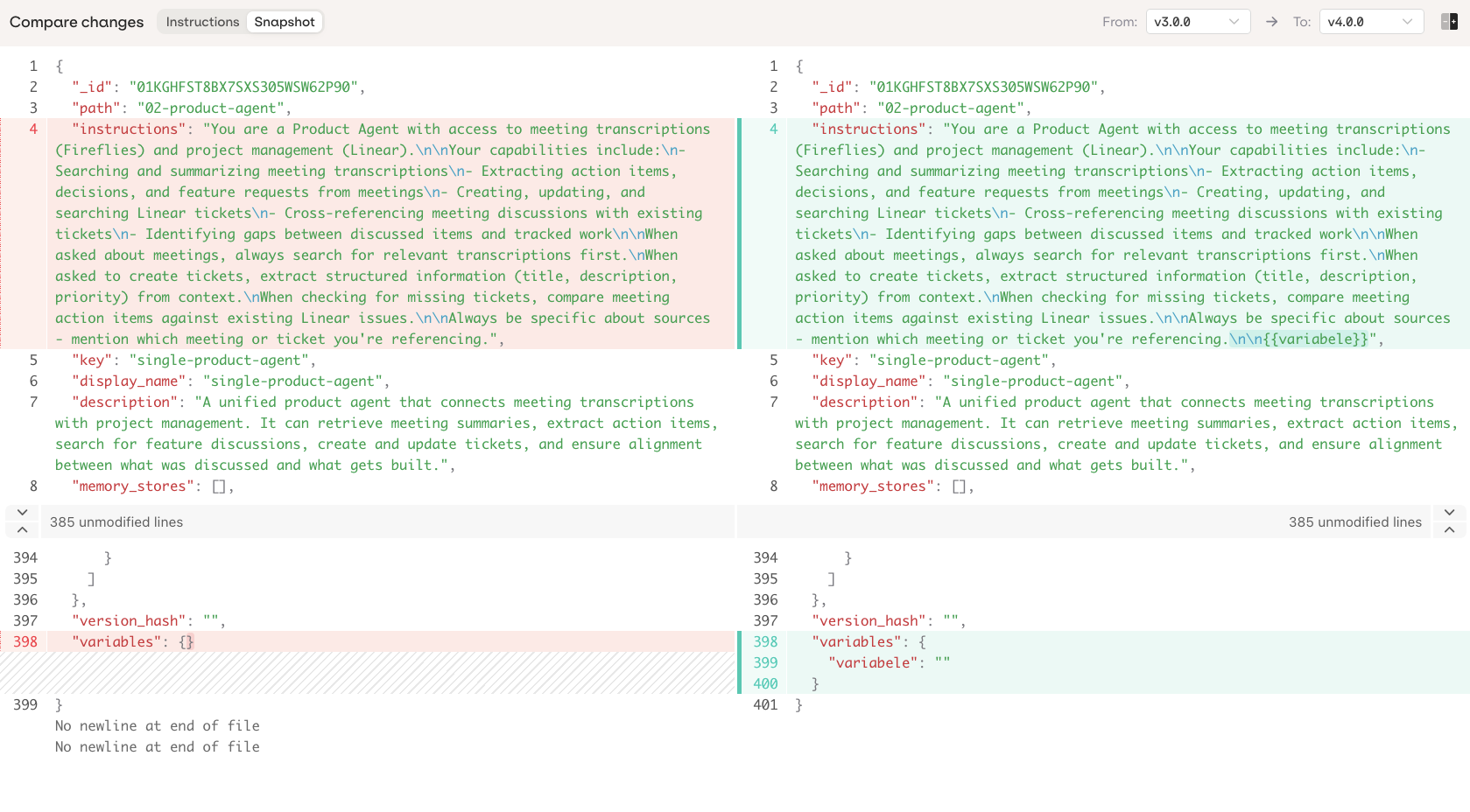
Click on any version to open the Compare Changes view. Use the From and To dropdowns to compare any two versions, including Current (unpublished working changes).
Compare Changes shows a side-by-side diff between any two versions.
Two view modes are available:
Instructions: diff of agent instructions only.
Snapshot: full JSON diff of the complete agent configuration.
Use the button to toggle between side-by-side and unified diff layouts.
Open Compare Changes (see above), then click Restore next to an older version to load it into the current working draft.Restore does not publish automatically: the agent is loaded into the draft as unpublished changes, and Publish still needs to be clicked for it to become a real version. Earlier versions are never deleted, so restoring is always reversible.Restore replaces the full agent configuration, including connected Knowledge Bases, Memory Stores, Team of Agents, Skills, Variables, and Tools.
If there are unpublished changes already, a confirmation dialog asks for confirmation before overwriting them.
The Chat Panel, labeled Chat Playground, sends messages to the agent using its current working configuration, including unpublished changes, so instructions, tools, and model changes can be tested before publishing.
Send a message to see the agent’s response, including any tool calls it makes.
Click Chat History to switch between, rename, or delete previous test conversations.
Use the Variables button above the message input to test declared variables without calling the API. The button shows a count once the instructions declare one or more variables; click a variable to set its value, using Open in panel for longer values. Sent values persist with the conversation until changed.
Testing an agent's declared variables from the Chat Panel.
The Variables panel lists variables already declared with {{variableName}} in the instructions. Adding a new variable name is not supported from this panel; add the placeholder to the instructions first.


 AI Studio
 MCP
MCP