

- Inputs: Variables injected into the prompt at runtime, e.g.
{{firstname}}. - Messages: The prompt template, structured with system, user, and assistant roles.
- Expected Outputs: Reference responses evaluators compare against model outputs.
Use Cases
Regression and pre-deployment testing
Regression and pre-deployment testing
Run the same dataset through your prompts before and after a change to verify that updates haven’t degraded performance in any area.
Compare models and prompt variants
Compare models and prompt variants
Use the same dataset across multiple models or prompt configurations in an Experiment to find the best combination of quality, cost, and latency.
Curated datasets for fine-tuning
Curated datasets for fine-tuning
Have domain experts review and correct model outputs, then save those verified input/output pairs as a curated dataset to use as fine-tuning reference data.
Synthetic data generation at scale
Synthetic data generation at scale
Use the Orq MCP to generate hundreds of realistic test cases programmatically and add them directly to a dataset without leaving your IDE.
Vision and image datasets
Vision and image datasets
Build datasets with image messages for testing vision models. Supports JPEG, PNG, GIF, and WebP via the AI Studio or API.
Create a Dataset
 AI Studio
- API & SDK
 MCP
MCP
Use the button on a Project folder and select Dataset. Enter a title to open the Table View.The table has three columns: Inputs, Messages, and Expected Outputs. Add as many rows as needed.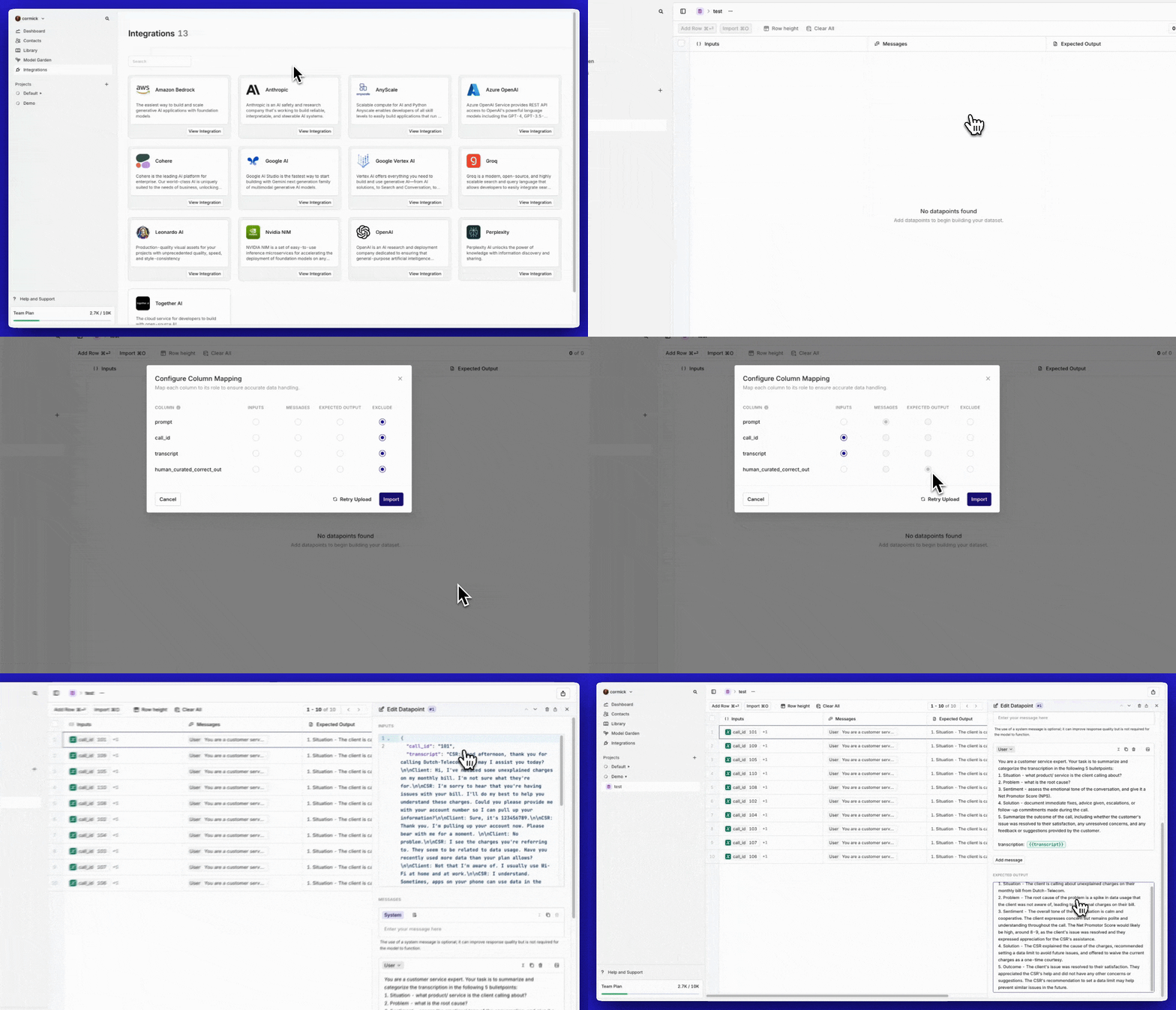
Add Datapoints
- AI Studio
- API & SDK
- MCP
Manually: Click Add Row and fill in each cell.From CSV: Click Import and drag-and-drop a
.csv file. Map each CSV column to a Dataset field (Inputs, Messages, Expected Outputs). Each row becomes a separate datapoint.Create Image Datasets
- AI Studio
- API & SDK
Start by creating a dataset, then add messages with images.When editing a message cell:

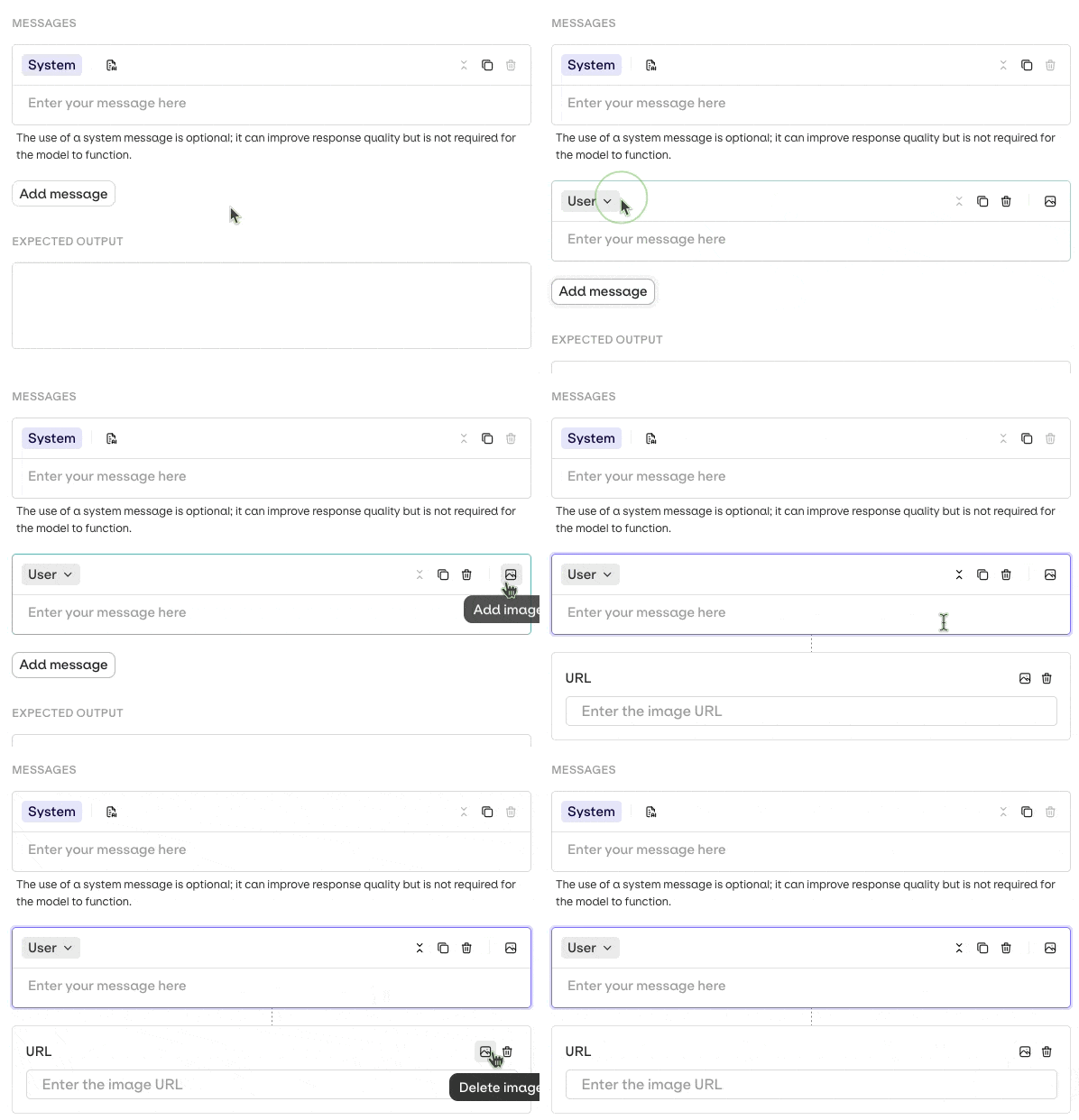
- Click Add image in the message editor.
- Choose how to provide the image:
- Upload locally: Select a file from your computer.
- Enter URL: Paste an image URL directly.
Create Curated Datasets
Curated datasets are human-evaluated input and output sets: a prompt paired with a verified expected output. They are used for fine-tuning and as a gold-standard reference in Experiments. Within any module, open the Logs tab and select a log entry. The Feedback panel appears on the right. To add a correction, click Add correction below the assistant response: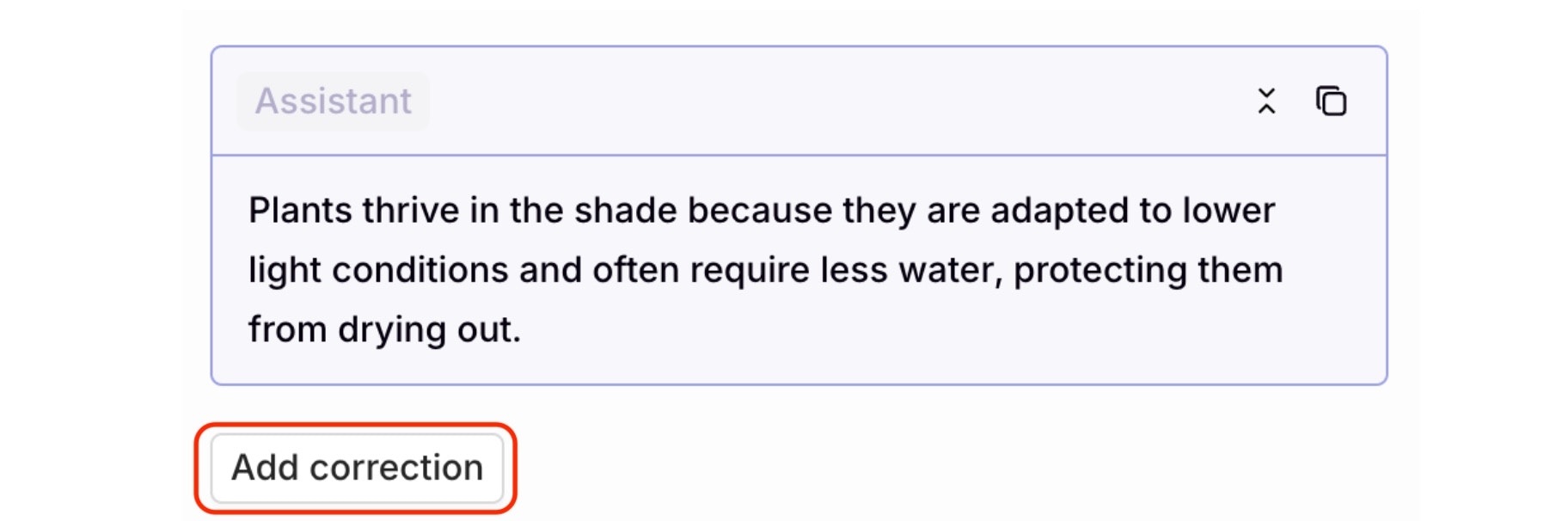
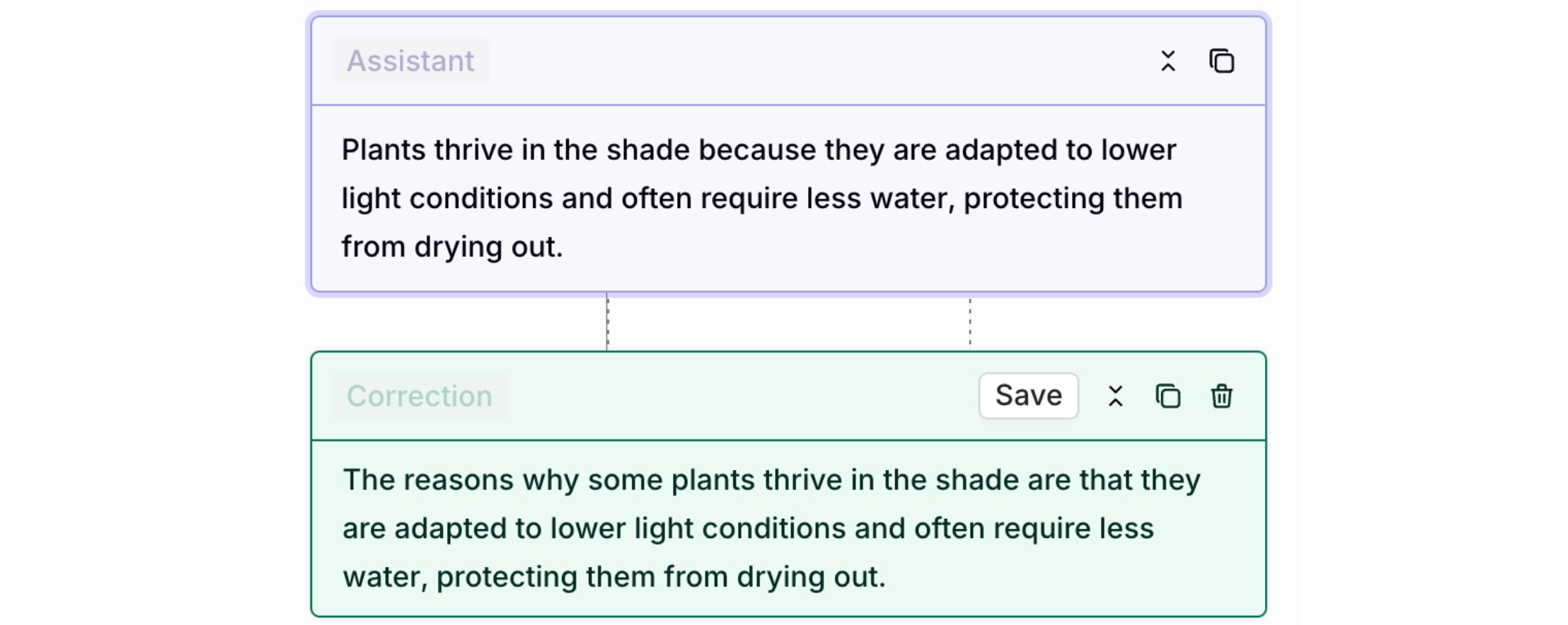
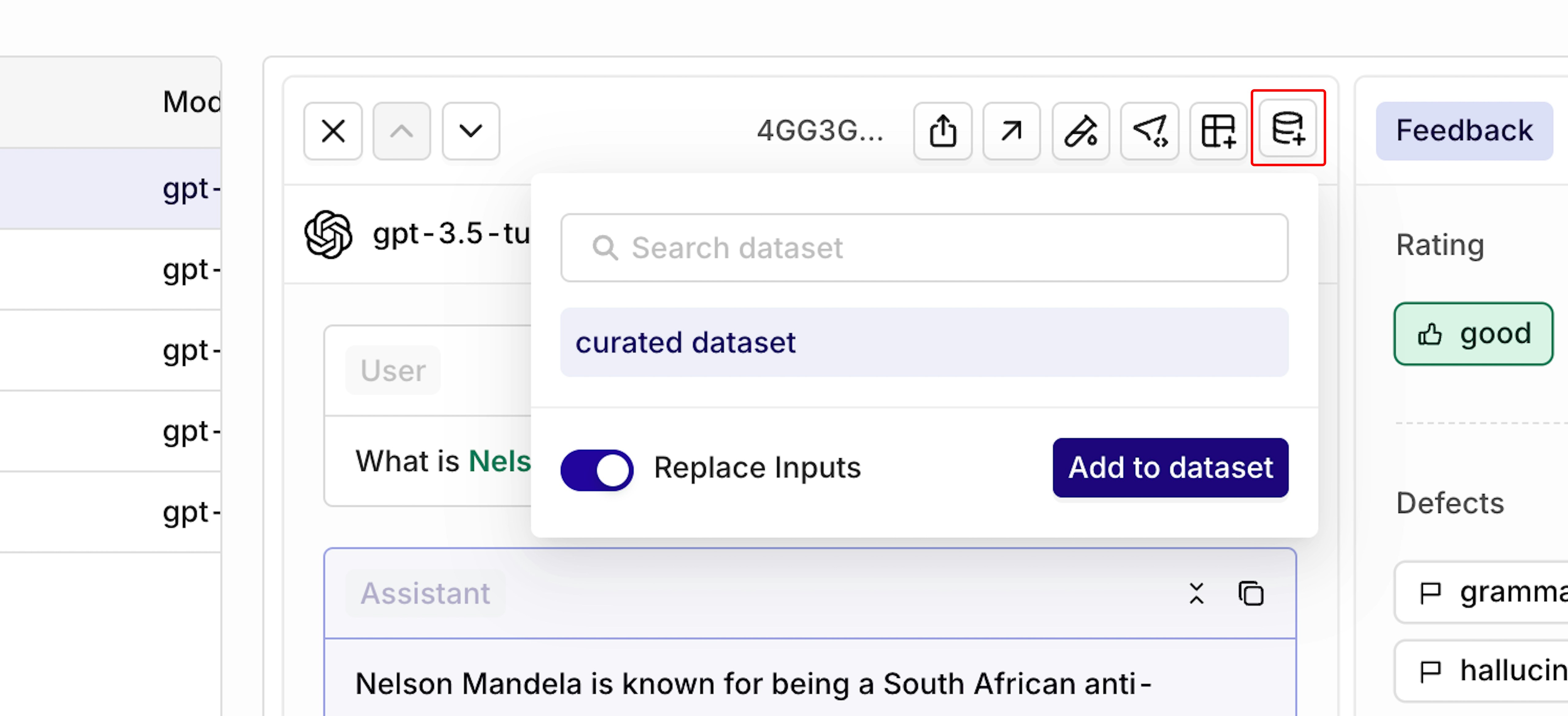
Import a curated dataset into an Experiment, attach an Evaluator, and see which model or prompt scores best against the curated reference outputs.
List and Retrieve Datasets
- API & SDK
- MCP
List datasets:Retrieve a dataset by ID: