Create a Knowledge Base
External Knowledge Bases
Use Cases
Both Knowledge Base approaches store information that an agent can retrieve, but they serve different purposes depending on where the data lives and how it changes. For entity-scoped memory that persists across sessions, see Memory Stores. Knowledge Bases index documents uploaded into Orq.ai. The platform handles embeddings, chunking, and retrieval. Use when a fully managed RAG pipeline is needed. External Knowledge Bases connect to an existing vector database. Orq.ai calls the database API at query time and passes the results to the model. Use when data cannot leave existing infrastructure, or an embedding pipeline is already in place.Knowledge Bases
A Knowledge Base is a database that provides relevant, specific information for an LLM to retrieve at query time. Knowledge can include domain-specific or business-specific information, ensuring the details surfaced to models are both correct and accurate.Create a Knowledge Base
- AI Studio
- API & SDK
- CLI
 AI Studio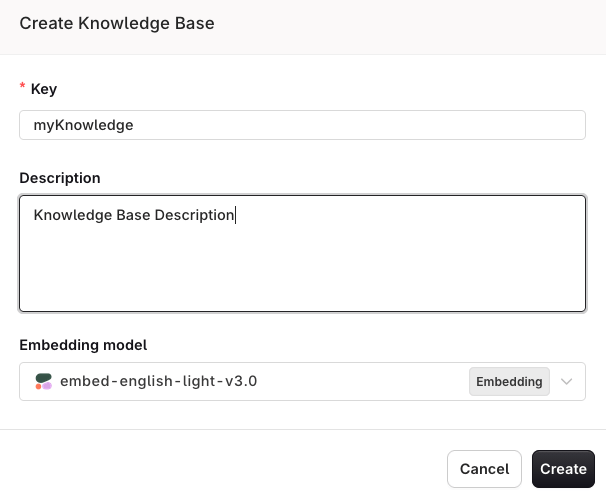
Enter a unique Key used to reference your Knowledge Base within Prompts and Deployments. Choose an Embedding Model for knowledge search.
Datasource and Chunking
A source represents a document loaded within the Knowledge Base. Documents are parsed and split into chunks that models search and retrieve at query time.Create a Datasource
- AI Studio
- API & SDK
- CLI
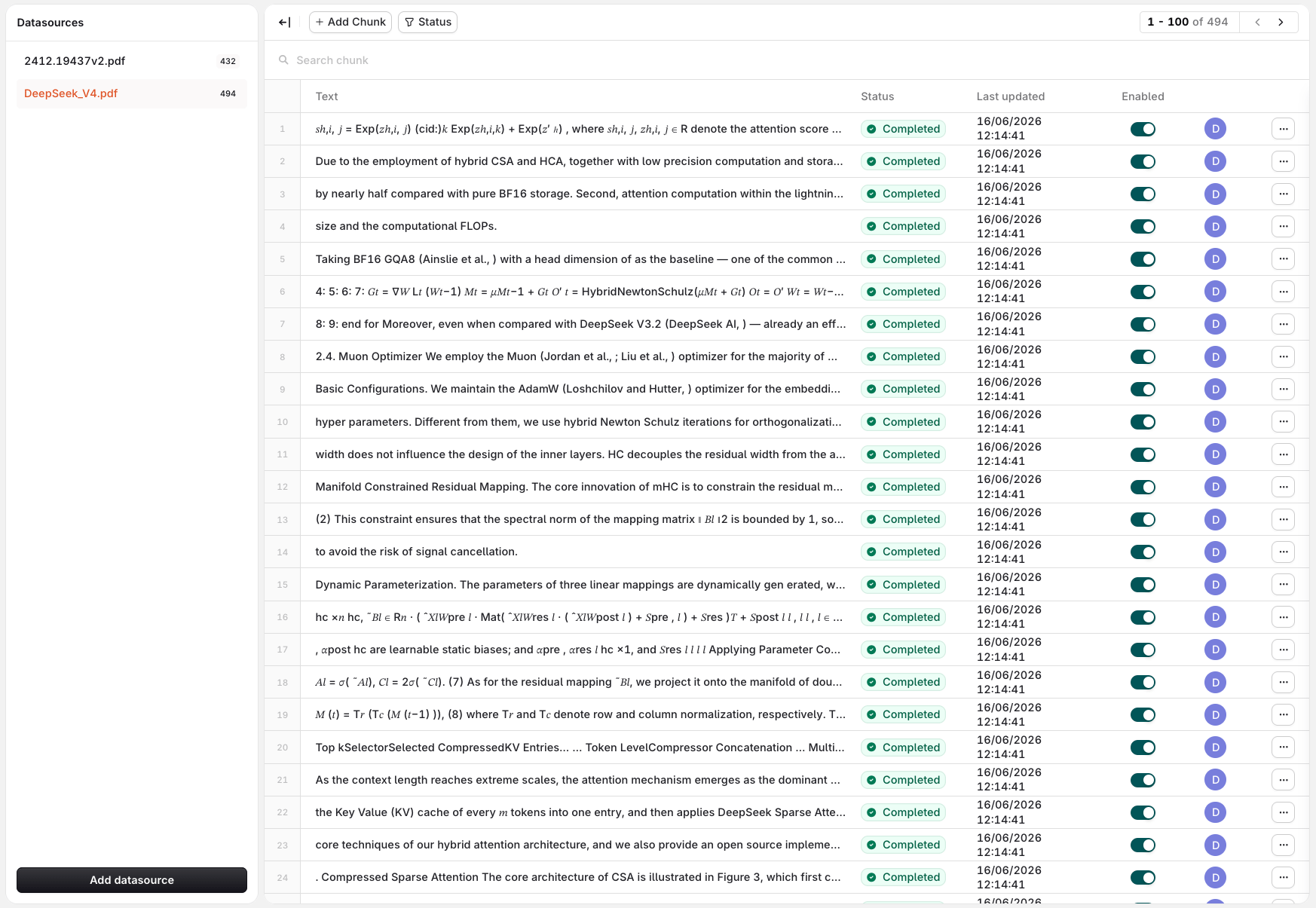
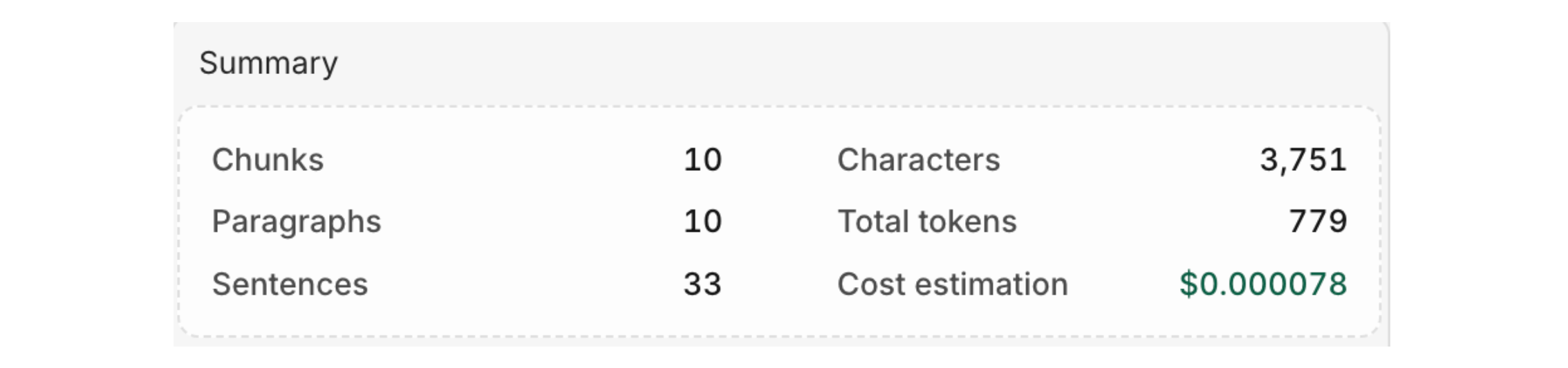
See details of the data parsed into your Knowledge Base and estimate the cost of retrieval.
Add Chunks to a Datasource
- API & SDK
- CLI
View Datasource Chunks
- API & SDK
- CLI
Chunk Strategy
See also: Chunking
- AI Studio
- API & SDK
- CLI
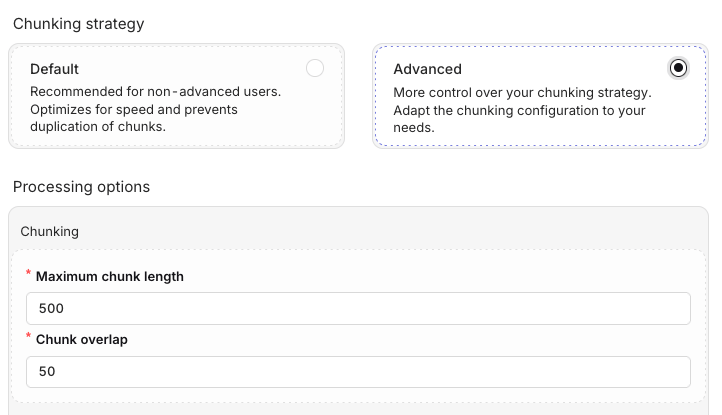
Choose a chunking option when uploading a file in the Knowledge Base
Recursive
Recursive
Token
Token
Sentence
Sentence
Fast
Fast
Semantic
Semantic
Late
Late
Agentic
Agentic
openai/gpt-4o.default or advanced configuration, which sizes chunks in characters rather than tokens. Both remain accepted by the API but are deprecated.page_number is the page it starts on. The deprecated default and advanced configurations still chunk one page at a time.Chunk Metadata
Each chunk in a Knowledge Base can carry a metadata object: a set of key-value pairs that describe the chunk’s origin, topic, or any custom attribute relevant to your use case. Metadata lets you store all your content in a single Knowledge Base while still scoping retrieval to exactly the right subset of chunks at query time. Common use cases:- Multi-tenant RAG: tag chunks by
client_idto isolate results per customer. - Source filtering: filter by
filetypeorsourceto restrict results to PDFs, support tickets, or a specific data feed. - Topic scoping: tag chunks by
topicorcategoryand filter queries to stay on a single subject.
- AI Studio
- API & SDK
- CLI
- Text: the chunk content.
- Metadata: a JSON editor pre-filled with the current metadata, or
{}if none has been set. - Enabled: toggle to enable or disable the chunk.
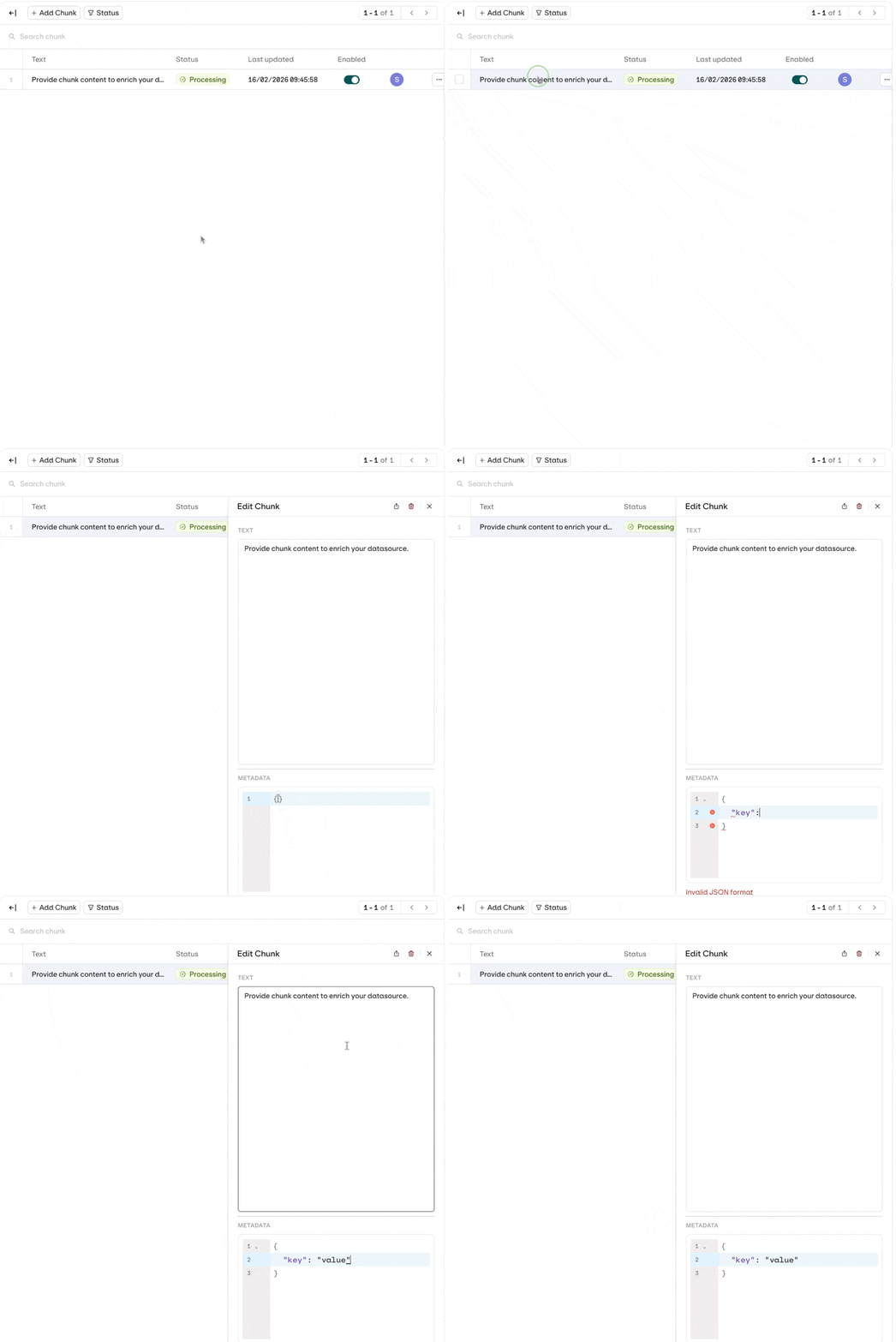
Metadata needs to be Valid JSON
Data and PII Cleanup
- AI Studio
- API & SDK
- CLI
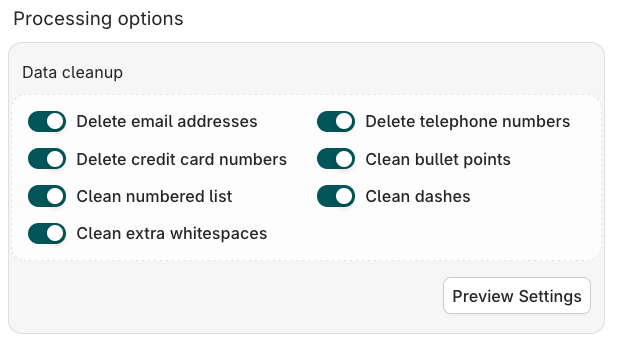
Embedding Models
An embedding model is a machine learning tool that transforms complex, high-dimensional data into simpler, numerical values that machines can understand, enabling semantic search. Configure which embedding model to use to query the Knowledge Base from the Knowledge Settings panel.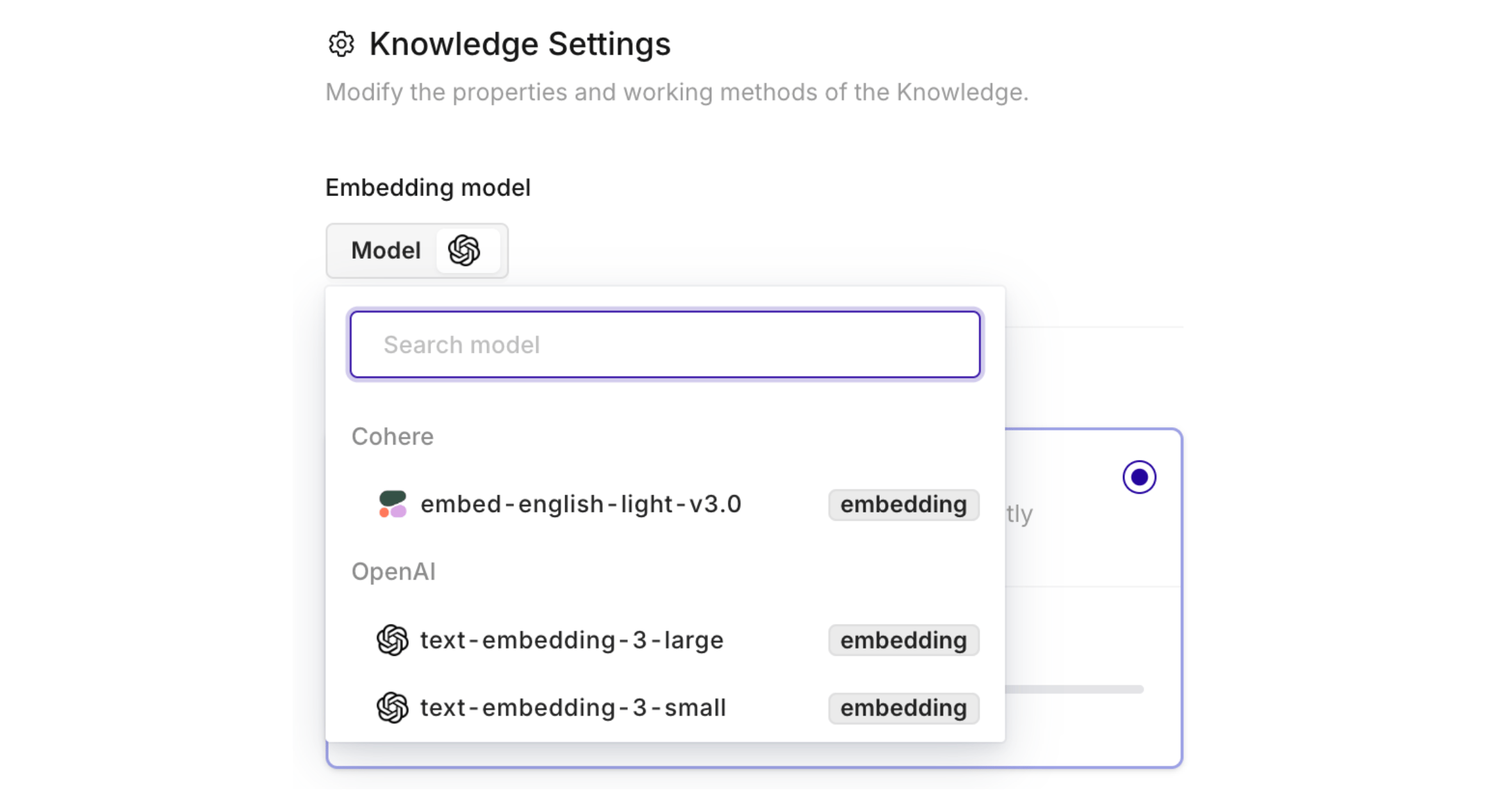
You need to have activated Embedding models within the AI Gateway.
Agentic RAG
Incorporates AI agents into the RAG pipeline to orchestrate its components and perform additional actions beyond simple information retrieval, overcoming the limitations of a non-agentic pipeline. Enable the Agentic RAG toggle in Knowledge Settings, then select a Model to use. The chosen model drives two actions:- Document Grading: ensures only relevant chunks are retrieved.
- Query Refinement: rewrites the query if needed to improve retrieval quality.
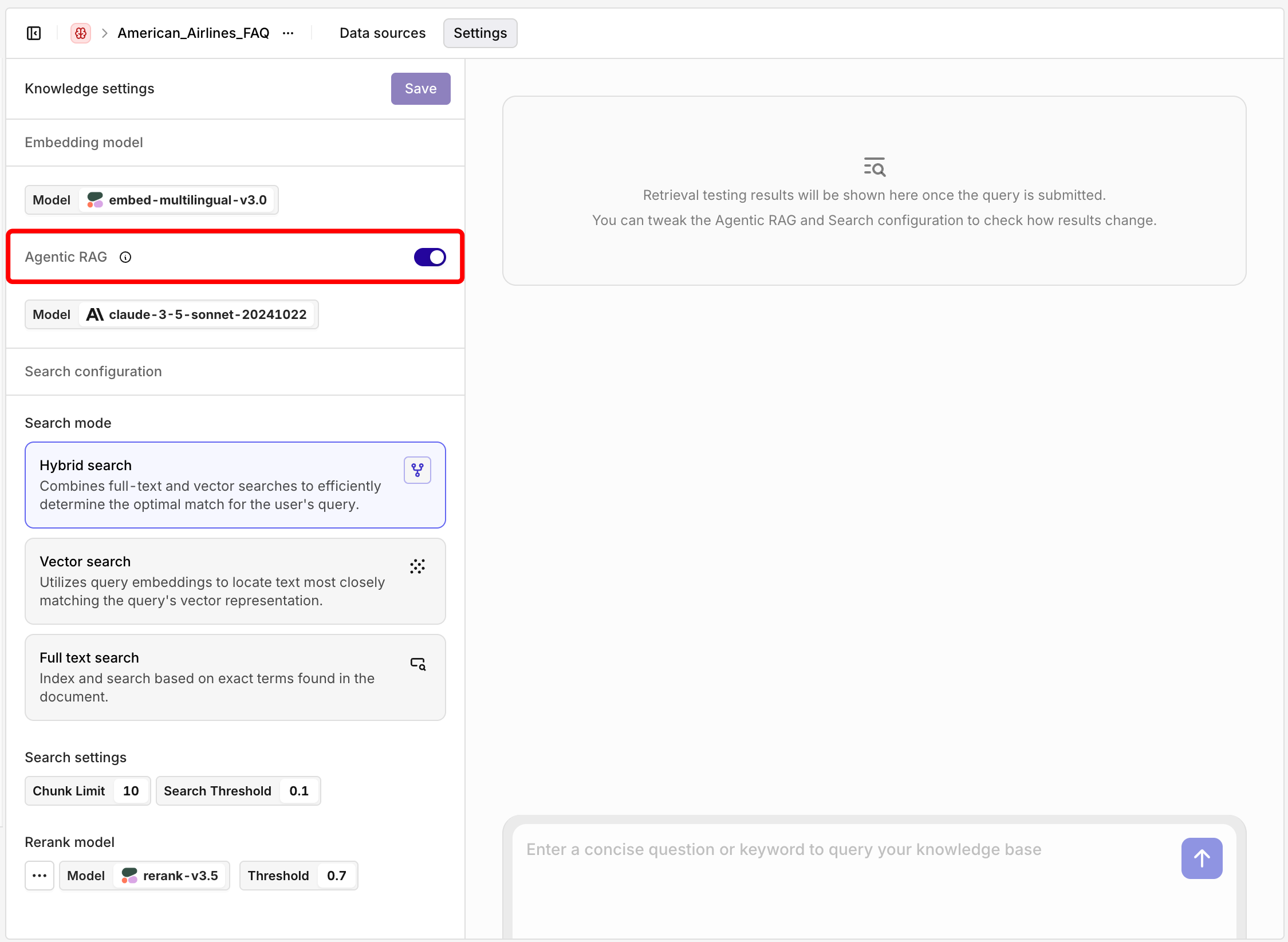
Enable Agentic RAG in Knowledge Base Settings. Configure the related model after enabling.
Example: Query Refinement
Example: Query Refinement
is my suitcase too big? is reformulated to luggage size requirements and restrictions for carry-on and checked baggage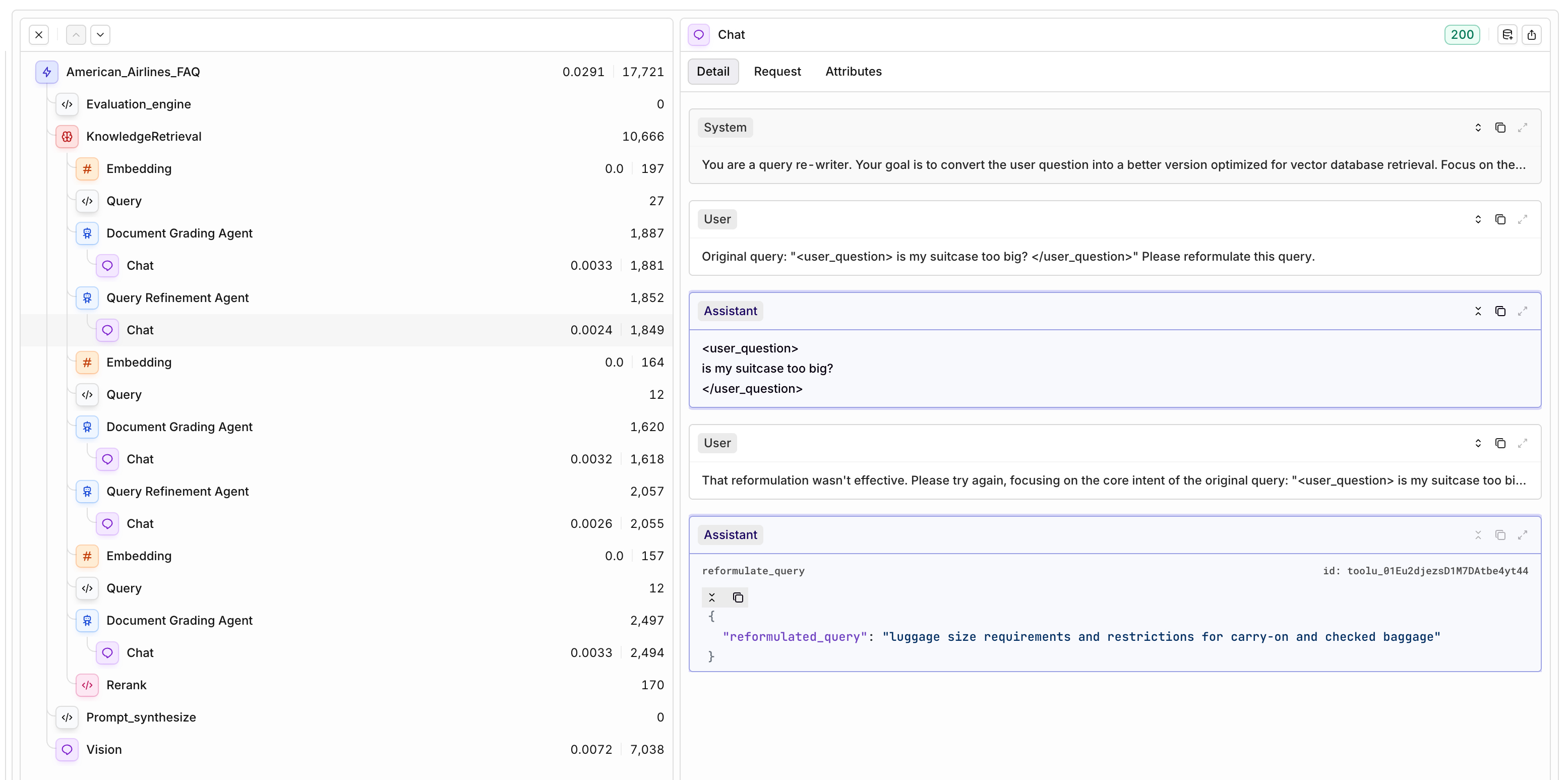
Search Modes
Different Search modes are available for Information to be found in Knowledge Bases:Vector Search
Vector Search
Keyword Search
Keyword Search
Hybrid Search
Hybrid Search
Chunk limit
Chunk limit
Threshold
Threshold
Rerank Model
Reranking invokes a model that analyzes your initial query and the results fetched by the Knowledge Base search. The model scores and ranks the chunks by similarity to the user query, ensuring the most relevant results are returned.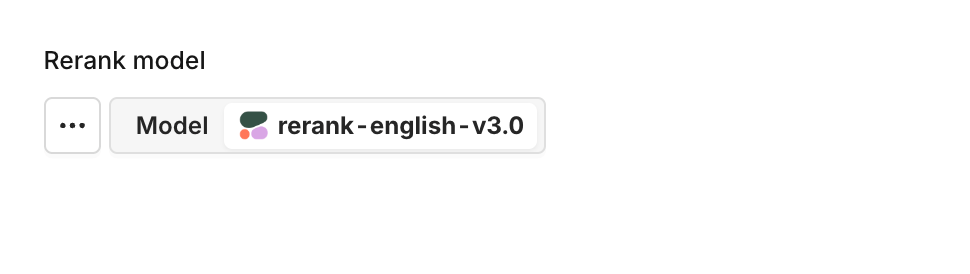
Choose a rerank model within your Knowledge Base settings by clicking on the model name.
Search a Knowledge Base
Once your Knowledge Base is populated, you can query it in several ways.- AI Studio
- API & SDK
- MCP
- CLI
 MCP
MCPTest via the Studio
Test via the Studio
Open Knowledge Settings
Enter your search query
View results
- Document name (e.g., “Logistics FAQ.docx”)
- Relevance score for each chunk (e.g., 0.49, 0.48)
- Chunk content preview
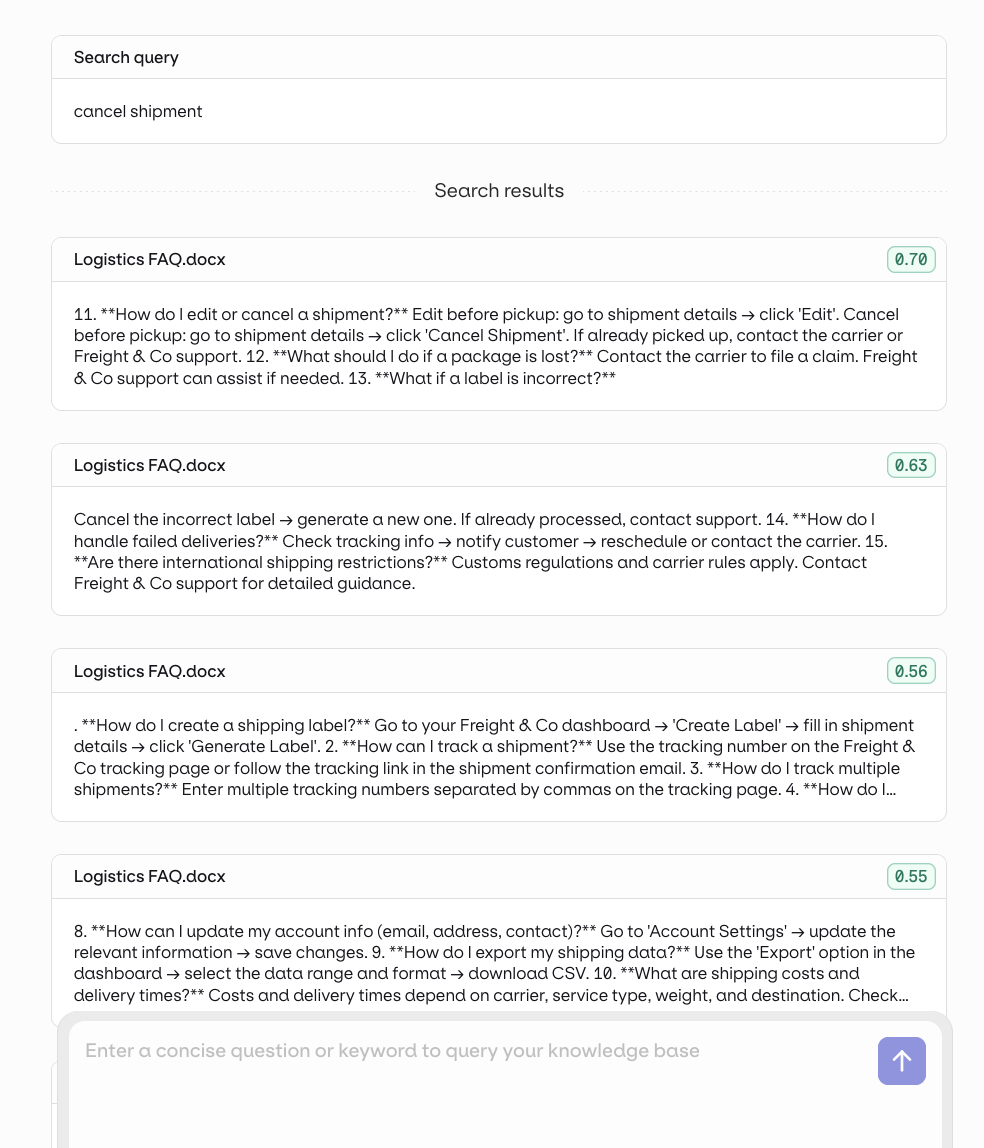
See all results and chunks at a glance
Integrate to a Deployment
Integrate to a Deployment
- Open the Deployment’s configuration and go to Knowledge Bases.
- Select Knowledge Base and choose your Knowledge Base.
- Set the query type:
- Last User Message: the user’s latest message is used as the search query automatically.
- Query: use a predefined query. You can make it dynamic with an input variable such as
{{query}}.
- Reference the retrieved chunks in your prompt with the
{{knowledge_base_key}}syntax. If not explicitly referenced, the chunks are appended to the end of the system message.
Integrate to an Agent
Integrate to an Agent
query_knowledge_base tool automatically.- In the Agent configuration, go to the Context section and click Add context.
- Select your Knowledge Base.
- In the Agent’s Instructions, explicitly tell it to use the Knowledge Base. For example:
“First useThe agent uses two Knowledge Base server tools:retrieve_knowledge_basesto see what knowledge sources are available, then usequery_knowledge_baseto find relevant information before answering.”
retrieve_knowledge_bases lists the available knowledge bases and their keys, and query_knowledge_base retrieves matching chunks from one base. Both tools are added automatically when a Knowledge Base is connected; call retrieve_knowledge_bases first to discover the source key unless the agent already knows it.Use in Prompts
Use in Prompts
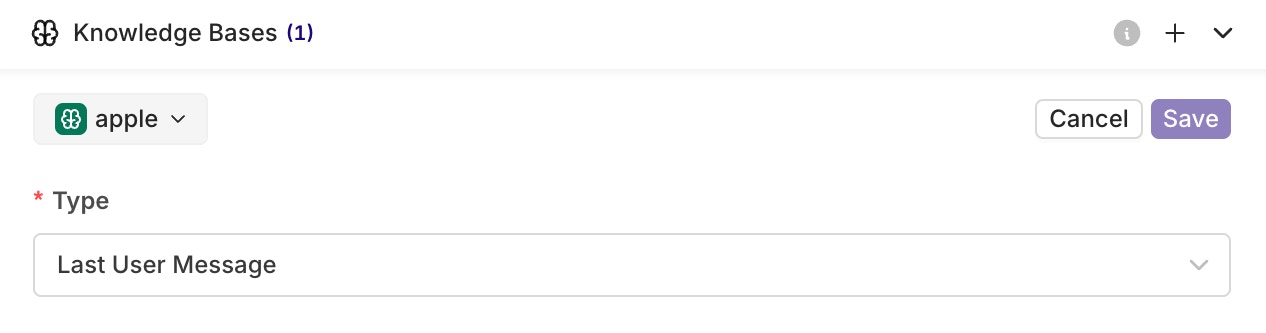
Select which Knowledge Base to include by clicking on the key. Press Save when done.
{{knowledge_base_key}} syntax in your prompt, where knowledge_base_key is the key of your Knowledge Base.
Your Knowledge Base is correctly referenced when its key appears in blue.
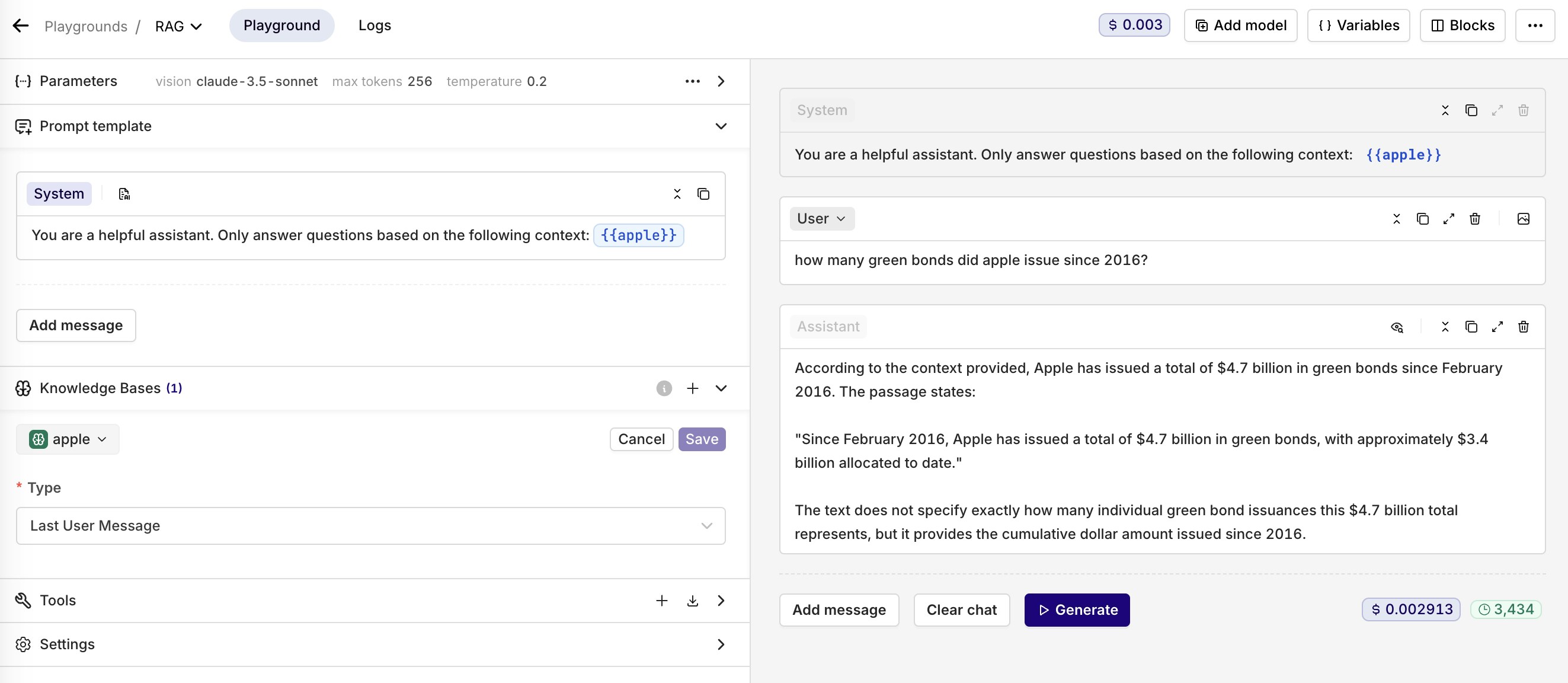
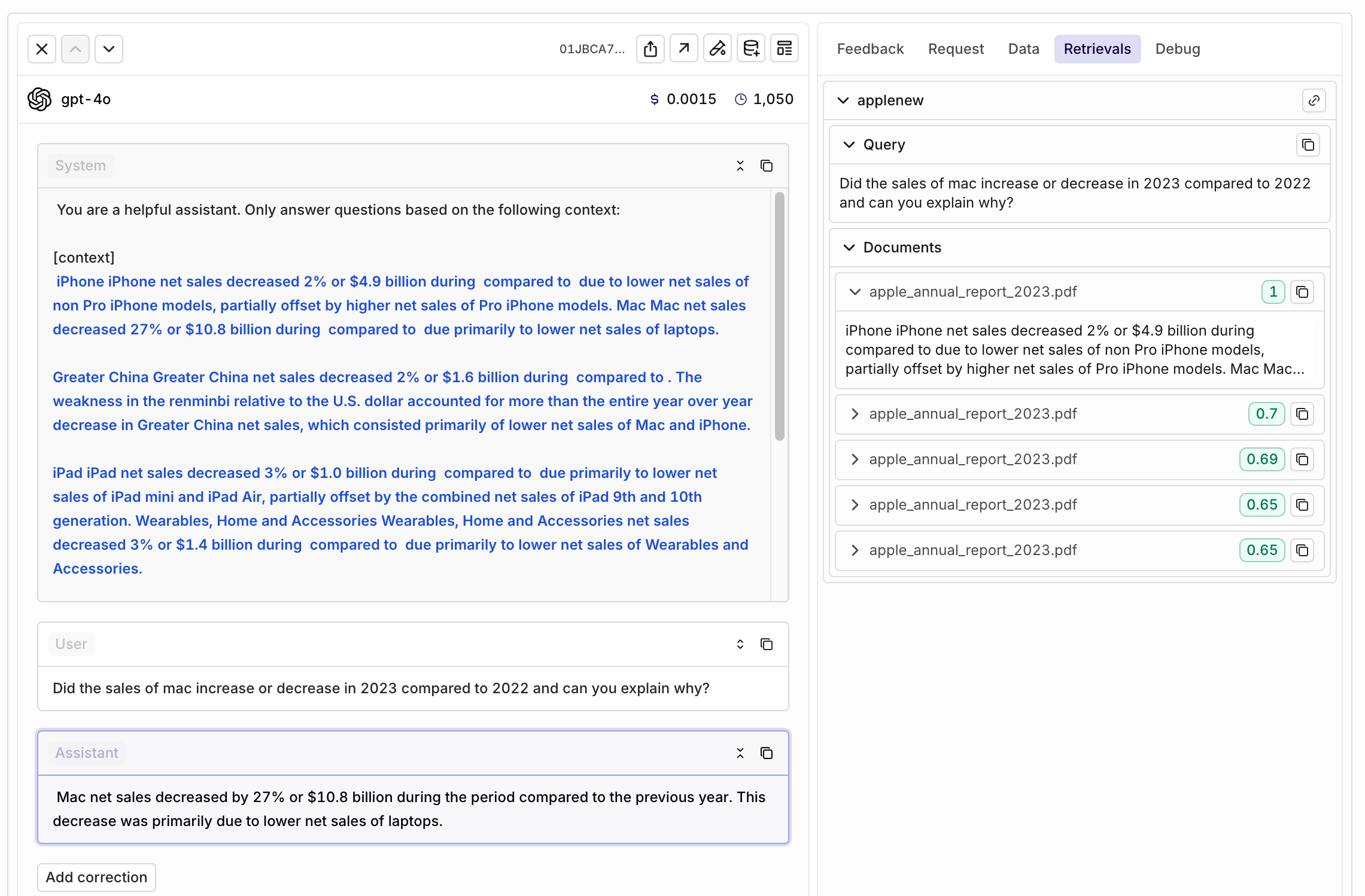
An example of using a Knowledge Base in Orq.ai
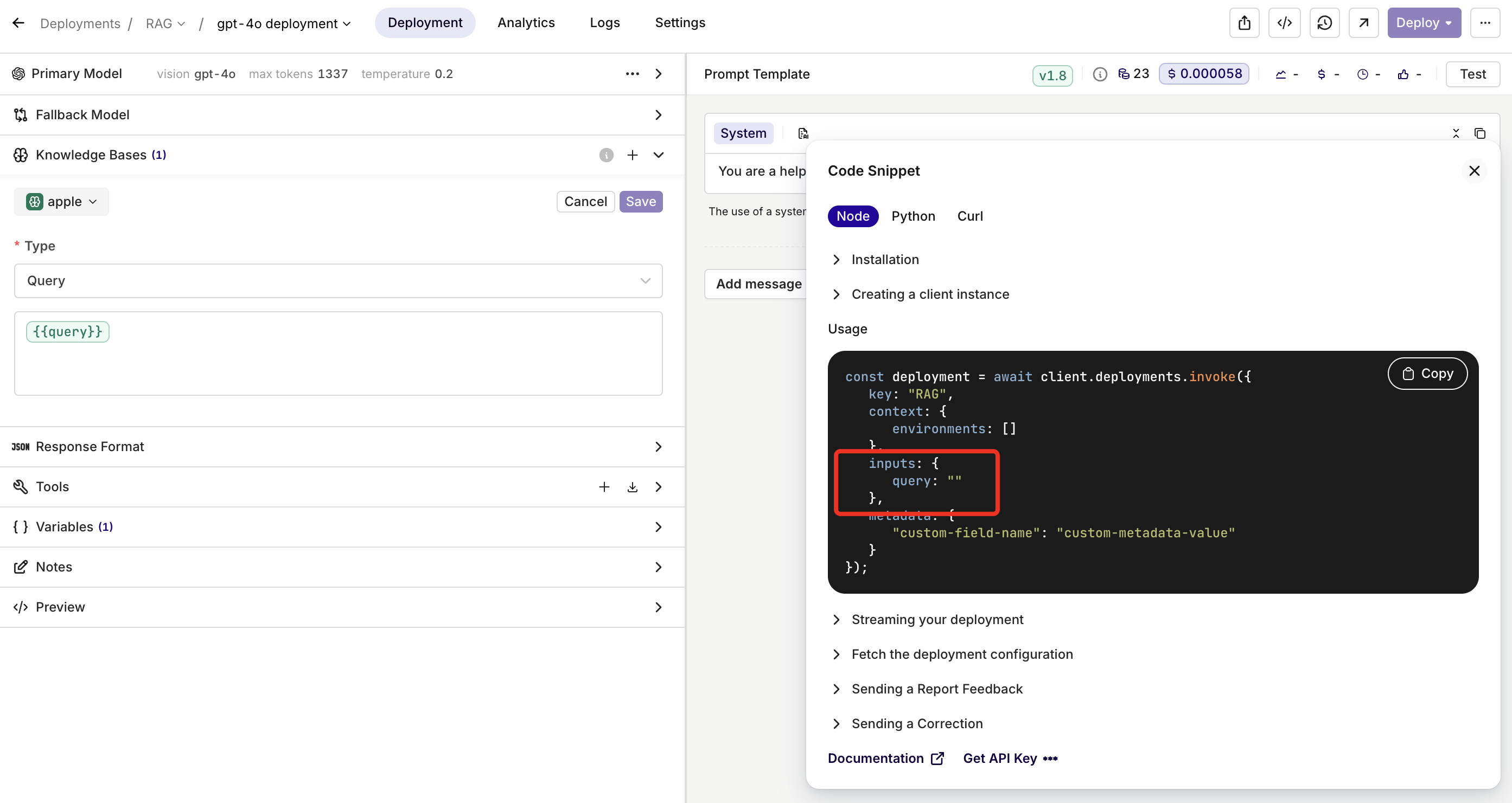
Use the input variable {{query}} reachable through the invoke call as an input, letting you dynamically define the Knowledge Base query at runtime.
Retrieval Traces and Logs
When using a Knowledge Base within Playground, Experiment, Deployment, or Agent, traces are generated containing details of how Knowledge Bases were accessed.- Traces
- Logs
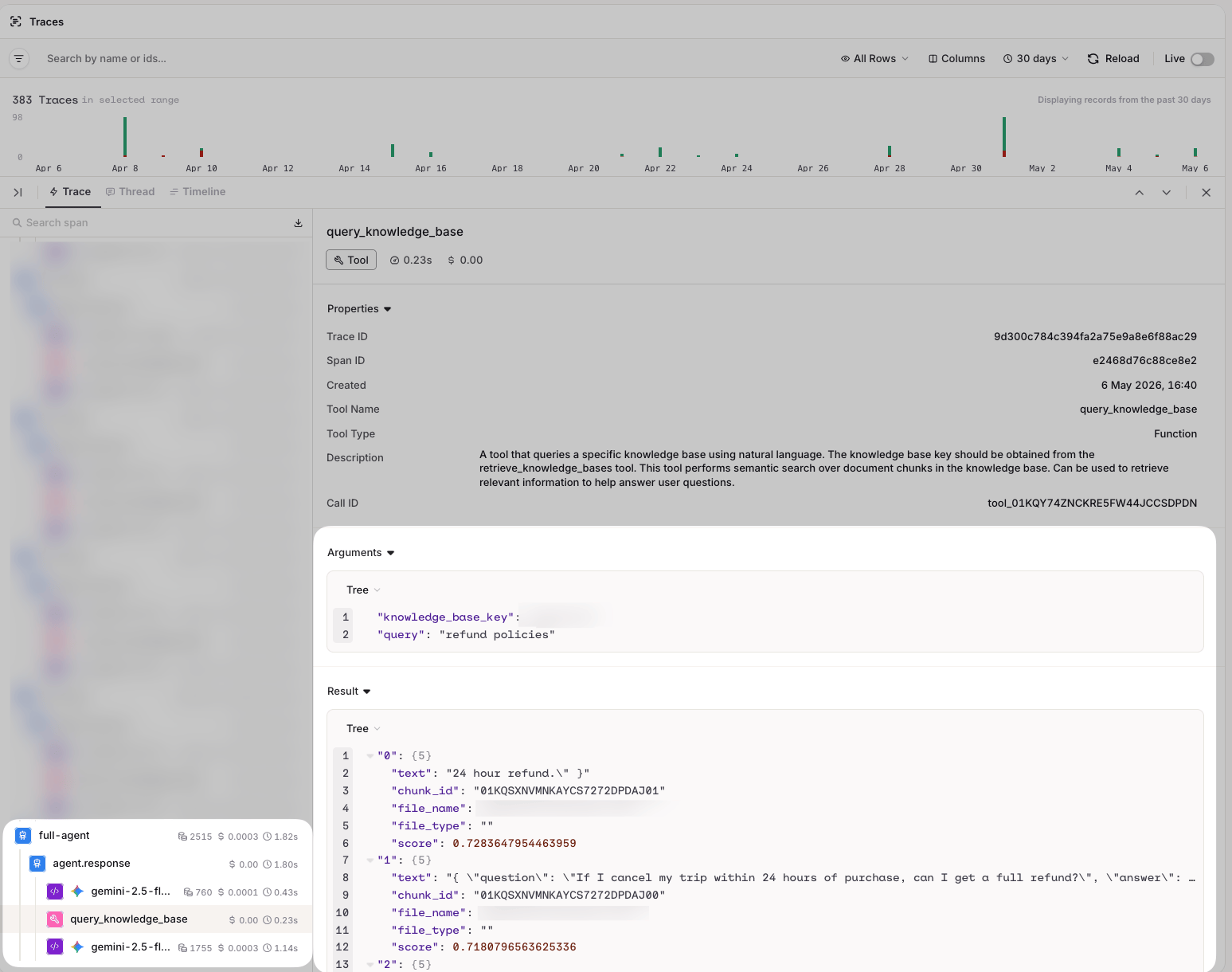
Traces show the full breakdown of queries made to the knowledge base, including results and scores
- Query: the query used to retrieve relevant chunks.
- Documents: the retrieved chunks, ordered by relevance score.