Documentation Index

Fetch the complete documentation index at: https://docs.orq.ai/llms.txt

Use this file to discover all available pages before exploring further.

Deployments ship Gen AI use cases to production with Orq.ai as an AI Gateway. All calls route through the platform, providing routing, monitoring, and security in one place. Connect with a single line of code, iterate without a code release, and benefit from full observability throughout. Common use cases include customer support bots, RAG-powered document Q&A, content generation pipelines, and any LLM feature that needs reliable model routing, versioning, and production monitoring.

Create

Set up a Deployment with a key, model, and system prompt in AI Studio or via MCP.

Configure

Set the model, fallbacks, variables, knowledge base, tools, caching, and guardrails per Variant.

Routing

Route traffic across Variants by environment, context attributes, or percentage split.

Versioning

Deploy and roll back configurations without a code release.

Invoke

Call a Deployment via API or SDK and pass identity, usage tracking, and extra parameters.

Analytics

Monitor requests, filter logs by Variant, and inspect full request details.

Create a Deployment

1

Open the AI Studio

Choose a Project and folder, then select the + button.
2

Choose Deployment

Select Deployment from the entity picker.
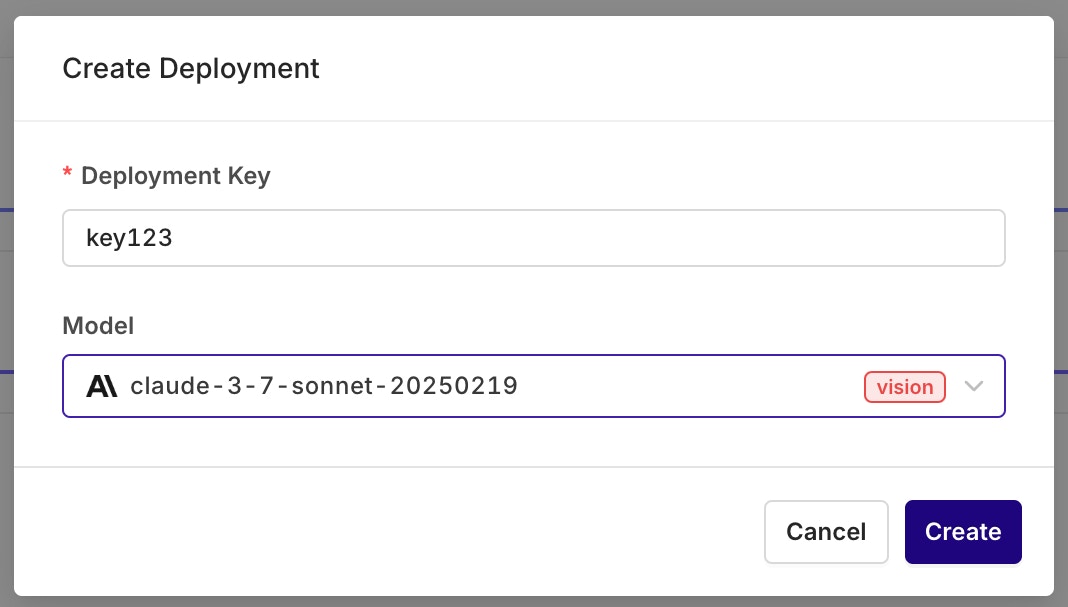
Create Deployment dialog with fields for Deployment Key set to key123 and Model set to claude-3-7-sonnet-20250219.
3

Configure the initial Variant

Set the deployment key (alphanumeric) and select the primary model for the first Variant. The Variant editor opens.

Configure a Variant

Variants are different prompt and model configurations available behind one Deployment. A Deployment can hold any number of Variants. On creation, the Variant screen opens for model and prompt setup.
A Variant Prompt is similar to any other prompt. To learn how to configure a Prompt, see Creating a Prompt.

Primary Model, Retries, and Fallback

The Primary Model panel defines the first model queried through this Variant.RetriesIn case of failure, configure how many times a query is retried with this model.
Retries are only triggered when a retry count greater than 0 is configured in the Variant settings.When retries are enabled, Orq.ai automatically retries the model provider API call if it returns one of the following HTTP status codes:
  • 429 Rate Limit Exceeded
  • 500 Internal Server Error
  • 501 Not Implemented
  • 502 Bad Gateway
  • 503 Service Unavailable
Error handling flow:
  1. If an error code above is returned and retries are configured (retry count > 0), Orq.ai retries the Primary Model.
  2. If all retry attempts fail (or no retries are configured) AND a Fallback Model is configured, Orq.ai routes to the Fallback Model.
  3. If the Fallback Model also fails, the error is returned to the calling application.
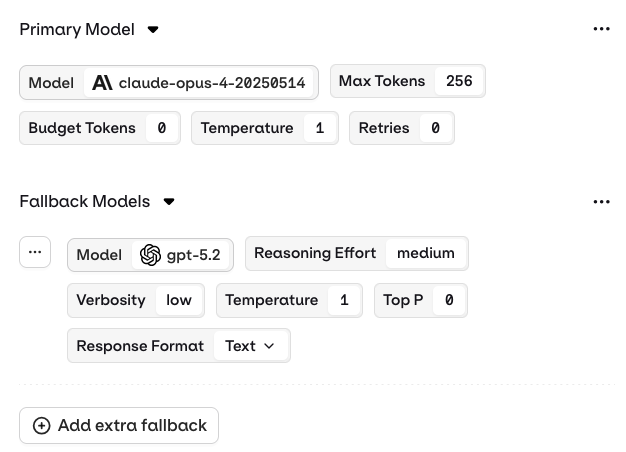
Fallback ModelThe Fallback Model is triggered only if the Primary Model fails after all configured retries are exhausted. Fallback Models can have a different configuration from the Primary Model.
Primary Model section showing claude-opus-4-20250514 with Fallback Models configured to gpt-5.2 with reasoning effort, verbosity, and response format settings.
Multiple fallback models can be configured in a Deployment. They fall back to one another in order of configuration. Use the Add extra fallback button to declare another model.
See how fallbacks and retries work together in a production system. Read our cookbook Customer Support Chat.
API invocation behavior When invoking a Deployment via the API, response timing depends on the retry and fallback configuration:
  • Success on first try: Response returned immediately.
  • Retry scenario: Response may be delayed by up to base_latency × (retry_count + 1) to account for the initial attempt plus all configured retries.
  • Fallback invoked: Additional latency as the Fallback Model processes the request.
  • All retries and fallback failed: Error returned to the calling application.
Set appropriate timeouts on API calls to account for retry and fallback latency.

Structured Outputs

Configure structured outputs to ensure consistent and reliable responses from a Deployment. Structured outputs specify the exact format the model should follow when generating a response.Two modes are available:
  • JSON Mode: the model automatically returns a valid JSON object for every generation.
  • JSON Schema: define a schema that explicitly describes the fields, types, and structure of the model output.
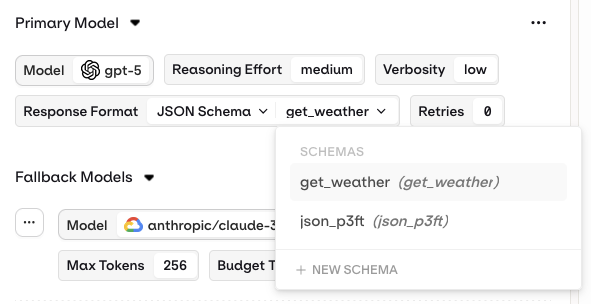
Once defined, a schema can be saved to the directory for reuse across multiple variants or deployments.
Primary Model settings with Response Format set to JSON Schema, showing a schema selector dropdown with get_weather and json_p3ft options.

Variables and Prompt Templating

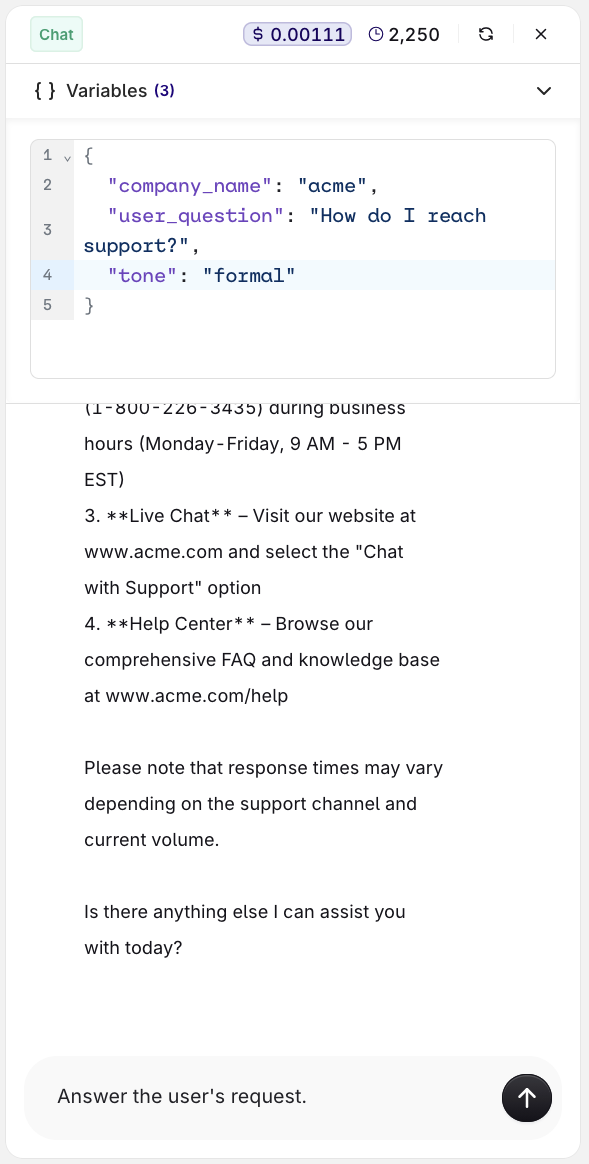
Reference dynamic values in the prompt using double braces: {{variable_name}}. Pass a key-value map to the inputs field when invoking and Orq.ai substitutes each variable before sending the prompt to the model.Orq.ai supports three template engines. Select the Template Engine from the Variant Settings panel:
  • Text (default): variables use {{double_braces}} syntax.
  • Jinja: full templating with conditionals, loops, filters, and more.
  • Mustache: logic-less templating with sections.
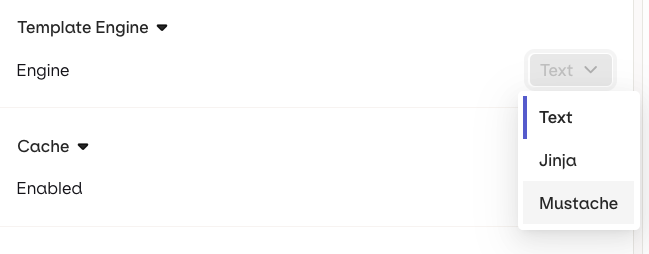
Template Engine dropdown with Text currently selected and options for Jinja and Mustache.
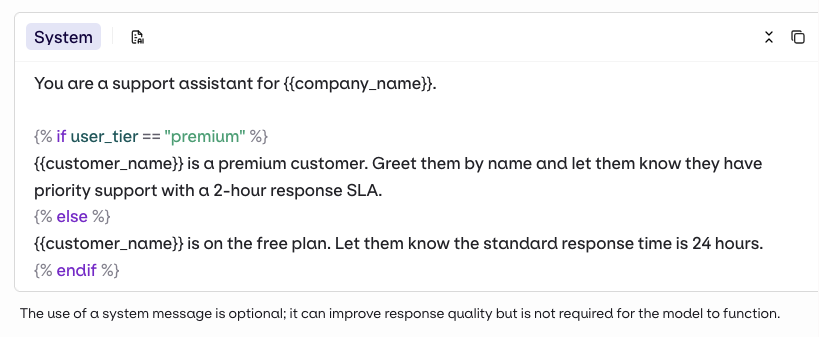
Example: support bot that adapts by subscription tier
1

Prompt template

Jinja
You are a support assistant for {{company_name}}.

{% if user_tier == "premium" %}
{{customer_name}} is a premium customer. Greet them by name and let them know they have priority support with a 2-hour response SLA.
{% else %}
{{customer_name}} is on the free plan. Let them know the standard response time is 24 hours.
{% endif %}
2

Template in the Studio

System prompt in the Studio editor showing a Jinja template with if/else blocks for premium and free tier customers using is_premium, customer_name, and company_name variables.
3

Call the deployment

response = client.deployments.invoke(
    key="support-bot",
    inputs={
        "company_name": "Acme",
        "customer_name": "Sarah",
        "user_tier": "premium",
    }
)
4

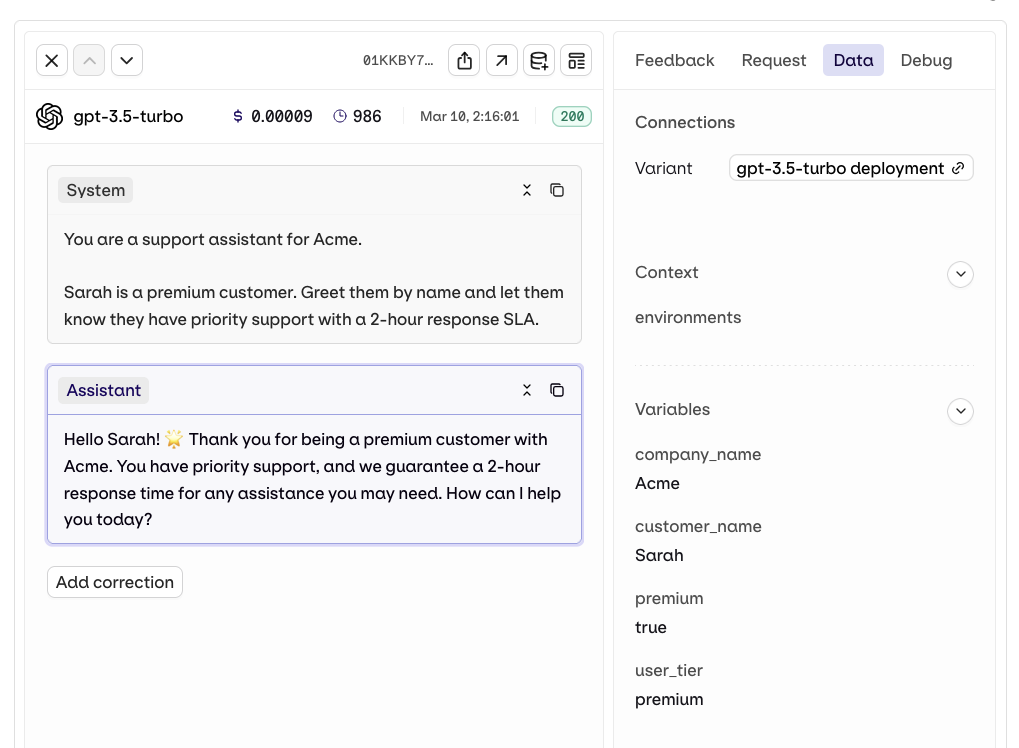
Trace

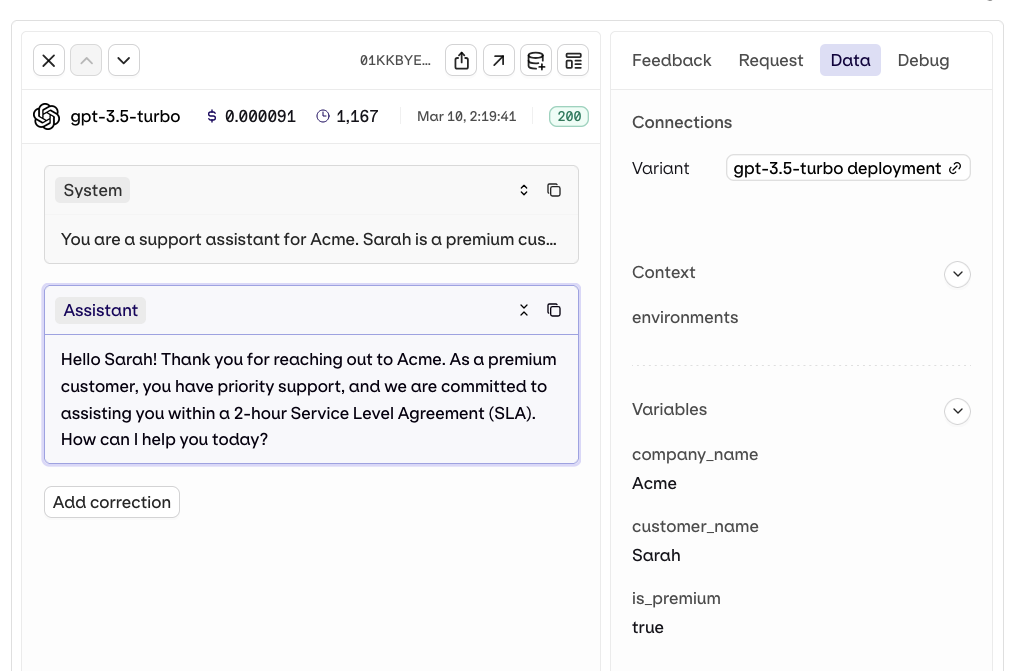
Trace view showing a rendered Jinja template for gpt-3.5-turbo with company_name set to Acme, customer_name to Sarah, and is_premium to true, generating a priority support greeting.
1

Prompt template

Mustache
You are a support assistant for {{company_name}}.

{{! Pass is_premium: true for premium customers, false for free plan }}
{{# is_premium}}
{{customer_name}} is a premium customer. Greet them by name with priority support and a 2-hour SLA.
{{/ is_premium}}
{{^ is_premium}}
{{customer_name}} is on the free plan. Standard response time is 24 hours.
{{/ is_premium}}
2

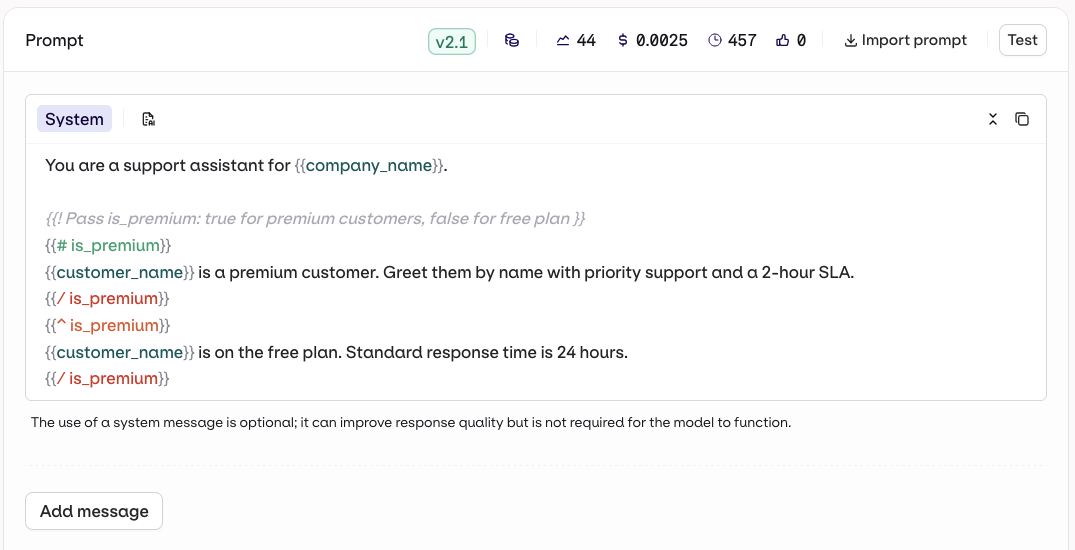
Template in the Studio

System prompt in the Studio editor showing a Mustache template with {{#is_premium}} and {{^is_premium}} sections for premium and free plan customers.
3

Call the deployment

response = client.deployments.invoke(
    key="support-bot",
    inputs={
        "company_name": "Acme",
        "customer_name": "Sarah",
        "is_premium": True,
    }
)
4

Trace

Trace view showing a rendered Mustache template for gpt-3.5-turbo with company_name set to Acme, customer_name to Sarah, and is_premium to true, with the assistant greeting Sarah as a premium customer.
For a complete reference of all template features including filters, macros, nested objects, and more, see Prompt Templating.
To prevent sensitive input values from appearing in traces and logs, see Security and Privacy.

Knowledge Base

Ground a Deployment’s responses in domain-specific knowledge by adding a Knowledge Base.Open the deployment configuration, go to Knowledge Bases, then select Knowledge Base.
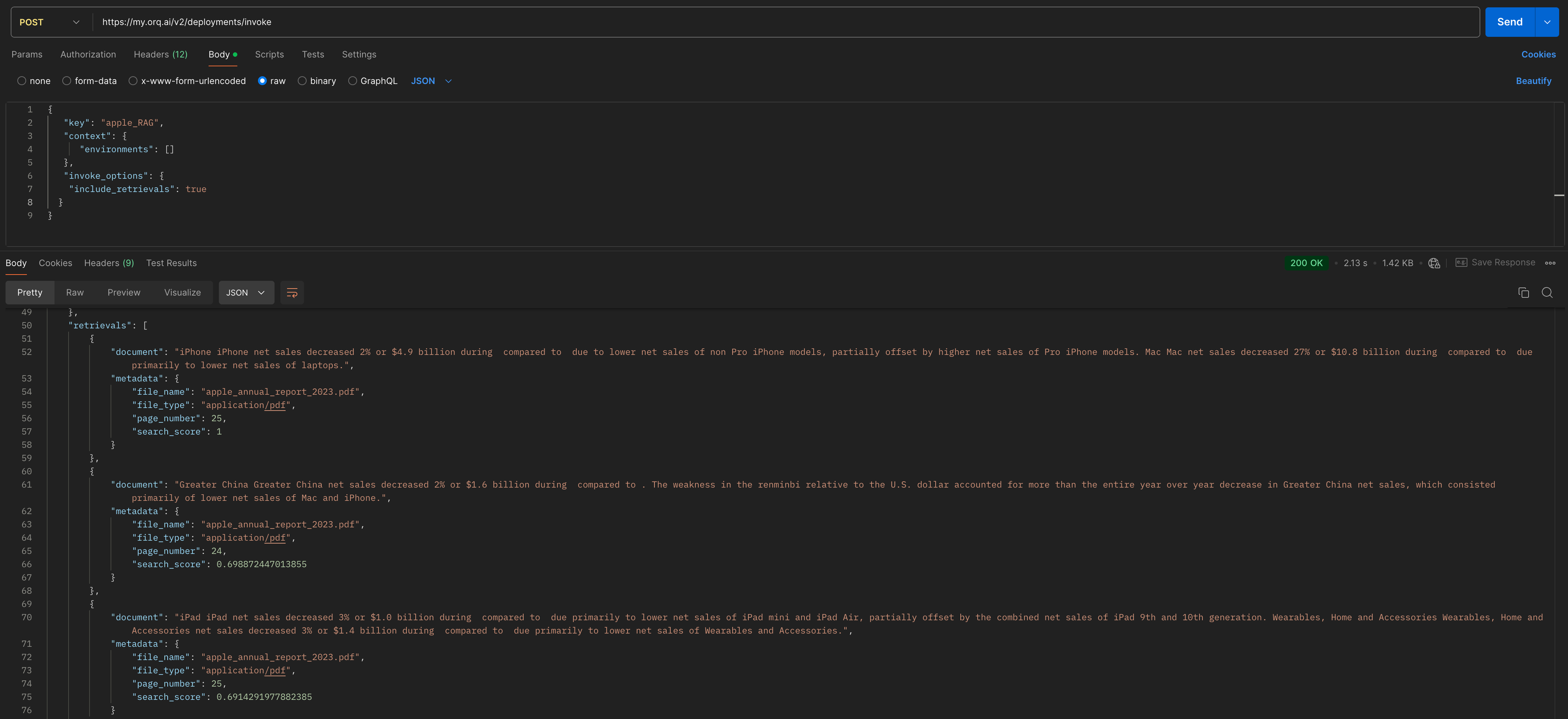
Knowledge Bases enable RAG (Retrieval-Augmented Generation), allowing the model to retrieve and use relevant information from documentation or data sources to provide more accurate and contextual responses.
Configuration options (via the ... menu on an attached Knowledge Base):
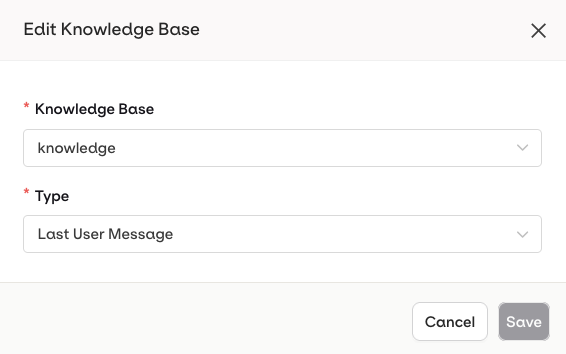
  • Last User Message: the user’s latest message is automatically used as a query to retrieve relevant chunks.
  • Query: a predefined query is used to retrieve chunks. Use Input Variables like {{query}} to make it dynamic at runtime.
Edit Knowledge Base dialog with Knowledge Base set to knowledge and Type set to Last User Message.
To learn more about creating and configuring Knowledge Bases, see Knowledge Bases.
Reference the Knowledge Base in the prompt using the {{knowledge_base_key}} syntax, where knowledge_base_key is the identifier of the Knowledge Base. If the Knowledge Base is not explicitly referenced in the prompt, retrieved chunks are automatically appended to the end of the system message.
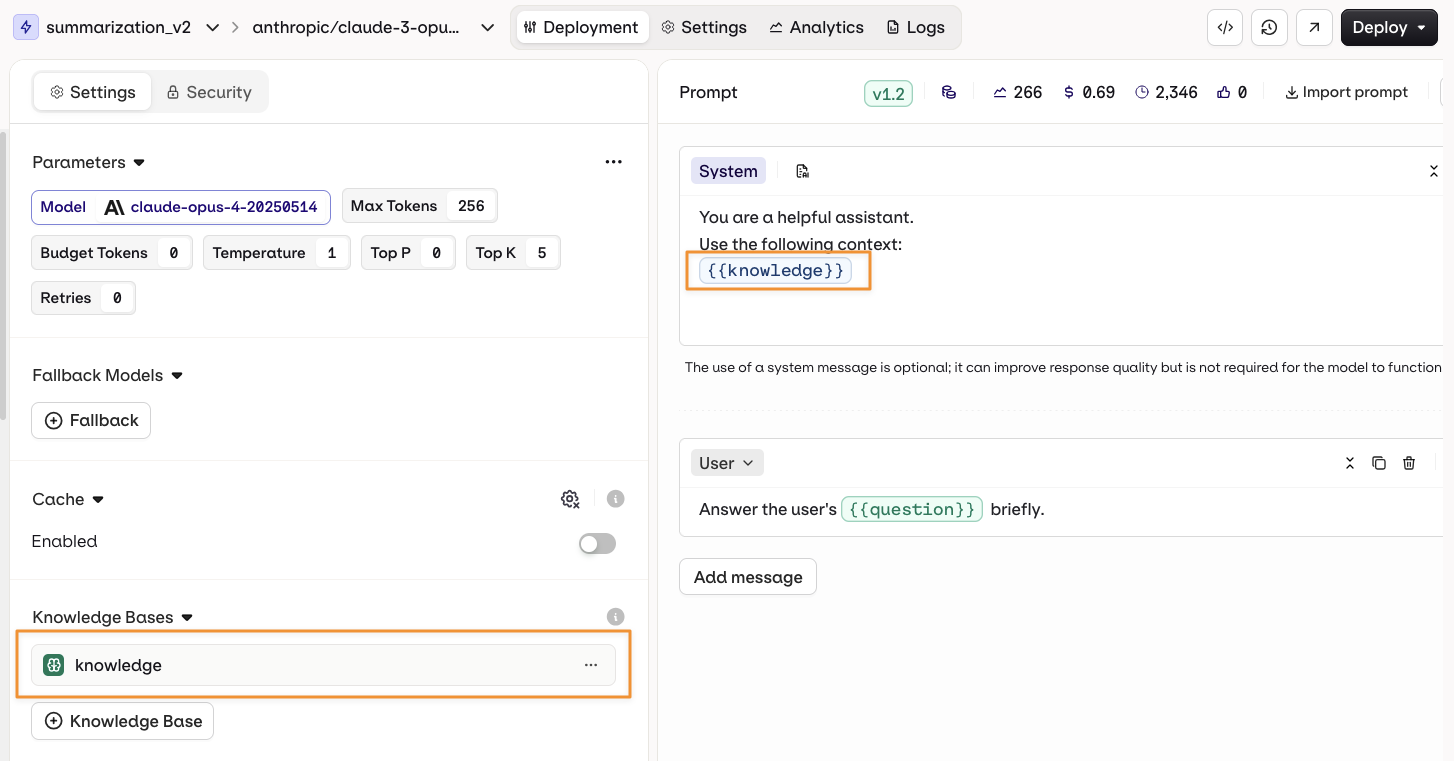
Deployment settings showing a Knowledge Base named knowledge in the settings panel, with the {knowledge} variable highlighted in the system prompt.
See knowledge base retrieval used end-to-end in a working deployment. Read our cookbook Multilingual FAQ Bot.

Tools

Tools can only be added and configured at the deployment level. Only Function tools are supported in Deployments, enabling the model to call external functions during execution.To add a Function tool, open the Tools tab in the deployment configuration and click Tool:
  • Create a new Tool: define a custom function directly within the deployment.
  • Import an existing Tool: select a previously created Function tool from the resource library.
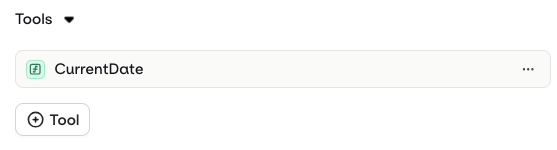
Tools section with a CurrentDate tool listed and an Add Tool button.
To learn more about creating Function tools, see Creating Tools.

Cache

Variant generation can be cached to reduce processing time and cost. When an input is received that matches a cached entry within the Variant, the stored response is returned directly without triggering a new generation.To enable caching, open the Variant Settings tab and select Enabled in the Caching section. The cache can be manually invalidated at any time by clicking the configuration icon.
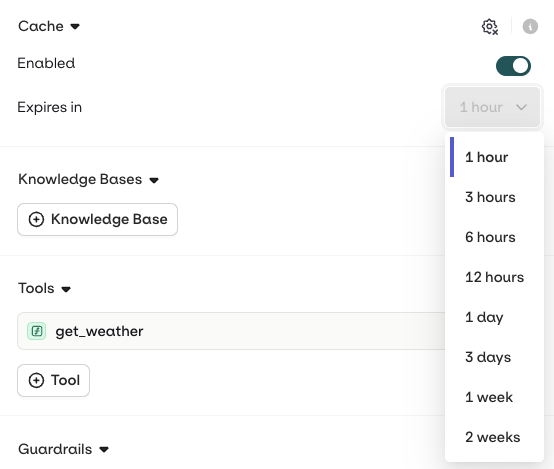
Cache settings with the Enabled toggle on and an Expires in dropdown open, showing options from 1 hour to 2 weeks.
TTL (time to live) corresponds to the amount of time a cached response is stored before being invalidated. Once invalidated, a new LLM generation is triggered. Configure the TTL from the drop-down once Caching is enabled.
The cache only works when there is an exact match. Image models are not supported.

Evaluators and Guardrails

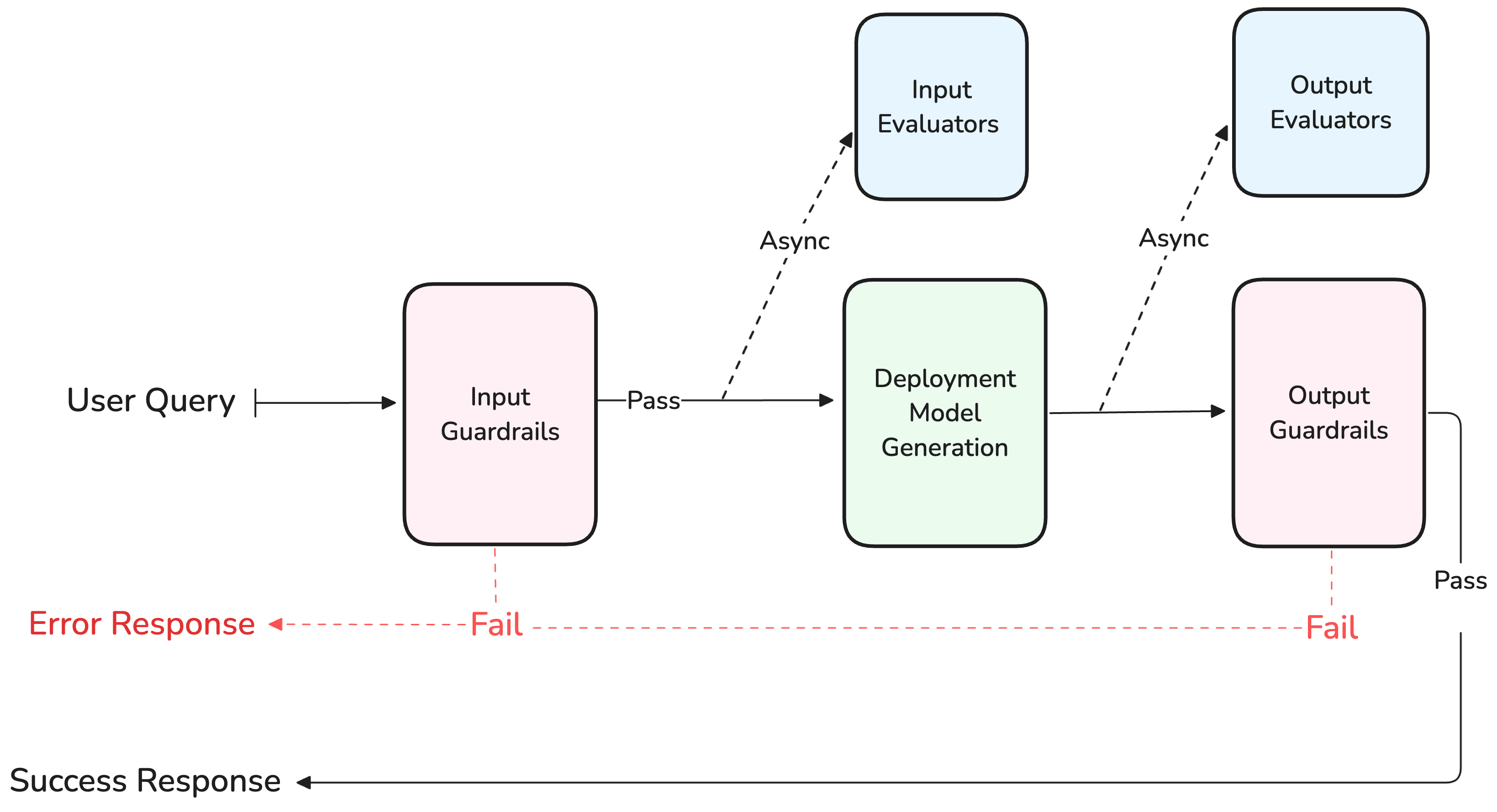
Evaluators and Guardrails are configured as separate sections in the variant settings. Both operate on the generation pipeline but with different behaviours.
Flow diagram showing a user query passing through Input Guardrails synchronously, then Deployment Model Generation, then Output Guardrails, with Input and Output Evaluators running asynchronously and fail paths returning an Error Response.
EvaluatorsClick Evaluator to add an evaluator from the Library. Configure each evaluator as:
  • Input evaluator: runs evaluation on the input sent to the model.
  • Output evaluator: runs evaluation on the output generated by the model.
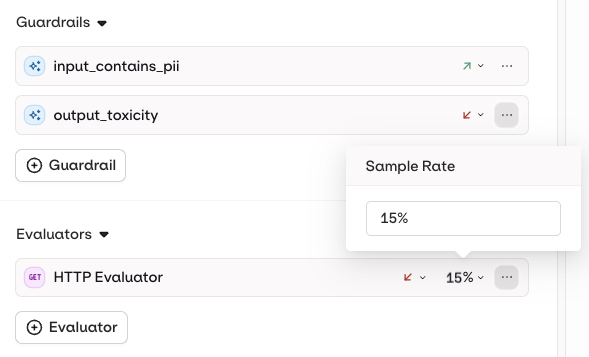
Evaluators run asynchronously and never block the response.
Guardrails section listing input_contains_pii and output_toxicity, and Evaluators section showing HTTP Evaluator at 15%, with a Sample Rate popover displaying 15%.
GuardrailsClick Guardrail to add a guardrail-capable evaluator from the Library.A Guardrail runs synchronously and will deny the generation if its evaluation fails, returning an error to the user. Guardrails can be configured as:
  • Input Guardrail: runs before the input is sent to the model.
  • Output Guardrail: runs after generation, before client response.
Guardrail behavior when a guardrail fails:
BehaviorDescription
RetryTriggers a new generation attempt. Use this when a transient or non-deterministic failure may resolve on retry.
FallbackExecutes the fallback model configured on the Deployment. Use this for a safe default response instead of retrying.
Guardrail behavior is configured per Deployment and applies to all guardrails attached to it.
Output Guardrails and Streaming: When a deployment is invoked with streaming enabled, output guardrails will be deactivated as they cannot be run effectively on chunks only.
See guardrails put to the test against adversarial inputs. Read our cookbook Red Teaming.

Security and Privacy

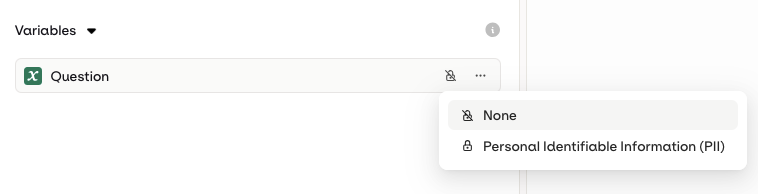
Input MaskingInputs in a Variant can be flagged as PII (Personally Identifiable Information). This is recommended when processing sensitive user data such as names, email addresses, or phone numbers.To configure this, open the Security tab when editing an input and choose Personally Identifiable Information (PII) from the Privacy drop-down.
Variables section with a Question variable and a privacy dropdown showing None and Personal Identifiable Information (PII) options.
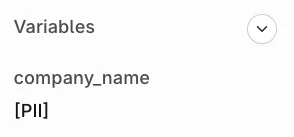
Flagging an input as PII removes its values from logs and traces. When opening a log or trace, the input is shown in red to indicate it was not logged. The API response itself still includes the PII value.Trace detail for gpt-4o showing a user message say hello to {name} and the assistant reply Hello, [name]! How are you today?
The API response will include the PII, but input and output logs and traces will not be logged in Orq.ai.
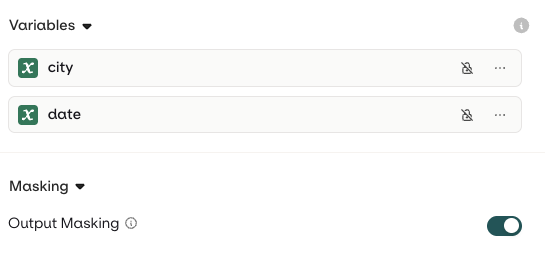
Output MaskingEnable output masking to hide generated outputs from logs and traces. Head to the Security tab in the Variant and enable the Output masking toggle.Variables section with city and date variables, and a Masking section with the Output Masking toggle enabled.When Output Masking is enabled, logs and traces will not store the generated response.A masked output field with a striped pattern and a tooltip reading The response from the model was masked due to your deployment settings.

Add a Variant

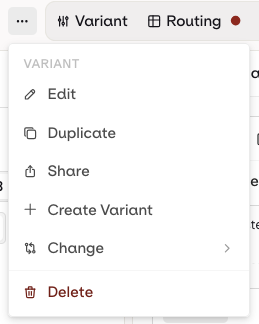
A single Deployment can hold multiple Variants. Multiple Variants can handle different use cases and scenarios within one Deployment, and can be served simultaneously through Routing.To add a new Variant, select the Variant name at the top-left of the screen and choose Add variant.
Variant context menu with options including Edit, Duplicate, Share, Create Variant, Change, and Delete.

Routing

Once a Variant is ready to be deployed, configure the routing variables to control which Variant is reached. Open the Routing page by selecting Routing at the top-left of the panel.
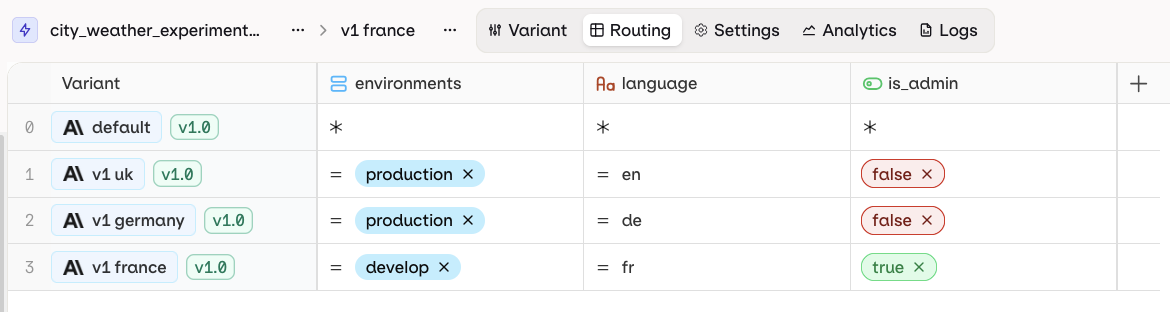
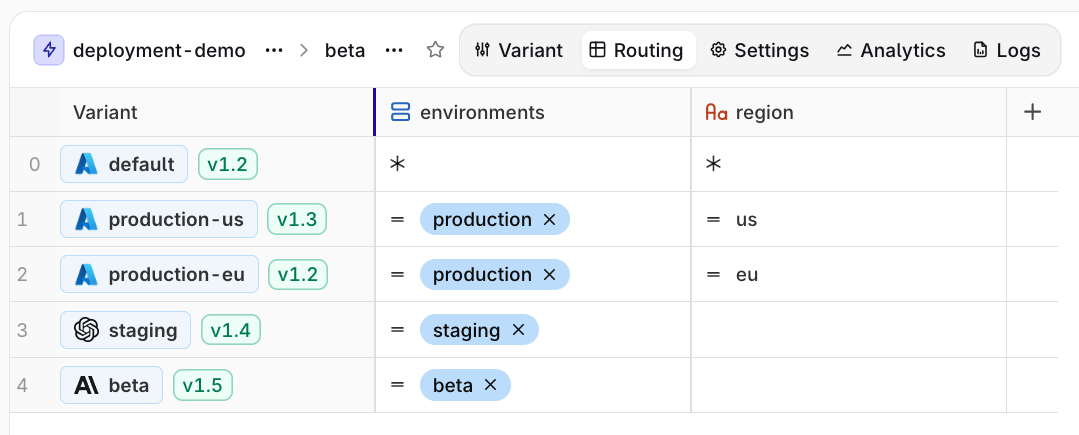
The Routing panel maps Variants to Context field values:
Each row represents a single Variant. Each column represents a single Context field. Each cell represents a Value for a Context field to be matched with a Variant.
Routing table for city_weather_experiment showing four variants: default matching all contexts, v1 uk for production/en, v1 germany for production/de, and v1 france for develop/fr with is_admin true.
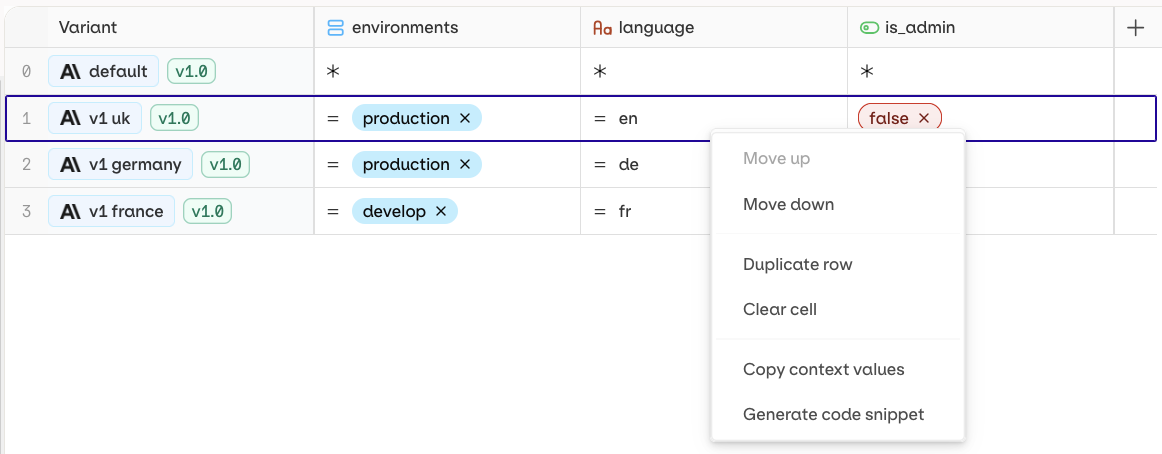
Default variant: The first row (0) is the default variant. If no routing rules match, or no context values are provided, the user is routed to Variant 0.Code SnippetsRight-click on any Variant in the Routing table and select Generate Code Snippets to get ready-to-use code for that specific Variant. Snippets include the correct context environment to reach the selected Variant.
Routing table with a right-click context menu open on the v1 uk row, showing options including Generate code snippet.
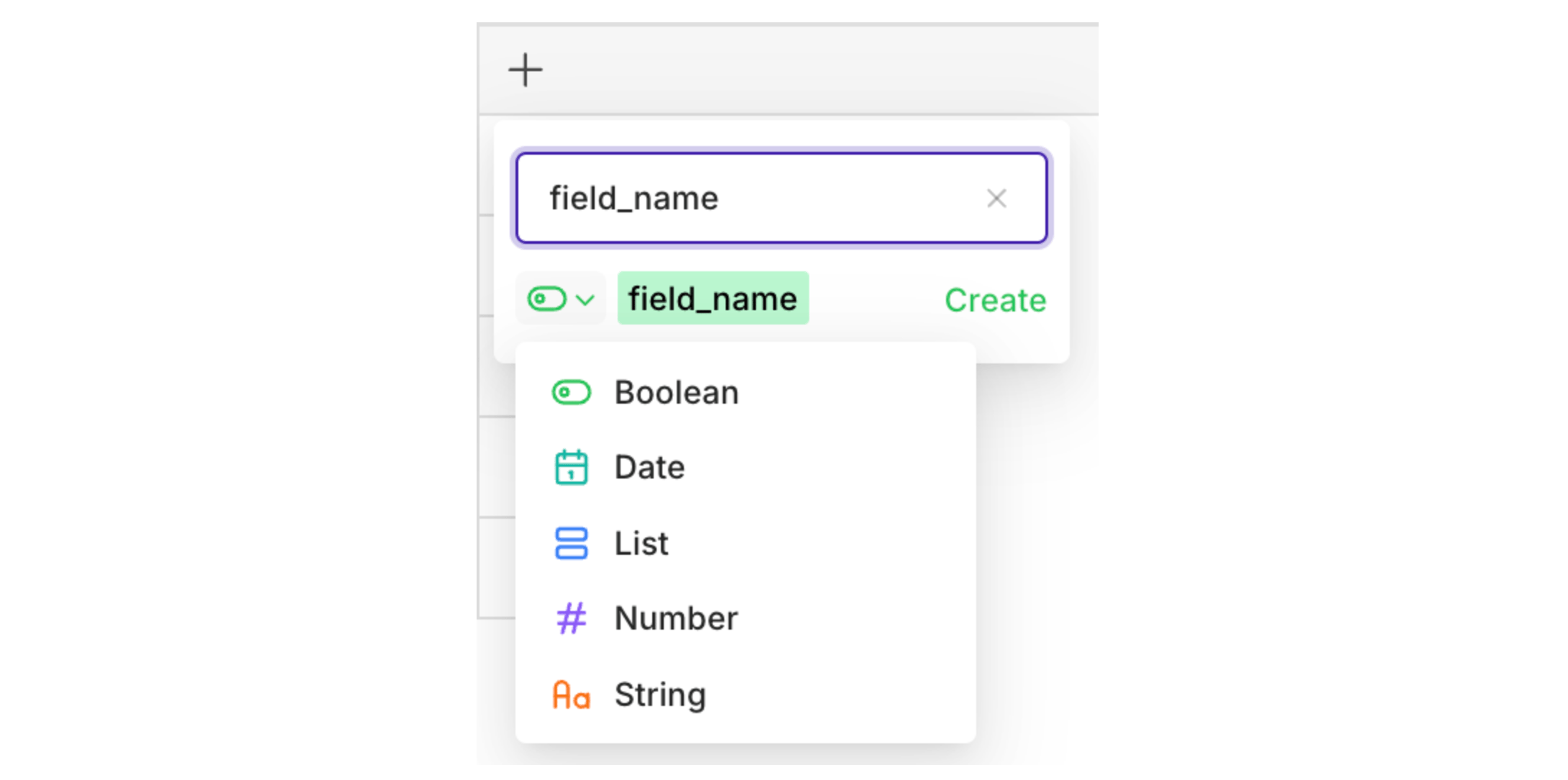
Context FieldsTo add a new context field, press the + button at the top right of the Routing table. Set a name and type for the field: boolean, date, list, number, or string.Context field creation dropdown with field_name entered and type options including Boolean, Date, List, Number, and String.Routing ConditionsCreate a custom routing condition for each field and Variant by entering a value in the corresponding cell. By default, the = operator is used. Click = to change the operator.
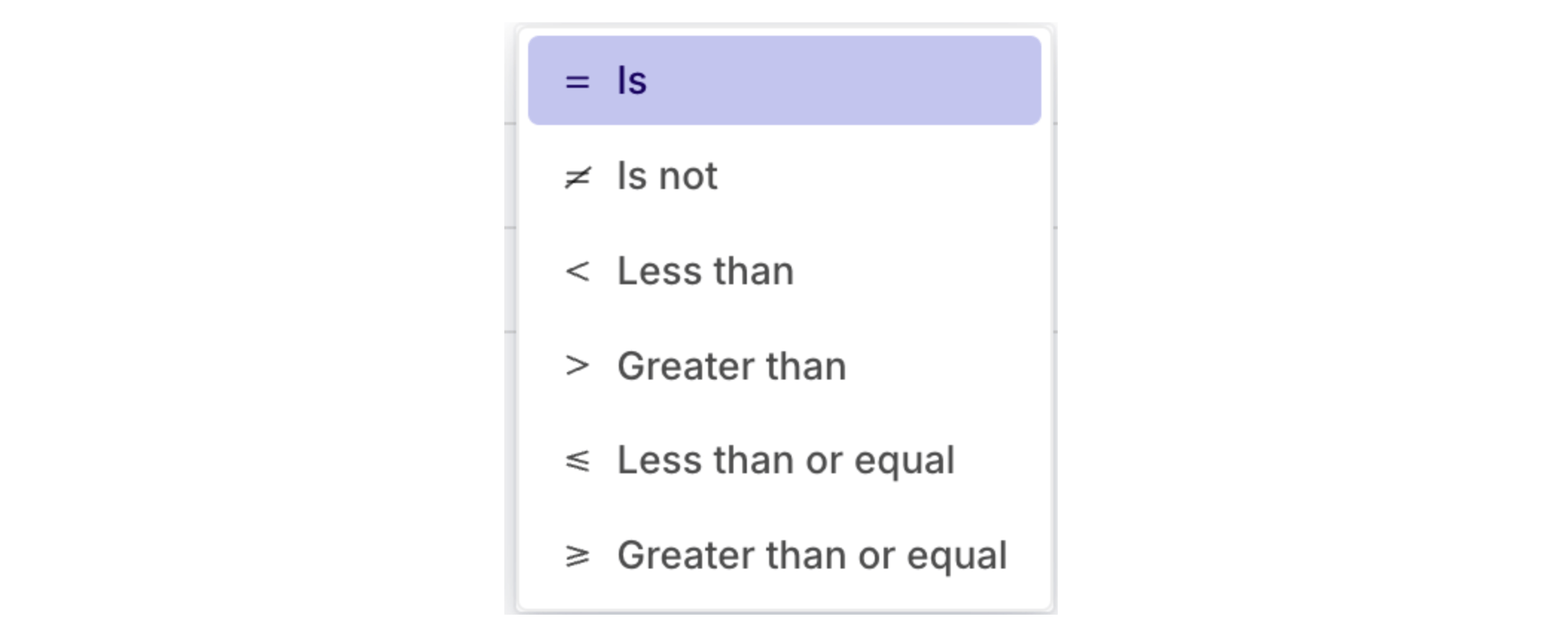
Operator dropdown showing options: Is, Is not, Less than, Greater than, Less than or equal, and Greater than or equal.
SimulatorRouting can be tested at any time by opening the Simulator via the Simulator icon at the top-right of the Routing panel. Enter values for all field configurations and select Simulate to see which Variant the query routes to.

Versioning

Version control tracks all changes to the model and prompt configuration. A new commit is made on each deployment and history is preserved throughout. All changes can be viewed, and any prior version can be restored.Deploying a New VersionWhen the configuration is ready, press the Deploy button on the Variant screen.
Variant toolbar showing share, code snippet, history, and external link buttons alongside the Deploy button.
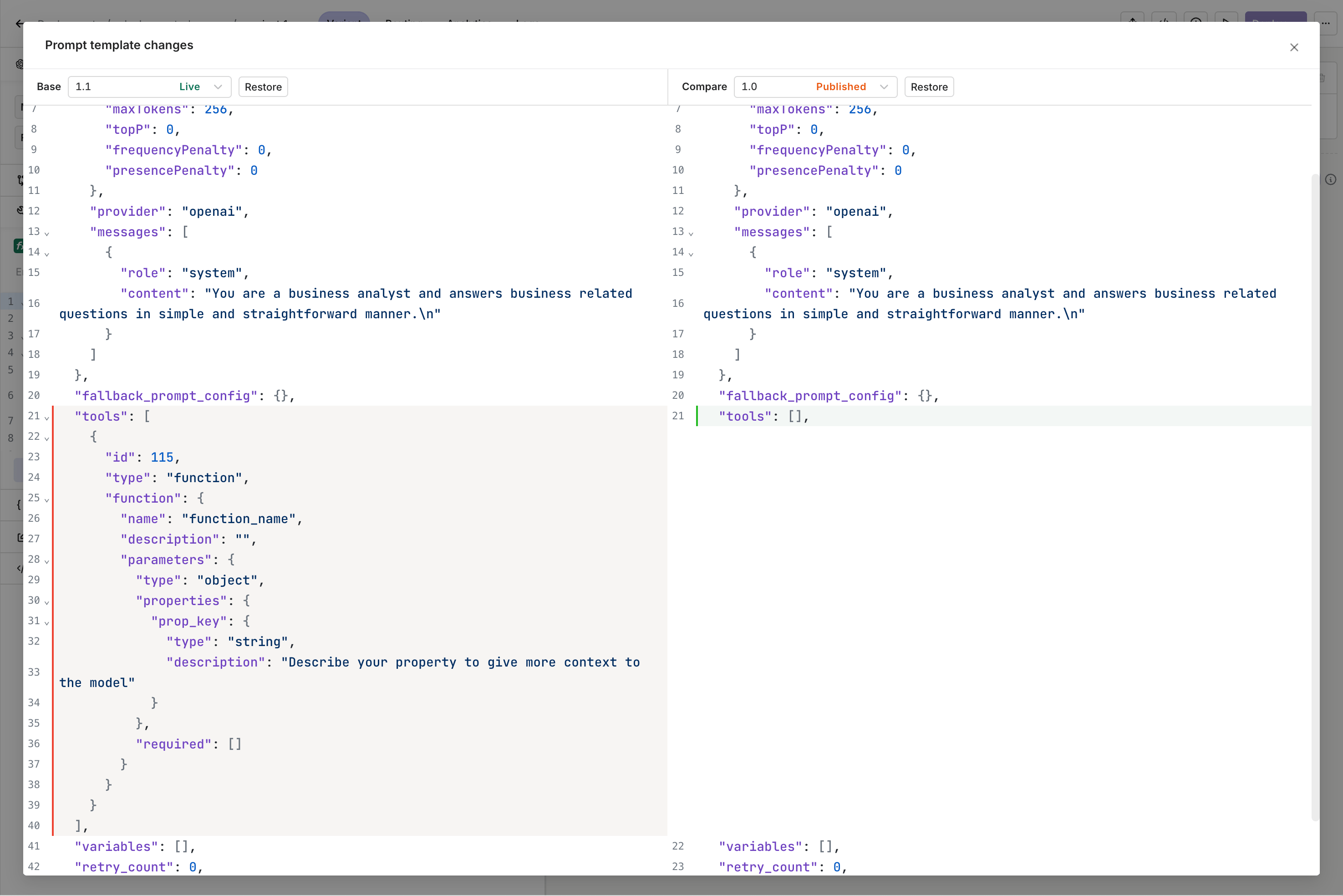
The deployment modal prompts for the new version (Major or Minor bump), a description of the changes, and whether to deploy immediately or save as a draft.Saving a Draft commits the changes on a new version without making them publicly available. They become public on the next deployment.Comparing ChangesSelect the Compare Changes button at the top-right to visualize changes between configurations in a side-by-side JSON view. Restore a previous version by selecting it in the left panel and clicking Restore.
Prompt template changes dialog showing a side-by-side diff between Base v1.1 and Compare v1.0 Published, highlighting a tools array added in the newer version.

Invoke a Deployment

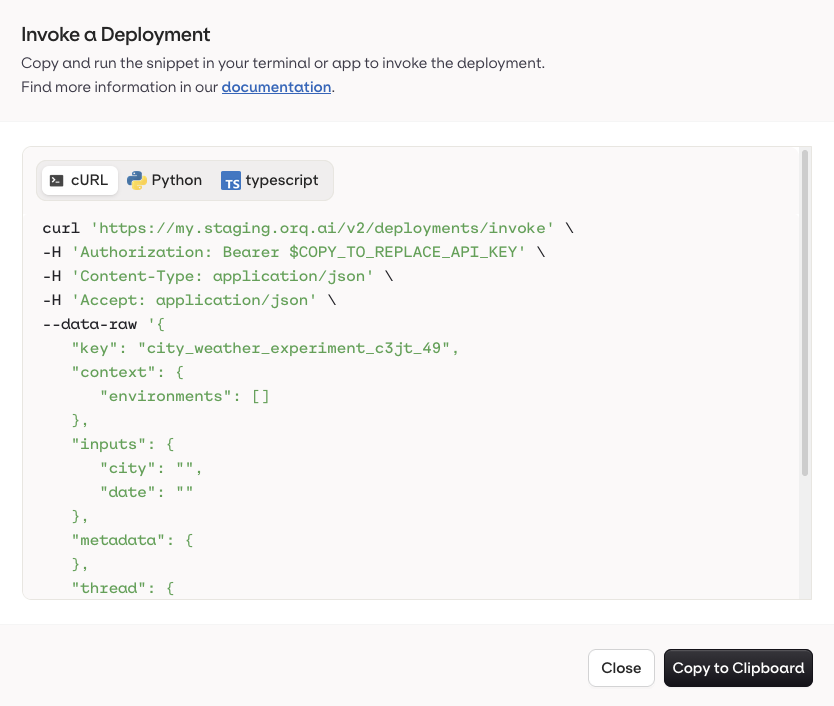
Use the Code Snippet button at the top-right of the Variant page to get ready-to-use integration code for Python, Node.js, and cURL. All snippets include the keys and context variables needed to reach the current Variant.
Variant toolbar showing share, code snippet, history, and external link buttons alongside the Deploy button.
Invoke a Deployment dialog with cURL, Python, and TypeScript tabs, showing a curl command for city_weather_experiment_c3jt_49 with city and date as inputs.
Code snippets per Variant are also accessible from the Routing page:
  1. Open a Deployment and go to the Routing page. The routing context menu on the Routing page showing options including Generate Code Snippet.

  2. Right-click the target Variant and select Generate Code Snippet.

Extra Parameters

Use extra_params to pass parameters not directly exposed by the Orq.ai panel, or to override existing model configuration at runtime.Passing an unsupported parameter:
curl --request POST \
     --url https://api.orq.ai/v2/deployments/invoke \
     --header 'accept: application/json' \
     --header 'authorization: Bearer <orq-api-key>' \
     --header 'content-type: application/json' \
     --data '
{
  "key": "my-deployment",
  "context": { "environment": "production" },
  "extra_params": { "presence_penalty": 1.0 }
}
'
Overwriting existing parameters can impact the model configuration. Use with caution.
Overwriting an existing parameter at runtime:
curl --request POST \
     --url https://api.orq.ai/v2/deployments/invoke \
     --header 'accept: application/json' \
     --header 'content-type: application/json' \
     --data '
{
  "key": "my-deployment",
  "context": { "environment": "production" },
  "extra_params": { "temperature": 0.4 }
}
'

Attach Files

The file_ids / fileIds parameter on deployment invocations is deprecated and will be removed in a future release. Use native file attachment instead.
Two options are available for attaching files to a Deployment:
  1. Send PDFs directly to the model in the invocation payload.
  2. Attach a Knowledge Base to the Deployment.
Sending PDFs Directly to the Model
This feature is only supported with OpenAI, Anthropic, and Google Gemini models.
Embed files directly in the Invoke payload using a file type message with a standard data URI scheme: data:content/type;base64 followed by the base64-encoded file data.
curl --request POST \
     --url https://api.orq.ai/v2/deployments/invoke \
     --header 'accept: application/json' \
     --header 'authorization: Bearer <orq-api-key>' \
     --header 'content-type: application/json' \
     --data '
{
  "key": "key",
  "messages": [
    {
      "role": "user",
      "content": [
        { "type": "text", "text": "prompt" },
        {
          "type": "file",
          "file": {
            "file_data": "data:application/pdf;base64,<base64-encoded-data>"
          }
        }
      ]
    }
  ]
}
'
See PDF inputs used to extract structured data end-to-end. Read our cookbook PDF Extraction.
Knowledge Base vs. Direct File AttachmentUse a Knowledge Base when: the information is reused across many requests and RAG (targeted chunk retrieval) is sufficient. Knowledge Bases retrieve relevant chunks but not the full document.Use direct file attachment when: the task requires full-document understanding (e.g. summarization, legal review, detailed analysis), the document is ad-hoc or session-specific, or the data is too sensitive for a shared knowledge repository.

Analytics and Logs

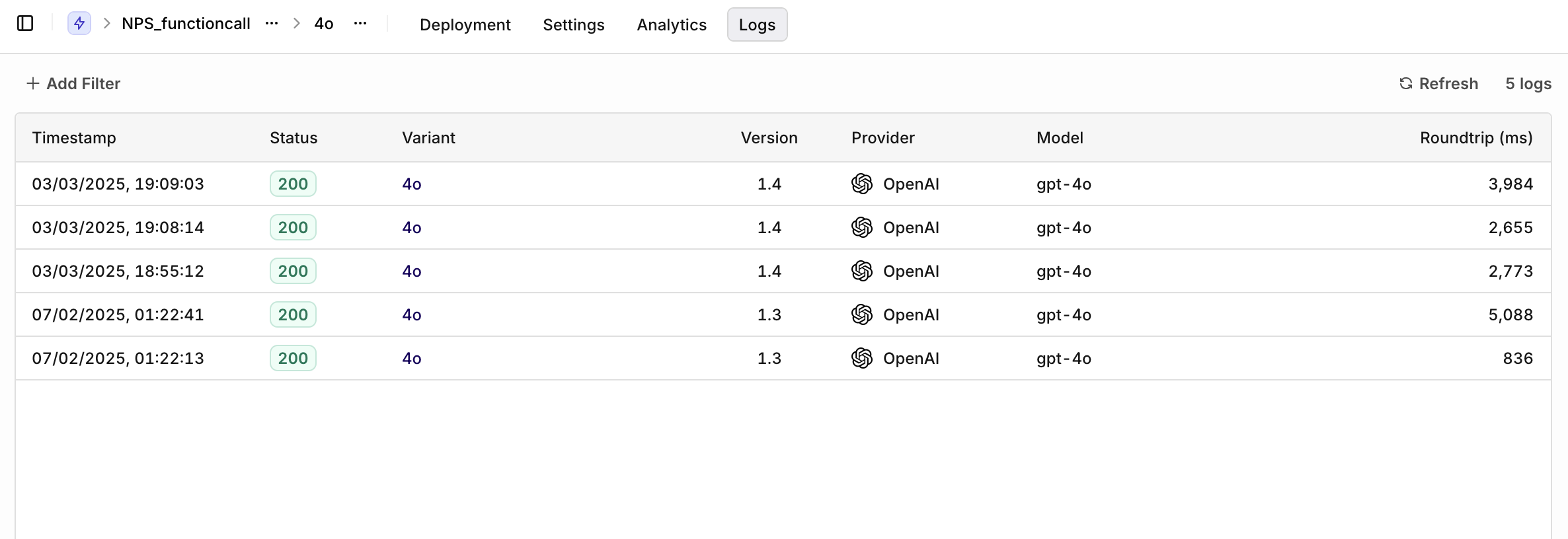
Once a Deployment is running and receiving traffic, detailed analytics of all requests are available.Logs show requests per Variant. Filters available:
  • Variant: select a single Variant to filter logs.
  • Evaluation: Matched (a routing rule was matched) or Default Matched (no routing rule matched, default Variant was used).
  • Source: API, SDK, or Simulator.
Click any log line to open a detail panel showing context, requests, and parameters sent to the Deployment.
Logs tab for the NPS_functioncall deployment showing five entries for variant 4o using gpt-4o via OpenAI, all with status 200.